
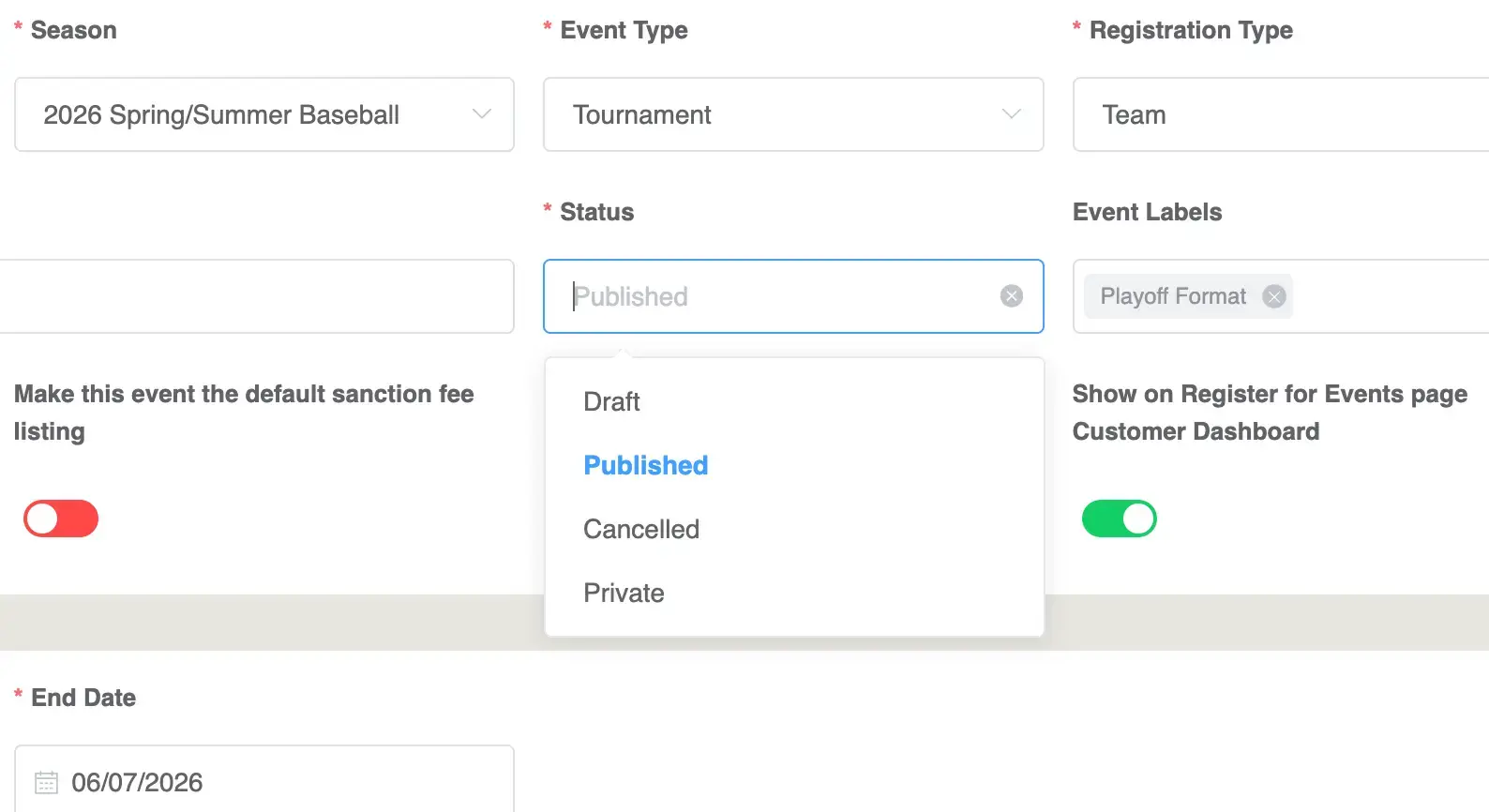
If an event is not appearing on your website’s public event listing, it is usually because the event’s status is not set to Published.
Playbook uses different event statuses to control whether an event is visible to the public.
Event Status Indicators
On the Event Listings page, each event has a colored status icon that indicates its visibility.
Published (Green)
Events with a green icon are published and visible on the front-end event listing of your website.
These events will appear publicly and can be viewed or registered for by customers.
Private (Yellow)
Events with a yellow icon are marked as Private.
Private events do not appear on the front-end event listing, but they remain accessible internally within the system.
Private status is commonly used when:
- An event is not ready to be announced
- Registration is being tested
- Access is restricted to specific users
Draft (Red)
Events marked with a red icon are in Draft mode.
Draft events are still being created and are not visible on the front-end event listing.
How to Make an Event Visible on the Front-End
To make an event appear on the public event listing:
- Navigate to Event Listings.
- Click the name of the event you want to edit.
- This opens the Event Listing Details page.
- Under the Details section, locate the Status field.
- Click the dropdown menu.
- Select Published.
- Click the green Finish button in the bottom right corner.
Confirming the Event Is Visible
After publishing the event:
- Go to the front-end event listing page of your website.
- Refresh the page.
- Your event should now appear in the list.
Quick Troubleshooting Checklist
If your event is not showing on the front end, verify:
✔ The event Status is set to Published
✔ The event is not in Private mode
✔ The event is not in Draft mode
Only Published events appear on the public event listing.