
Overview
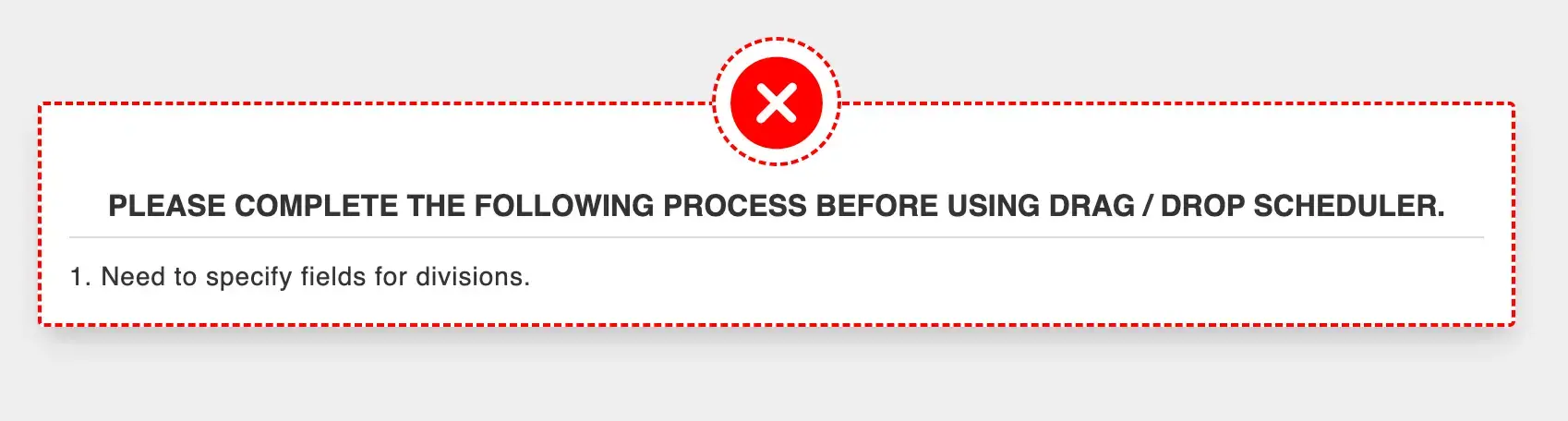
When scheduling games using the Whiteboard scheduler, you may encounter the following message:
“Need to specify fields for divisions.”
This error occurs when one or more divisions in the event do not have a field assigned. Every division must have at least one field attached before games can be scheduled on the whiteboard.
Why This Error Happens
Each division must be linked to one or more available fields where games can be played.
If a division does not have a field assigned, the Whiteboard scheduler will not allow scheduling because the system does not know where the games should be placed.
How to Fix the Error
Step 1: Open the Fields Page
From the event management screen, navigate to the Fields section by either:
- Clicking the Fields icon (F) in the event action menu
or - Clicking Fields from the event navigation tabs.
Step 2: Check Each Division
On the Fields page, you will see a list of divisions within the event.
Select each division individually to verify that a field has been assigned.
For example:
- 12U Open → Field assigned (correct)
- 16U Open → No field assigned (causing the error)
Step 3: Assign a Field
- Select the division that does not have a field assigned.
- Choose the appropriate field(s) for that division.
- Click Save.
Each division must have at least one field selected.
Step 4: Return to Whiteboard Scheduling
Once all divisions have fields assigned:
- Return to the Whiteboard scheduling page.
- The scheduler will now load correctly.
- You can begin placing games on the schedule.
Key Tip
Before starting scheduling, always verify that:
- All divisions have assigned fields
- Fields are saved properly
This prevents errors when launching the Whiteboard scheduler.