
Why Are My Divisions Out of Order on the Front End?
Overview
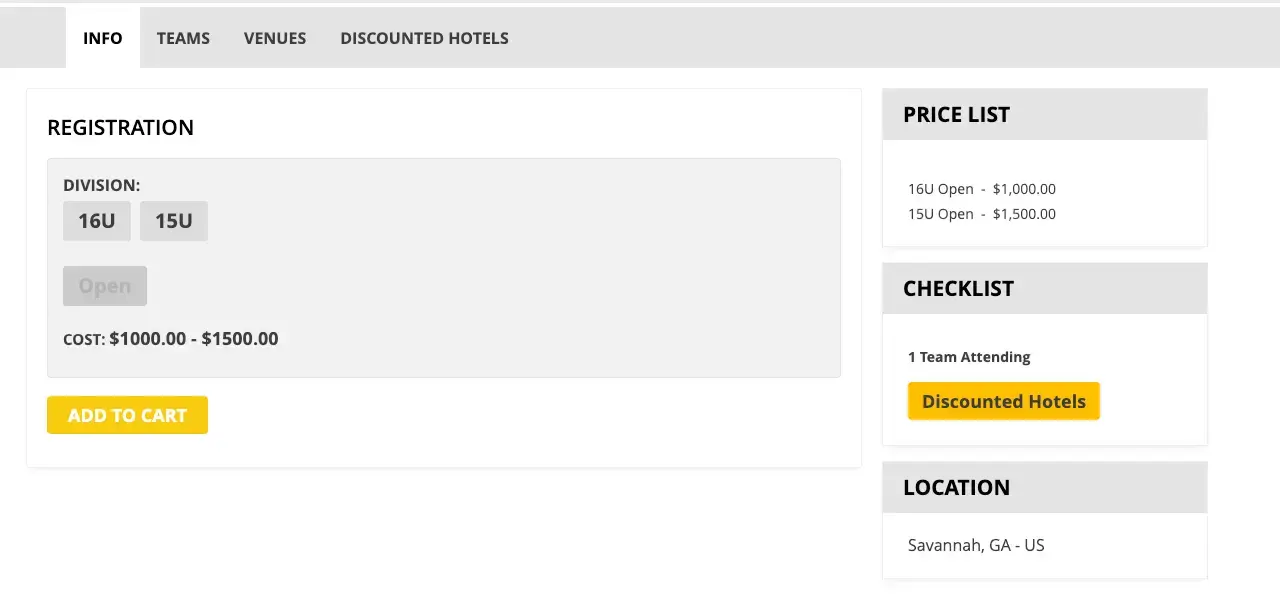
If the divisions on your public event page are displaying in the wrong order — for example, 16U appearing before 15U — the issue is caused by the sort order of your divisions in the Divisions Library. Playbook displays divisions on the front end in the order they are arranged in the backend Divisions Library.
You can fix this quickly by dragging and dropping divisions into the correct order on the Divisions page. The change takes effect immediately and will be visible on the front end after a page refresh.
Where to Find This
Event Management → Divisions
To preview the front end of a specific event:
Event Management → Events → orange eye icon (View Event)
Step-by-Step Instructions
Identifying the Problem
- In the left toolbar, click Event Management.
- Select Events.
- Locate the event where divisions appear out of order.
- Click the orange eye icon on that event's row. This is the View Event button that takes you to the public-facing event page.
- Review the division order displayed on the front end.
- Note which divisions are out of order so you know what to correct in the backend.
Fixing the Division Sort Order
- In the left toolbar, click Event Management.
- Select Divisions.
- Review the list of divisions. The order shown here is the order they will appear on the front end.
- Locate the division that is in the wrong position.
- Click and hold the 3x3 dot grid icon on the left side of the division row.
- Drag the division up or down to the correct position in the list.
- Release to drop it in place.
- A success notification will appear in the bottom-right corner of the screen confirming the sort order has been updated.
- Repeat for any other divisions that need to be repositioned.
Verifying the Fix on the Front End
- Navigate back to the public event page by clicking the orange eye icon on the event.
- Refresh the page.
- Confirm the divisions now appear in the correct order.
How Division Sort Order Works
The Divisions Library stores all divisions used across your events. The order in which divisions are listed in this library determines the order they display on the front end of any event they are assigned to.
This is a global library setting — reordering divisions here will affect all events that use those divisions, not just the one you were viewing.
Note: If you only want to reorder divisions for a specific event without affecting the global library order, this is not currently supported. The sort order is controlled globally through the Divisions Library.
Best Practices
- Set your division sort order in the Divisions Library at the beginning of each season before events are published. Getting the order right early prevents confusion for teams and families browsing your event pages.
- Organize divisions in ascending age or level order (e.g., 8U, 9U, 10U, 11U, 12U) so the front end displays in a logical sequence that is easy for customers to scan.
- After reordering, always verify the change by clicking the orange eye icon on the event and refreshing the public page. The success notification confirms the backend update, but a quick front-end check confirms what customers will see.
- If you add a new division to the library, it may appear at the bottom of the list by default. Drag it into the correct position immediately after creation to avoid publishing events with incorrect division order.
Common Issues
I dragged the division to the correct position but the front end still looks the same. Why? The front end will not update until you refresh the page. After repositioning a division in the Divisions Library and seeing the success notification, navigate back to the public event page and press refresh to see the updated order.
The division order looks correct in the Divisions Library but is still wrong on the front end. Why? Confirm you are viewing the correct event on the front end. Also check whether the event has multiple divisions with similar names that could be causing confusion. If the issue persists, try reordering again and refreshing the public event page.
I only want to change the order for one specific event, not all events. Is that possible? Division sort order is controlled globally through the Divisions Library. Reordering divisions there affects all events that use those divisions. There is no event-level override for division display order.
Where is the 3x3 dot grid icon? It appears on the left side of each division row in the Divisions Library. Hover over the far-left edge of any division row to reveal the drag handle. Click and hold it to drag the division to a new position.