
Overview
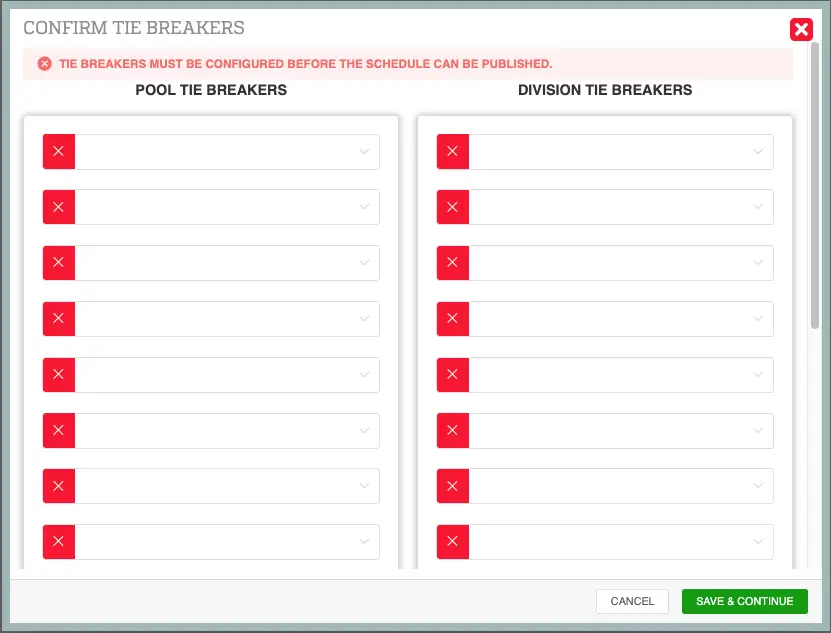
When you attempt to publish a schedule from the Whiteboard, Playbook365 may display a "Confirm Tiebreakers" prompt before allowing the schedule to go live. This prompt appears when tiebreakers have not yet been configured — either at the event level or in your Global Settings -> scheduler config.
This step is required. If tiebreakers are not set before games are scored, standings will calculate incorrectly and bracket advancement may produce wrong results. The prompt ensures tiebreakers are reviewed and saved before participants can see the schedule.
Where to Find This
To publish from the Whiteboard: Event Management → Events → Event Name → W (Whiteboard)
To configure tiebreakers on the event: Event Management → Events → Event Name → Edit Event → Tiebreakers tab
To configure global tiebreakers: Global Settings → Scheduler Config → Tiebreakers
What Triggers the Prompt
The "Tiebreakers must be configured before schedule can be published" message appears when:
- Tiebreakers have not been set on the Tiebreakers tab of the event, and
- No global settings tiebreaker rules have been configured in Scheduler Config
If either location has tiebreakers configured, the prompt will not appear.
Step-by-Step Instructions
Resolving the prompt from the Whiteboard
- Open the Whiteboard for your event by clicking the W button from the event action buttons.
- Click the Publish button (checkmark icon on the left toolbar).
- If tiebreakers are missing, the "Confirm Tiebreakers" prompt will appear on screen.
- Review and configure your tiebreaker settings directly within the prompt.
- Click Save and Continue to save your tiebreakers and proceed with publishing.
Your schedule will publish after saving. You will still need to change the status to show schedule on the Cell tower icon for the schedule to show on the frontend.
Configuring tiebreakers before returning to the Whiteboard
If you prefer to set tiebreakers in advance:
- Navigate to Event Management → Events.
- Click the event name to open it.
- Click Edit Event.
- Select the Tiebreakers tab from the left side of the screen.
- Configure your Pool Tiebreakers and Division Tiebreakers as needed.
- Click Finish to save.
-
Return to the Whiteboard and publish your schedule.Best Practices
-
Set tiebreakers before scheduling games. Doing this during event setup — not at publish time — reduces last-minute friction.
- Check your global settings first. If your organization uses consistent tiebreaker rules across all events, configure them once in Scheduler Config → Global Settings. Events will inherit those rules automatically unless overridden at the event level.
- Use event-level tiebreakers only when needed. Only configure the Tiebreakers tab on a specific event if that event requires different rules than your global defaults.
- Review tiebreaker order carefully. The sequence of tiebreakers matters. Confirm the priority order reflects how your event director intends to resolve ties.
Common Issues
Why am I seeing "Tiebreakers must be configured before schedule can be published"? This appears when neither the event's Tiebreakers tab nor the global Scheduler Config has tiebreakers set. Configure tiebreakers using the prompt on the Whiteboard page or by editing the event directly, then click Save and Continue.
Can I set tiebreakers directly from the Whiteboard prompt? Yes. The Confirm Tiebreakers prompt includes the tiebreaker configuration fields. You do not need to leave the Whiteboard. Set your tiebreakers in the prompt and click Save and Continue.
What happens if I skip tiebreaker setup? The schedule cannot be published until tiebreakers are configured. The system blocks publishing to prevent incorrect standings and bracket advancement results.
Will my tiebreaker settings apply to future events? Settings saved on the event's Tiebreakers tab apply to that event only. To apply rules to all events, configure them in Scheduler Config → Global Settings.
My global tiebreakers are already set — why is the prompt still appearing? Verify that the global tiebreaker rules are saved correctly in Scheduler Config. If the settings are incomplete or were not saved, the system may still trigger the prompt.