
ViCoverage Insurance – Overview for Event Operators
Overview
Playbook365 has partnered with ViCoverage, powered by Vertical Insure, to offer optional insurance products directly inside the registration checkout experience. These products give your teams, players, and families financial protection against unexpected events — and they give you, the event operator, a way to reduce refund pressure and chargebacks.
Three coverage products are available through the Playbook365 + ViCoverage integration:
- Event Cancellation Team Coverage — protects teams from losing registration fees if the event is cancelled due to weather
- Player Registration Protection — refunds families their registration fees if a player is unable to participate due to injury, illness, job loss, relocation, or active military duty
- Accident & Injury Insurance — covers out-of-pocket medical expenses when athletes are injured during practices, games, or tournaments
All three products are opt-in. Families and team admins select coverage at checkout. Claims are filed directly through ViCoverage — no additional work is required from your staff after setup.
For a full introduction to ViCoverage and the Playbook365 partnership, watch the overview video here: https://vimeo.com/1089869094?fl=pl&fe=sh
Where to Find This
Your ViCoverage resource hub is located at:
Playbook365 Dashboard-> Vertical Insure-> Help & Resources
Direct link to your ViCoverage Resource Hub: https://partnerships.verticalinsure.com/playbook365-wK1IbHHWDh2C/H58ybWFeOL3n
This hub is for internal use only. Do not share this link directly with teams, players, or families. Instead, copy and distribute the individual sections (PDFs, email templates, social media posts) from within the hub.
The Three Coverage Products
1. Event Cancellation Team Coverage
What it covers: Event Cancellation Team Coverage protects teams from losing their non-refundable registration fees if an event is cancelled or shortened due to unsafe playing conditions caused by weather.
Covered weather conditions include:
- Rain
- Snow
- Ice
- Hurricanes
- Wind
- Lightning
- Heat
- Tornadoes
- Earthquakes
How refunds are calculated: Refunds are based on games played vs. games guaranteed. For example, if a team registered for a 3-game minimum tournament and only 1 game was played before weather cancellation, the team is eligible for a refund of 2/3 of their registration fee. If the tournament is cancelled in full before any games begin, covered teams are eligible for a 100% refund of their registration fee.
Who purchases it: Team Admins add this coverage during registration. Coverage must be purchased before the event begins. Policies must be purchased at least 15 days prior to the start of the event.
Where to purchase: Coverage can be added at checkout during team registration, or after registration is complete by logging into the customer dashboard and purchasing from within the account.
How to file a claim: Teams file claims at customers.vicoverage.com using the same email address used when purchasing coverage.
2. Player Registration Protection
What it covers: Player Registration Protection is optional coverage that refunds families up to 100% of their registration fees if their player cannot participate due to a covered reason.
What's covered:
- Season-Ending Injuries — the athlete is injured (on or off the field) and unable to finish the season
- Season-Ending Illness — an illness prevents the athlete from participating for the rest of the season
- Short-Term Injuries & Illnesses — the athlete is unable to participate due to an injury or illness (on or off the field)
- Job Loss or Relocation — a parent is unexpectedly relocated for work or loses their job, preventing the athlete from finishing the season
- Active Military Duty — a parent is called for duty or reassigned unexpectedly, forcing the athlete to withdraw from the season
What's not covered:
- Pre-existing medical issues (last 90 days)
- Personal schedule conflicts
- Coach or team conflicts
Who purchases it: Families add this coverage during player or team registration. If the athlete is injured or cannot participate for a covered reason, they can file a claim at customers.vicoverage.com.
Where to purchase: Coverage can be added at checkout during registration, or after registration is complete by logging into the customer dashboard and purchasing from within the account.
3. Accident & Injury Insurance
What it covers: Accident & Injury Insurance helps families cover unexpected out-of-pocket medical costs from injuries that occur during practices, games, or tournaments. It works alongside (not instead of) primary health insurance — helping pay the costs that primary insurance doesn't fully cover.
Why it matters: Without coverage, a sports injury that results in an ER visit can leave families paying thousands of dollars out of pocket after primary insurance deductibles and coinsurance. Accident & Injury Insurance is designed to offset those costs with a simple one-time fee paid at registration.
Who purchases it: Families add this coverage during player registration. If an athlete is injured, they file a claim at customers.vicoverage.com.
Where to purchase: Coverage can be added at checkout during registration, or after registration is complete by logging into the customer dashboard and purchasing from within the account.
Why You Should Make ViCoverage Available
Offering ViCoverage products in your registration flow benefits your organization in several key ways:
Reduces refund requests. When families and teams have insurance coverage, they have a path to recover their registration fees through ViCoverage instead of coming back to your organization. This reduces chargebacks and direct refund pressure on your staff.
Increases registration confidence. Families are more likely to register — and register early — when they know their investment is protected. Player Registration Protection specifically removes a major hesitation point for families uncertain about season injuries, job changes, or relocations.
Protects teams from weather-related losses. Event Cancellation Team Coverage gives teams confidence that a single rain-out weekend won't cost them their full registration fee. This builds trust and encourages repeat participation in your events.
No extra work for your staff. ViCoverage handles all customer support, claims processing, and payouts. Your team is not involved in the claims process once coverage is enabled.
Powered by Vertical Insure — built for sports. Every policy is backed by top-rated insurance carriers and specifically designed for the sports registration industry.
How to Enable ViCoverage in Playbook365
Step 1 – Request Activation
ViCoverage must be enabled on your account before it will appear in your dashboard or event settings. If you do not already have it enabled, contact Playbook365 support to request activation:
- Email: [email protected]
- Live Chat: Available in the lower-right corner of your admin dashboard
Once enabled, a Vertical Insure menu item will appear in your left navigation menu, just above the Store Front (shopping cart) icon. This is where you can access ViCoverage reports and account information.
Step 2 – Activate ViCoverage for a Specific Event
ViCoverage coverage options must be turned on individually for each event where you want them to appear at checkout.
- Navigate to Event Management → Events
- Locate the event and open it to the event edit pages
- On the first tab (Details), locate the Vertical Insure toggle
- Toggle it on
Once enabled, the ViCoverage coverage options will be presented to your customers during registration checkout for that event.
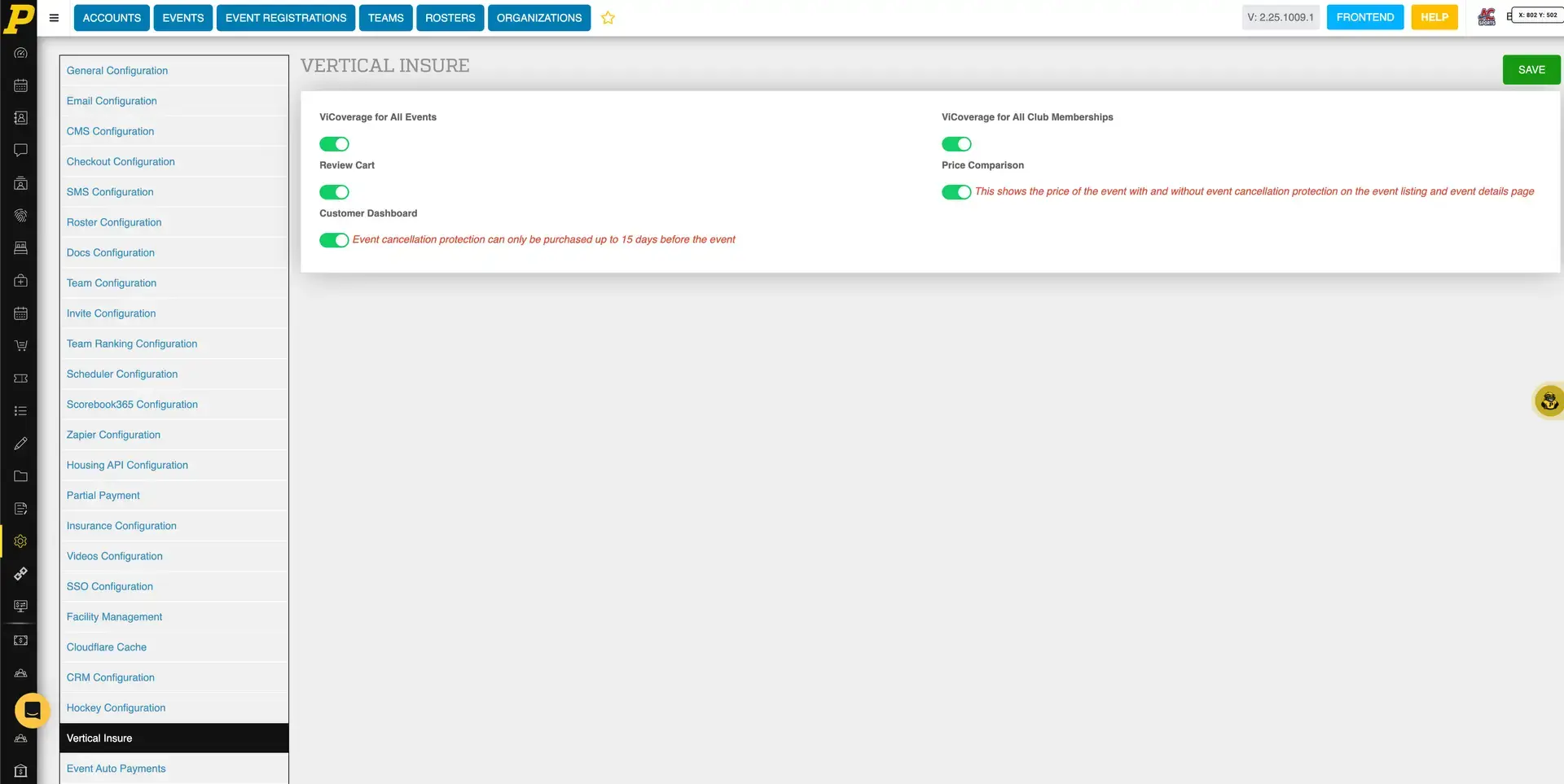
Step 3 – Manage Which Products Appear (Global Settings)
You can control which ViCoverage products are available across your organization using Global Settings.
- Click the gear icon in the left navigation menu to open Global Settings
- Scroll down and click Vertical Insure
- Toggle individual products on or off as needed:
Options toggled off here will not appear to customers at checkout, even if the Vertical Insure toggle is enabled on an individual event.
Step-by-Step Instructions
Accessing Your ViCoverage Resource Hub
- Navigate to your ViCoverage Resource Hub at: https://partnerships.verticalinsure.com/playbook365-wK1IbHHWDh2C/H58ybWFeOL3n
-
Use the tabs at the top to navigate between product sections:
-
ViCoverage + Playbook365 — Overview and account manager contact
- About ViCoverage — General information and how to file a claim
- Event Cancellation Team Coverage — Product resources and email toolkit
- Player Registration Protection — Product resources and email toolkit
- Accident & Injury Insurance — Product resources and email toolkit
Sharing ViCoverage Information with Teams and Families
Each product section inside the resource hub includes:
- Marketing Toolkit — downloadable PDFs to share directly with players, families, and team admins
- Helpful Videos — shareable video links to explain each product (copy the Vimeo link to include in emails or event pages)
- Social Media Toolkit — pre-written posts with captions and images ready to publish
- Email Toolkit — pre-written email templates for multiple send timing scenarios (pre-registration, launch day, second chance, and combined coverage)
Do not share the resource hub link directly. Copy content from the hub and distribute it through your own communications.
Filing a Claim (for Teams and Families)
Instruct teams and families to:
- Go to customers.vicoverage.com
- Create a Customer Portal account using the same email address used when purchasing coverage
- Log in and find their policy
- Click "File a Claim"
- Complete the form and upload any requested documents
- A ViCoverage claims examiner will review the submission and send email updates
Field Reference
| Product | Who Purchases | When to Purchase | Where to File a Claim | | --- | --- | --- | --- | | Event Cancellation Team Coverage | Team Admin | During team registration; at least 15 days before the event. Customer Dashboard | customers.vicoverage.com | | Player Registration Protection | Parent / Family | During player or team registration. Customer Dashboard | customers.vicoverage.com | | Accident & Injury Insurance | Parent / Family | During player registration. Customer Dashboard | customers.vicoverage.com |
Best Practices
- Promote coverage before registration opens. Use the pre-registration email templates from the Email Toolkit to introduce families to coverage options before they reach checkout. Families who are aware of the option in advance are more likely to add it.
- Include coverage language in your refund policy messaging. The resource hub includes sample refund policy language for websites and emails. Use it to let families know that while registration fees are non-refundable, they can protect their investment through ViCoverage.
- Use the combined coverage email template. The Email Toolkit includes a combined email that promotes both Player Registration Protection and Accident & Injury Insurance together. This is the most efficient way to inform families about multiple products in a single message.
- Do not share the resource hub link publicly. The hub is for internal organizational use. Share only the individual product PDFs, video links, or email copy with your teams and families.
- Contact your account manager with questions. Your dedicated ViCoverage account manager is Shelly Pope, Head of Partner Relations and Development at Vertical Insure. You can reach Shelly directly through the resource hub to ask questions, get help with rollout, or schedule a call.
Common Issues
"A team is asking for a refund because the event was rained out." If the team purchased Event Cancellation Team Coverage, direct them to file a claim at customers.vicoverage.com. Teams without coverage are not eligible for refunds — registration fees are non-refundable. Use the refund policy language templates in the resource hub to communicate this consistently.
"A family wants a refund because their player was injured." If the family purchased Player Registration Protection, direct them to customers.vicoverage.com to file a claim. If they did not purchase coverage, registration fees are non-refundable. This is a key reason to promote Player Registration Protection before and during registration.
"A family says they can't find their policy." Instruct them to log in to customers.vicoverage.com using the same email address they used when purchasing coverage. They should also have received a confirmation email at purchase with policy details.
"I don't see a Vertical Insure menu item in my dashboard." ViCoverage must be activated on your account first. Contact Playbook365 support at [email protected] or use the live chat in your admin dashboard to request activation. Once enabled, the Vertical Insure menu item will appear in the left navigation menu above the Store Front icon.
"I enabled Vertical Insure on my event but the products aren't showing at checkout." Check your Global Settings. Go to the gear icon in the left menu → Vertical Insure and confirm the individual product toggles are turned on. Products disabled at the global level will not appear at checkout even if the event-level toggle is on.
"A family wants to add coverage after they already registered." Coverage can be purchased after initial registration by logging into the customer dashboard. For Event Cancellation Team Coverage, the purchase must be made at least 15 days before the event. Contact ViCoverage at [email protected] for additional guidance.