
Overview
Playbook is changing its payment processing provider from Payrix to JustiFi. To keep accepting payments without interruption, every existing Playbook customer must complete a one-time migration application for each of their merchant accounts.
This application submits your business information to JustiFi for approval. Much of the information is pulled automatically from your existing Payrix account, so most fields are pre-filled for you. You only need to add a few items that cannot be transferred securely, upload a bank document, and submit.
Complete this application as early as possible. Payrix is being phased out, and an approved JustiFi application is required before your account can process payments on the new platform.
Where to Find This
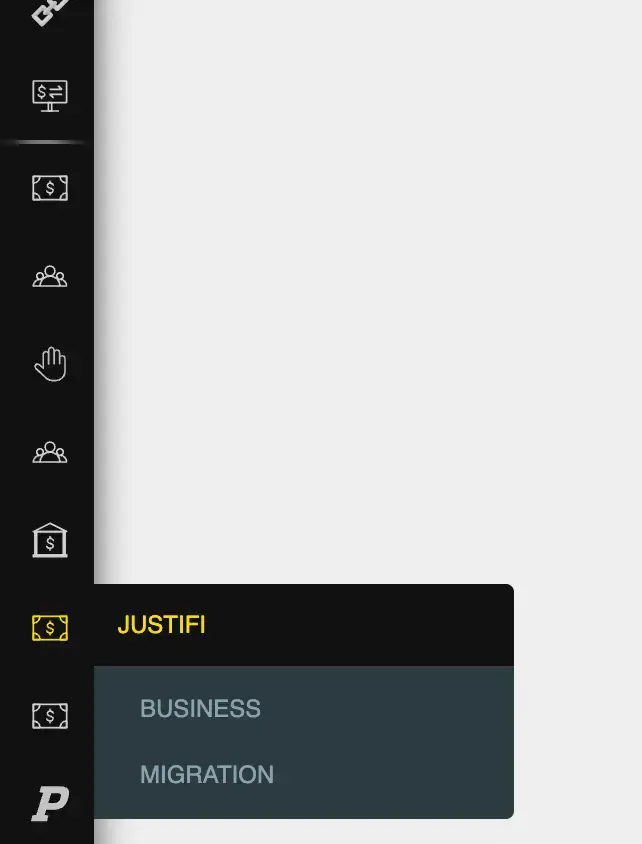
Log in to Playbook Manager, then navigate to:
JustiFi → Migration
The JustiFi menu item appears in the left-side navigation menu. It has two sub-items:
- Business — the overall view of your merchant accounts, where you track application status.
- Migration — where you begin and complete the migration application.
Start on the Migration page.
Step-by-Step Instructions
- In the left-side menu, click JustiFi, then click Migration.
- On the JustiFi Migration Dashboard, locate the merchant account you want to migrate. All active merchant accounts on your Playbook account are listed here, including your main default merchant and any secondary merchants.
- Find your merchant in the list. In the Action column, click the Sign Up button for that merchant to begin the application.
- Wait for the application to load. The first load can take a minute or two because Playbook is retrieving your data from Payrix and pre-filling the form. Be patient and let it finish.
- Page 1 – Business Information. Review the pre-filled business details. Enter the Business EIN, which does not transfer automatically. Confirm the rest of the information is correct, then continue to the next page.
- Page 2 – Owner Information. Enter the individual owner's details, including name, Social Security Number, and address. The Social Security Number does not transfer automatically and must be entered manually. Continue to the next page.
- Page 3 – Financial Projections. Review the projected figures. For most accounts these are calculated automatically from your last 12 months of Payrix activity. Continue to the next page.
-
Page 4 – Bank Account Information. Enter your bank account details for deposits. Then upload one of the following:
-
A voided check, or
- Three months of bank statements
- Click Submit.
- After submitting, you are returned to the Business page, where you can track the status of your application.
Field Reference
The migration application spans four pages. Most fields are pre-filled from Payrix. The fields below are the ones that require your attention.
Business EIN (Page 1)
Your business's Employer Identification Number. This must be entered manually — it cannot be transferred securely from Payrix. Required.
Business Email (Page 1, pre-filled)
The email address on file for the business, pulled from Payrix. JustiFi uses this address for all follow-up communication about your application. There is no option to CC another person, so make sure this is the email address of the person who should receive JustiFi's messages. If it is incorrect, correct it before submitting.
Social Security Number (Page 2)
The owner's Social Security Number. Must be entered manually — it cannot be transferred securely from Payrix. Required.
Owner Name and Address (Page 2, usually pre-filled)
The individual owner's name and address. Confirm these are accurate.
Financial Projections (Page 3, usually pre-filled)
Estimates for the next 12 months, including total revenue, credit card processing volume, and average transaction amount. These are calculated from your last 12 months of Payrix data. Keep these figures close to reality — JustiFi uses them to monitor accounts for fraud, chargebacks, and other security concerns.
Bank Account Information (Page 4)
Your bank account details for deposits.
Bank Verification Document (Page 4)
Upload either a voided check or three months of bank statements. One or the other is required. A bank letter is not accepted on this form.
What Happens After You Submit
Once you submit the application, you land back on the Business page. This page shows the status of your application as it moves through JustiFi's approval process.
JustiFi may email you to request additional documents. These emails go to the business email address from Page 1 of your application. Watch for any communication from JustiFi after submitting.
Documents JustiFi may request include:
- Driver's license of the owner
- Utility bill for the business or owner (used to verify the state the business operates in)
- Articles of organization (sometimes required if JustiFi cannot find a record of the business online)
The specific documents requested often depend on your processing volume.
Approval currently takes one to two business days. Once your application is approved, there is nothing further you need to do at this time. When Playbook is ready to fully switch over to JustiFi, you will receive separate instructions on activating your account for live transactions.
Best Practices
Complete your application as early as possible. Approval must be finished before your account can process payments on JustiFi, and completing it early prevents any hold-ups.
Use the correct email address on Page 1. All JustiFi follow-up goes to this address, and there is no way to copy an additional recipient. The person completing the application should generally be the person who will receive JustiFi's communications.
Keep your financial projections realistic. Accurate figures help JustiFi monitor your account and avoid unnecessary reviews.
Have your bank document ready before you start. You will need either a voided check or three months of bank statements to finish Page 4.
If you have multiple merchant accounts, complete a separate application for each one. Each active merchant listed on the Migration page needs its own migration.
Prioritize accounts that will collect early payments. If you plan to open registration and collect payments for upcoming seasons soon, migrate those accounts first so there is no gap in your ability to take payments.
Common Issues
The application page is taking a long time to load. Is it broken?
No. The first load can take a minute or two because Playbook is pulling all of your data from Payrix and filling in the form. Give it time to finish before assuming there is a problem.
Which fields do I actually have to fill in?
Almost everything is pre-filled from Payrix. The items you must enter yourself are the Business EIN (Page 1) and the owner's Social Security Number (Page 2). These cannot be transferred securely, so they are entered manually.
Can I upload a bank letter instead of a check or statements?
No. The form only accepts a voided check or three months of bank statements. A bank letter is not an option on this form.
I have more than one merchant account. Which do I migrate?
All of them. Every active merchant account — your main merchant and any secondary merchants — appears on the Migration page and must be migrated individually.
JustiFi emailed asking for more documents. Is that normal?
Yes. Depending on your processing volume, JustiFi may request follow-up documents such as a driver's license, a utility bill, or articles of organization. Provide what they request so approval can continue.
Where do I see whether my application was approved?
On the Business page. It displays your application status. Approval notifications and any document requests are sent by email to the business email address on Page 1.