
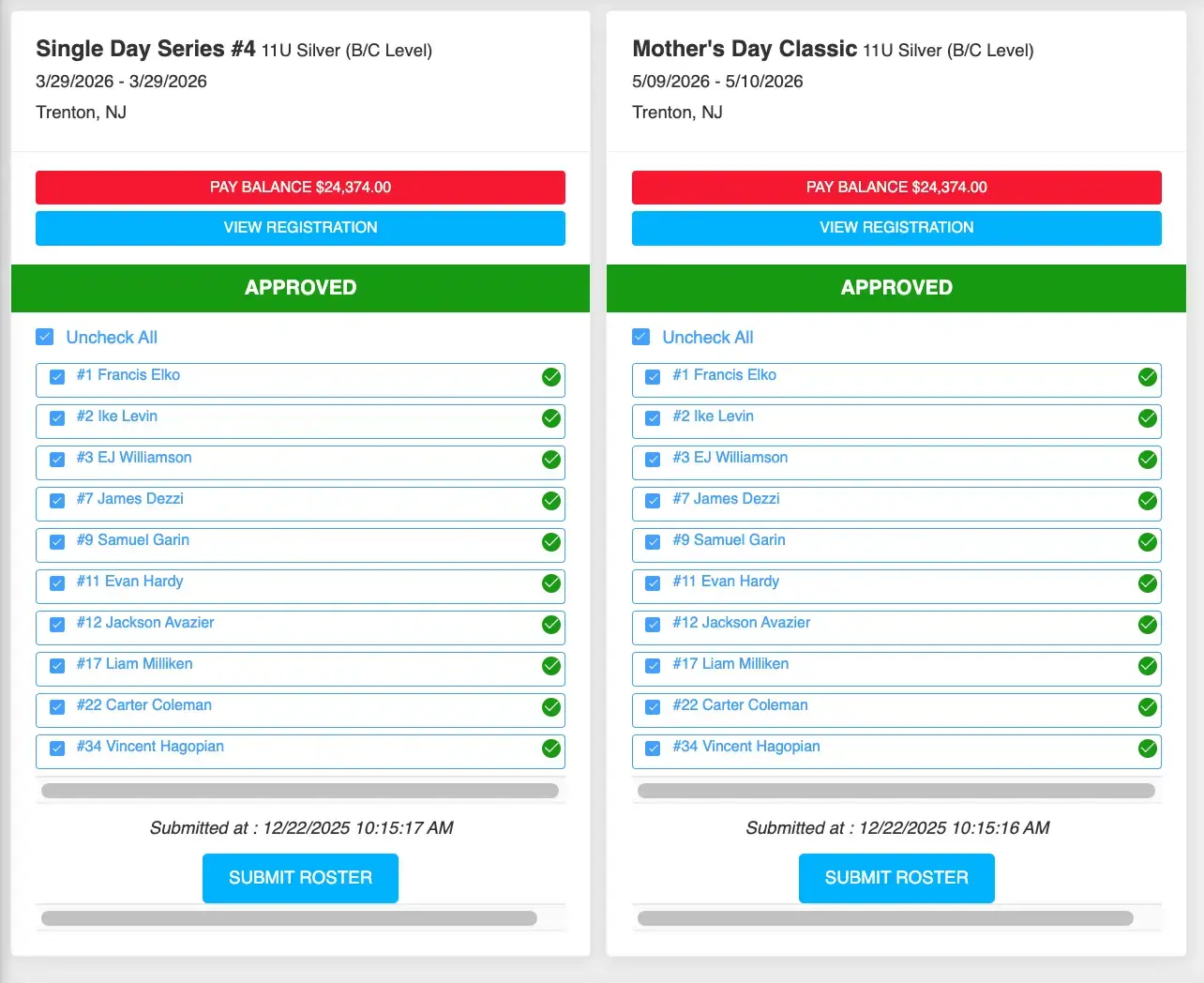
Coaches can submit their roster for an event directly from their customer dashboard. This allows them to confirm which players will be attending a specific event.
Navigating to the Event
- Log into the customer dashboard
- If the coach has multiple teams, select the correct team from the dropdown
- Choose Edit & Submit Roster for the upcoming event you are working with
- This will display the team roster for that event
Selecting Players
- All players on the roster will be listed
- To include all players, click Check All
- To remove a player, uncheck their name
- Only checked players will be submitted for the event
Submitting the Roster
- After selecting players, click Submit Roster
- A confirmation notification will appear
- The system will display the date and time the roster was submitted
Making Changes
- You can adjust player selections before submitting
- If needed, update the roster and resubmit (if allowed by event settings)
Tips
- Double-check player selections before submitting
- Parents may be required to register their player before they can be submitted
- Only include players attending that specific event
- Use Check All for faster submission when most players are attending