
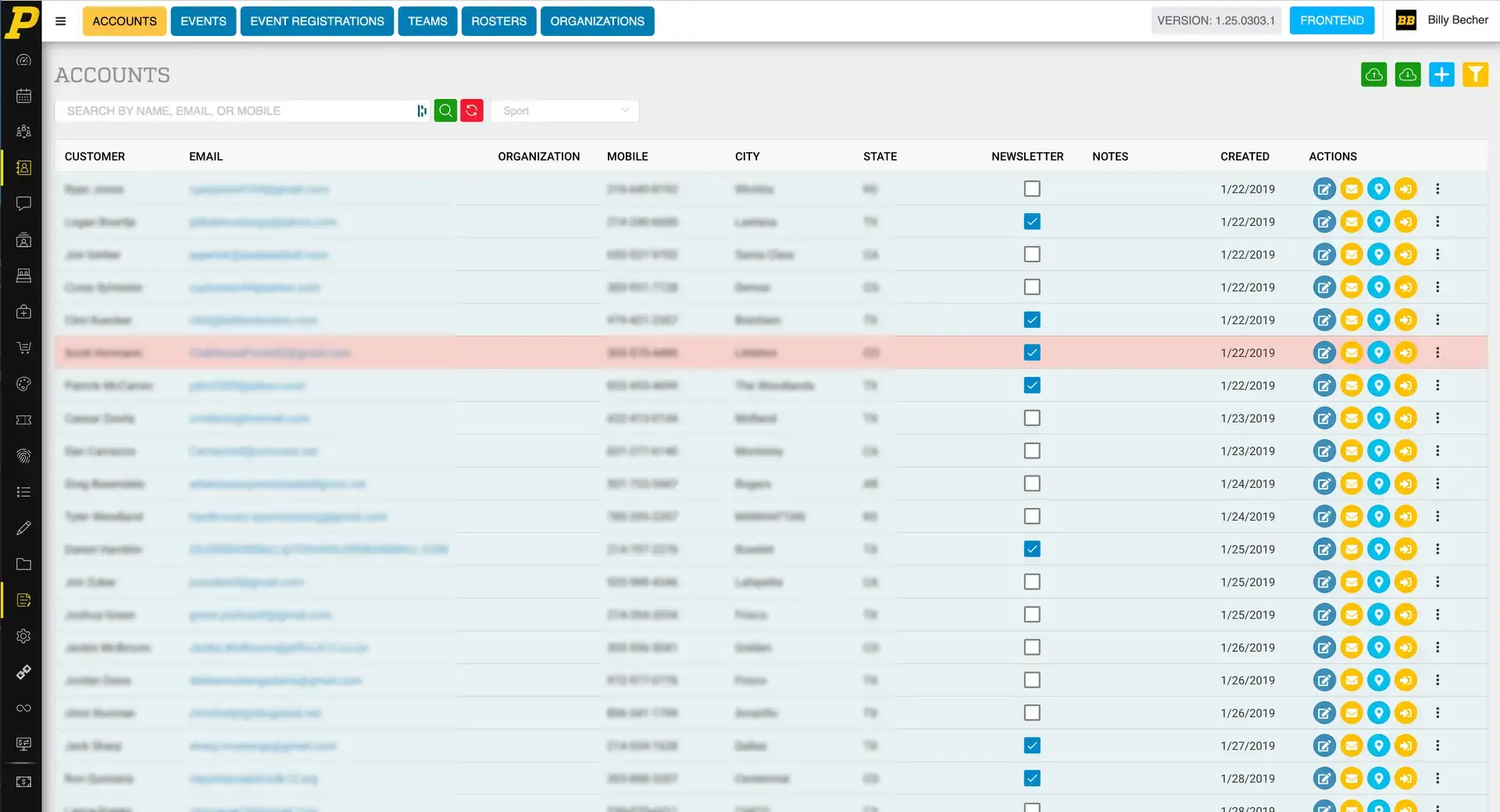
If a customer is unable to log into their account or register for events, their account may have been archived. Archived accounts are inactive and cannot be used to log in or complete registrations.
Administrators can quickly restore access by unarchiving the account.
Finding the Account
To locate the archived account:
-
Navigate to Accounts using either:
-
The Accounts tab at the top of the page, or
- The Accounts icon in the left-hand toolbar (person icon inside a notebook).
- This will open the Accounts page, which displays all user accounts in your system.
- Search for the customer's name using the search bar if necessary.
Identifying Archived Accounts
Archived accounts are easy to identify on the Accounts page.
- Archived accounts appear highlighted in red.
- Active accounts appear in the standard text color.
If a customer’s name appears in red, the account is currently archived.
How to Unarchive the Account
To restore the account:
- Locate the archived account in the Accounts list.
- Hover over the row and click the Edit (pencil icon).
- This opens the Account Edit screen.
- On the Contact tab, locate the Archive toggle.
- If the toggle is enabled, the account is archived.
- Switch the toggle off to remove the archive status.
- Click Finish to save the changes.
Confirming the Account Is Active
After saving:
- The account will no longer appear in red.
- The account is now active.
- The customer can log in again using their original email address and password.
Common Reasons Accounts Become Archived
Accounts may become archived when:
- A user account is intentionally disabled by an administrator
- Duplicate accounts are being managed
- An account was previously removed from active use
If a customer needs access again, simply unarchive the account using the steps above.