Staff Permissions Management
Configure staff permissions to control access and capabilities within the Playbook365 staff menu. Assign specific functions or replicate existing permissions from another staff member to efficiently manage staff accounts.
Accessing Staff Accounts
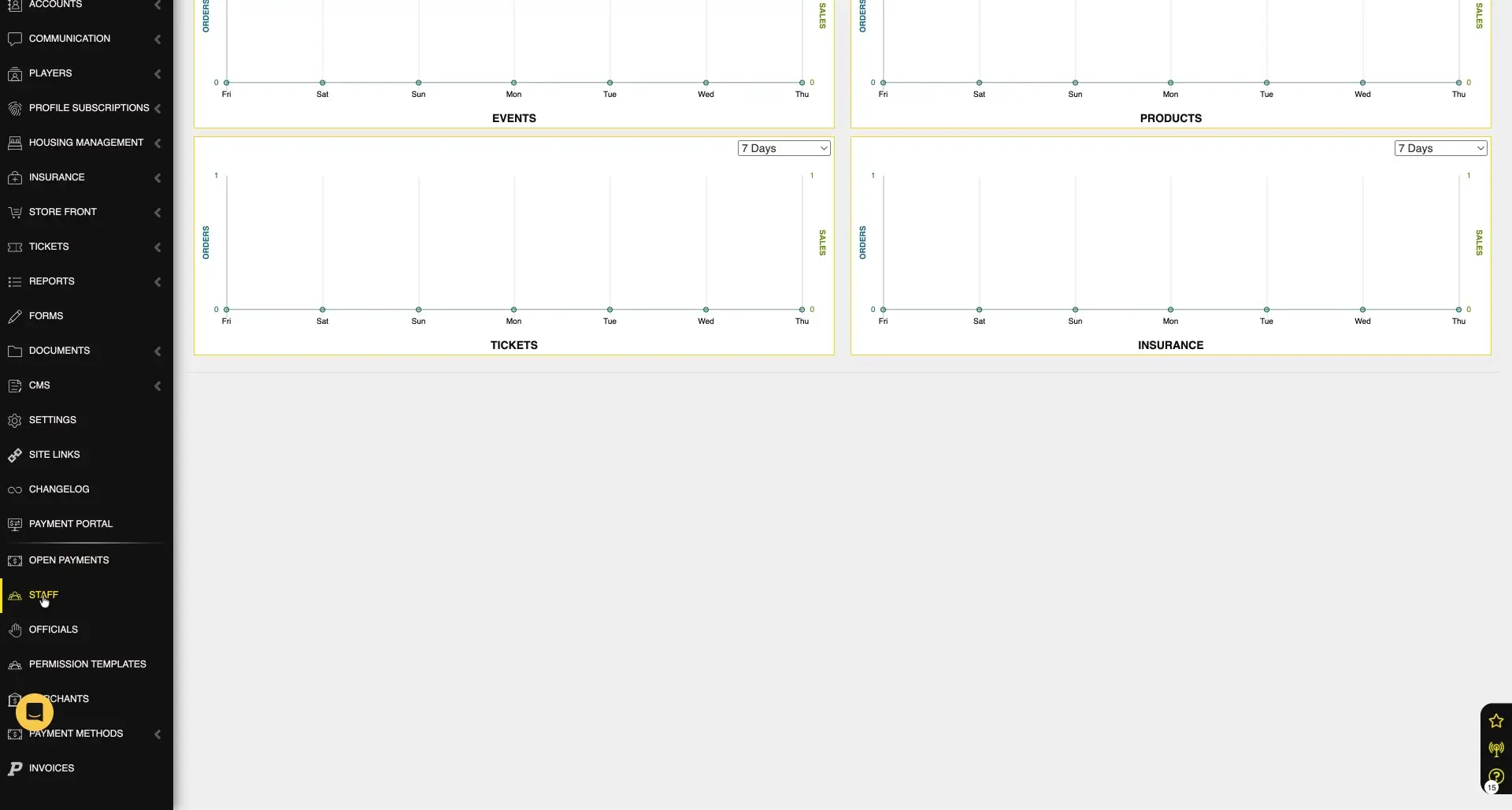
Navigate to the Staff Menu
Log in to your Playbook365 dashboard and select the "Staff" menu item to access the list of all staff members and manage their accounts and permissions.
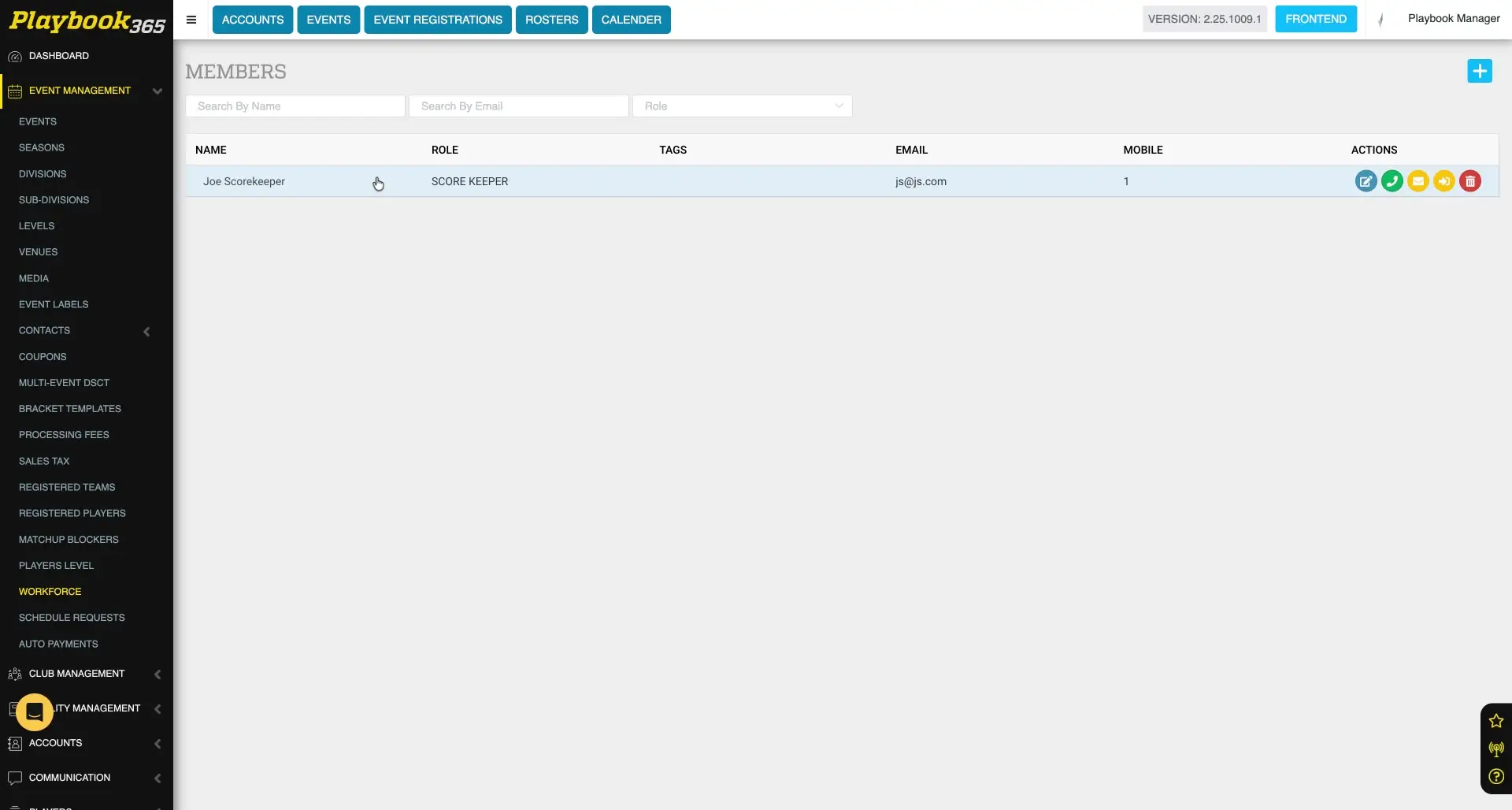
Select a Staff Member for Editing
Locate the desired staff member from the list and select their entry to open their profile and modify their details and permissions.
Editing Staff Permissions
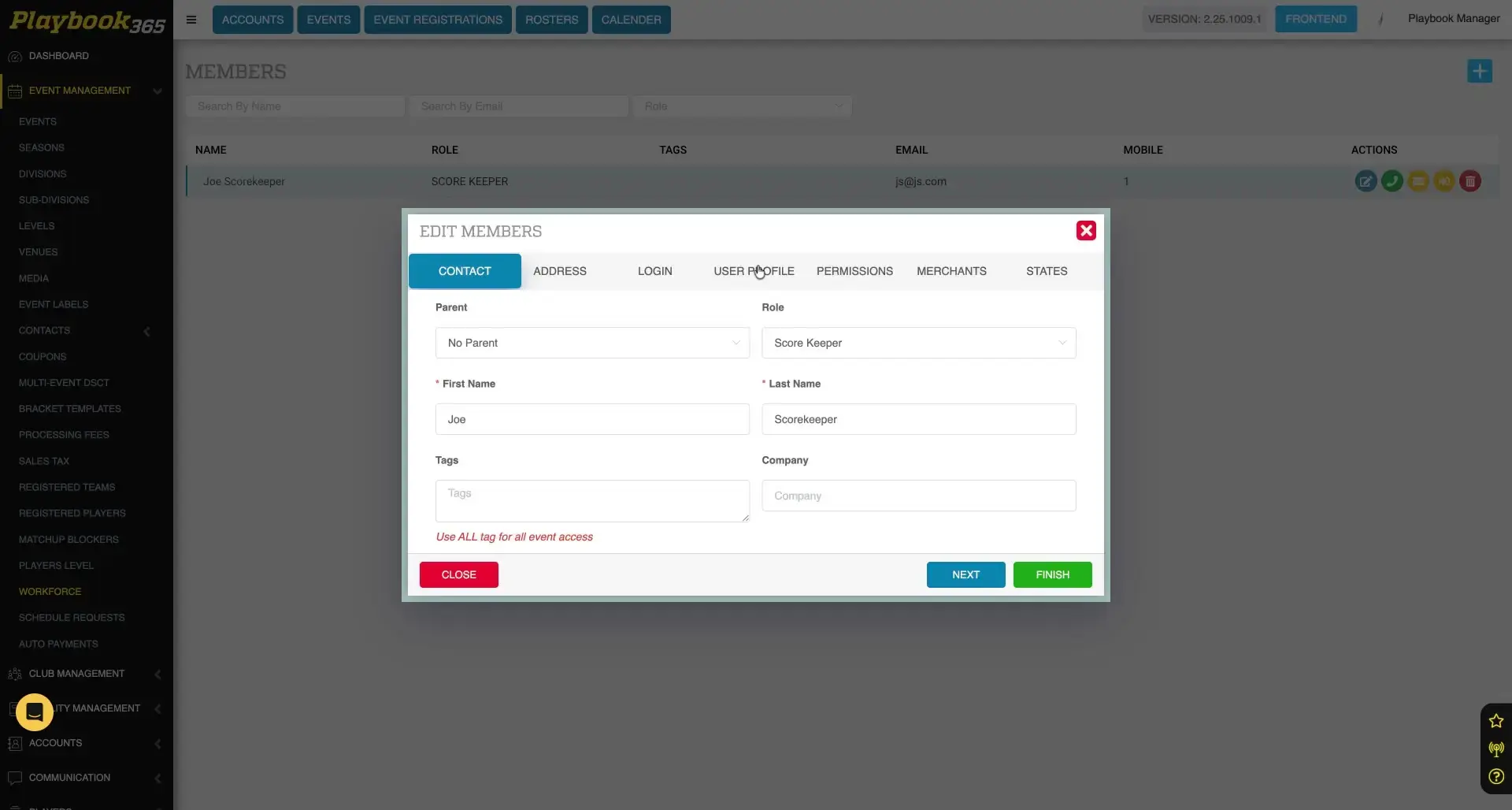
Open the Edit Member Interface
Select the pencil icon next to a staff member's name to open the edit interface and begin modifying their information or permissions.
Access the Permissions Tab
Select the "Permissions" tab within the edit interface to manage the staff member's access rights and capabilities within Playbook365.
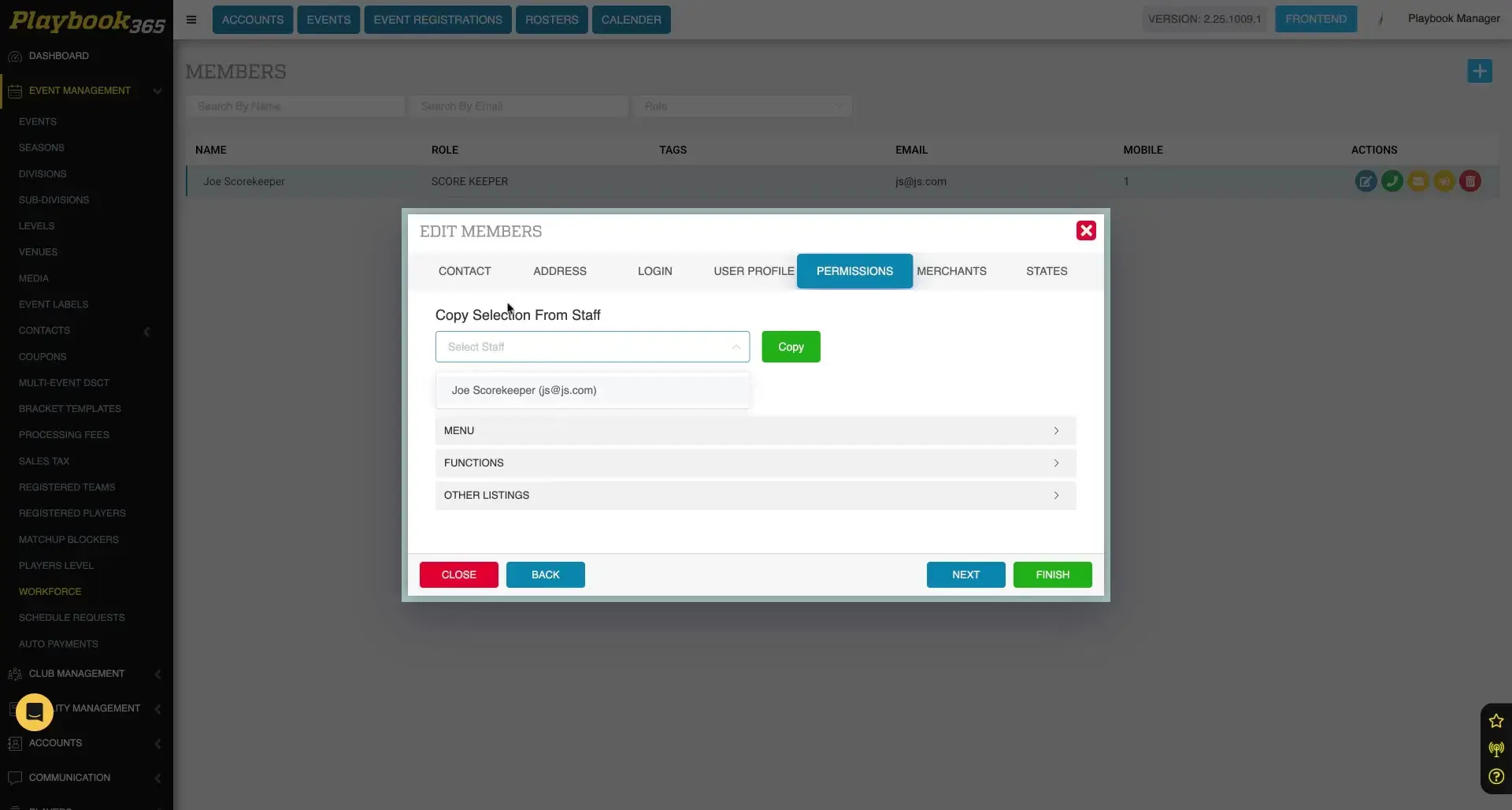
Copy Permissions from Another Staff Member
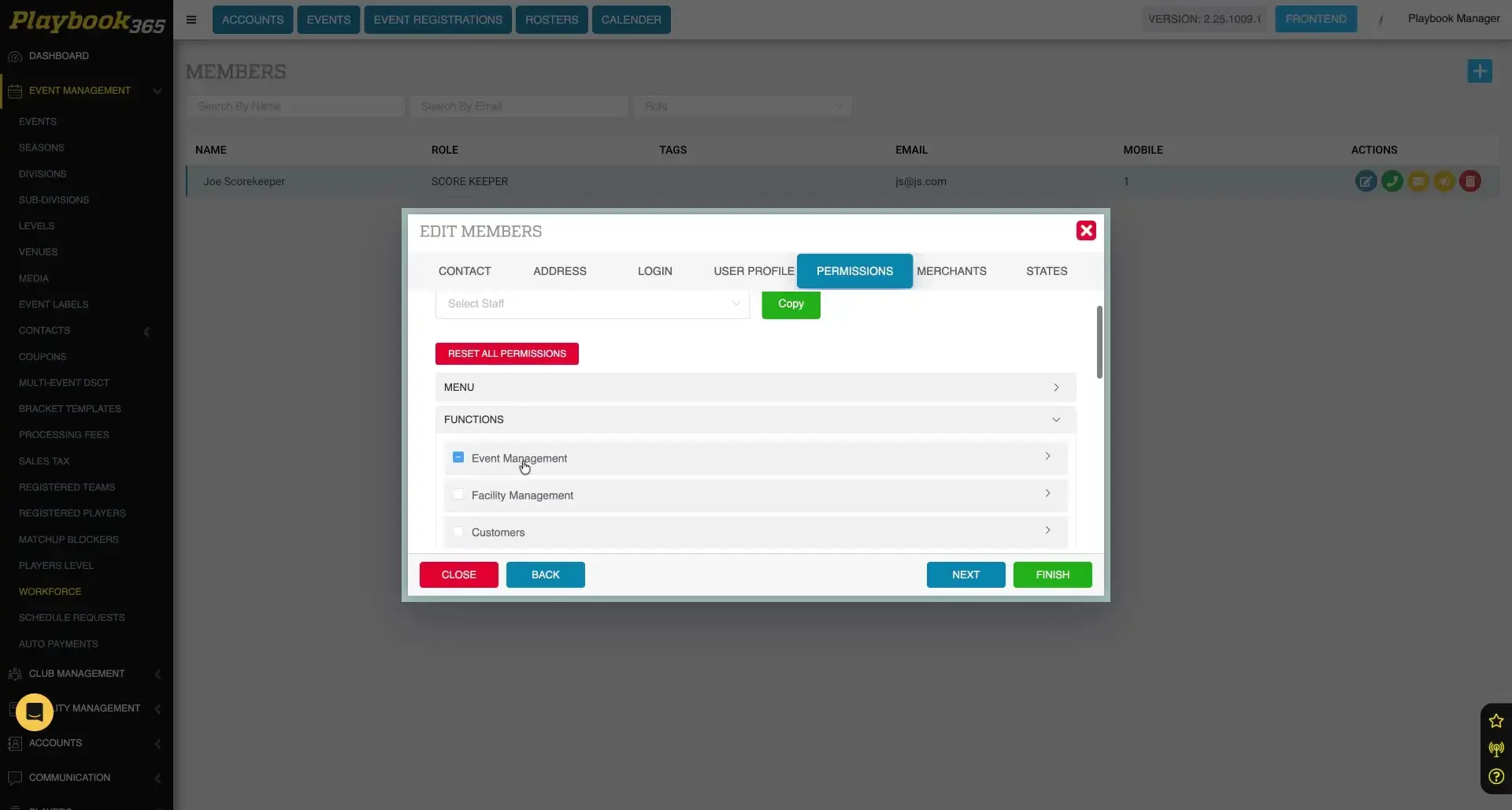
To apply a set of permissions quickly, use the "Copy Selection From Staff" dropdown within the "Permissions" tab. Select an existing staff member to replicate their permission settings.
Streamline Permission Setup
Replicate permissions from an existing staff member to save time when roles are similar.
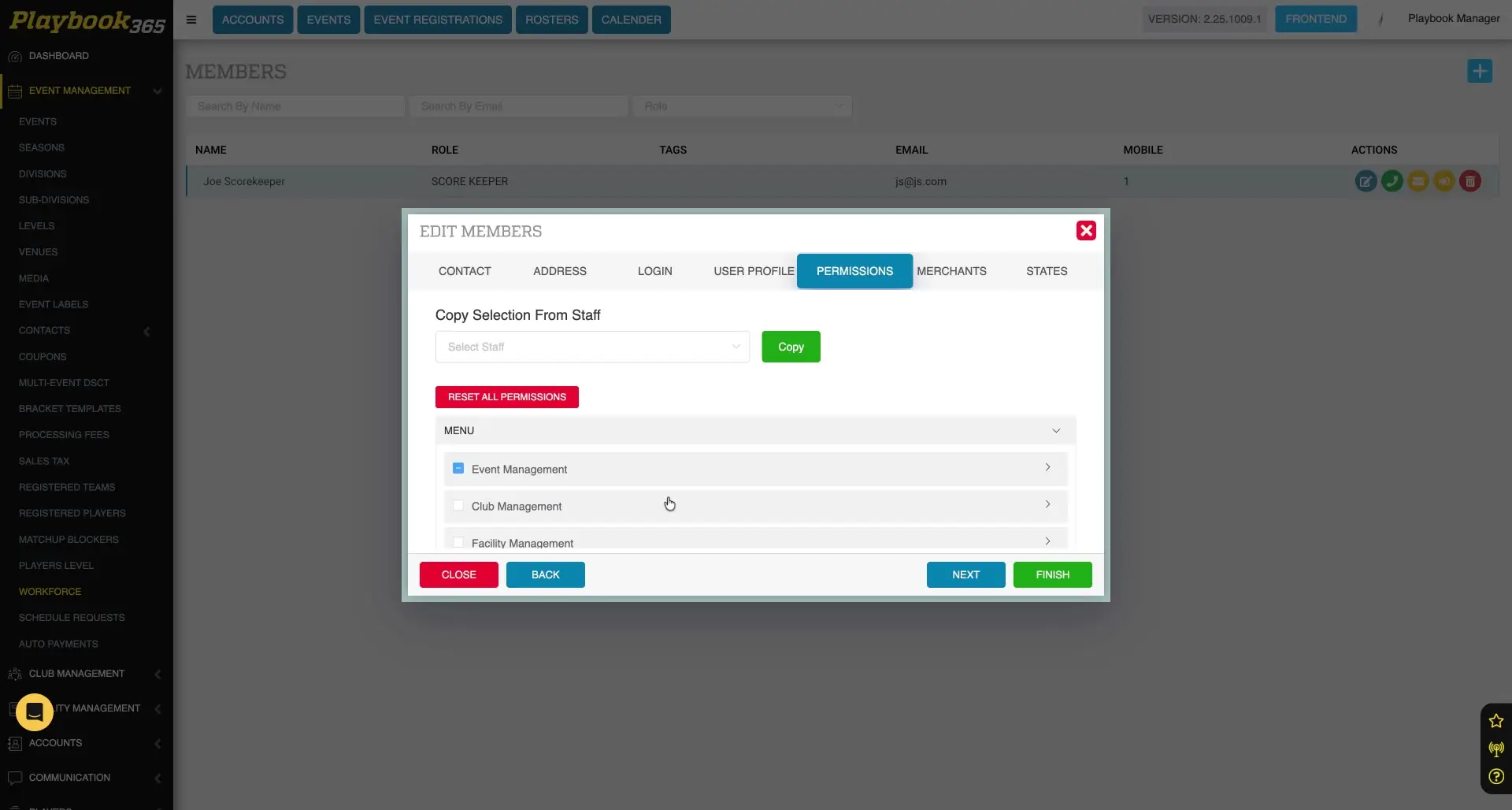
Assign Individual Permissions
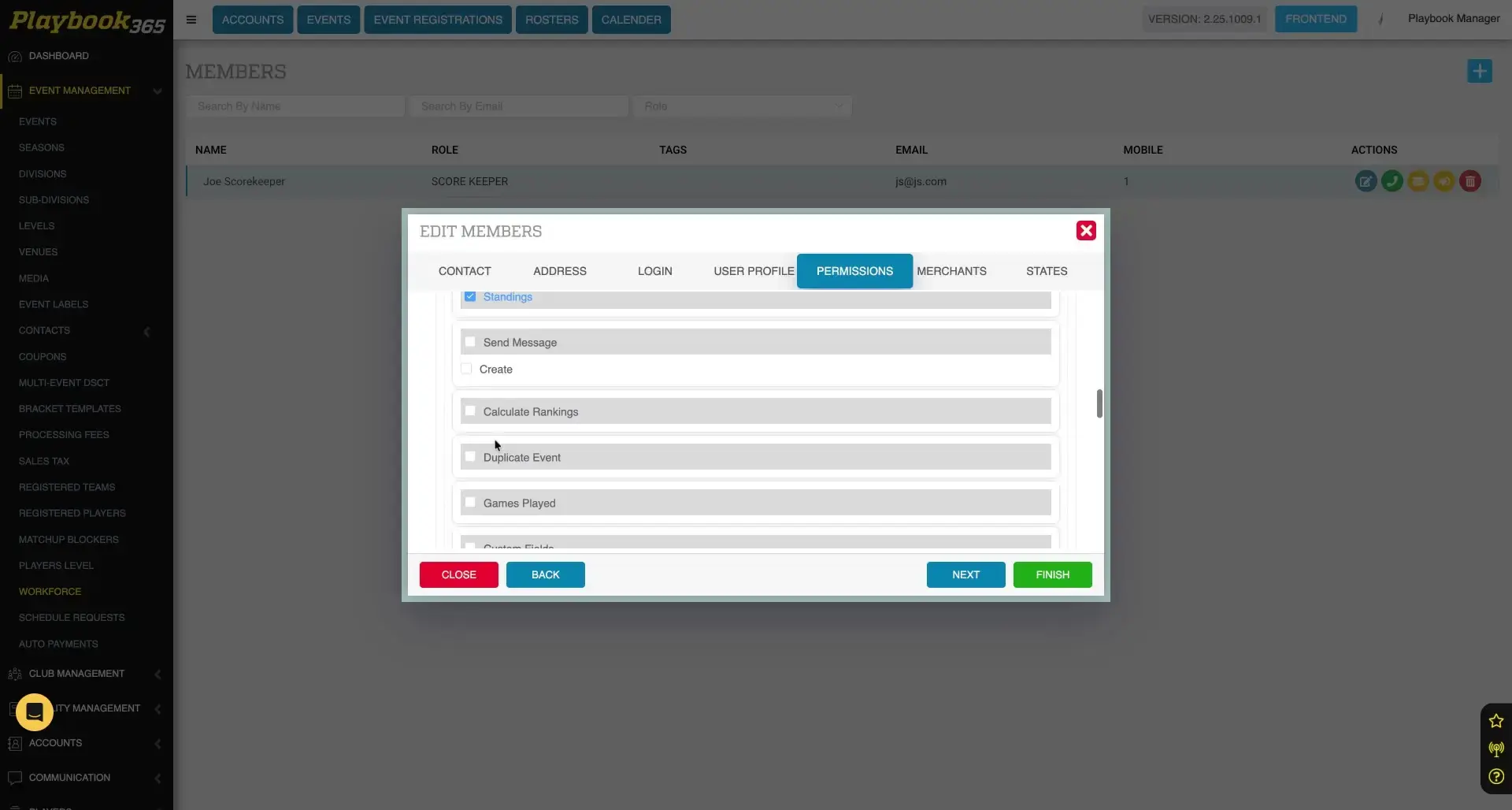
Customize a staff member's access by navigating through the "Menu" and "Functions" sections within the "Permissions" tab. Enable or disable specific items to grant or restrict access. For example, under "Event Management," you can grant access to "score and schedules" or "standings.".
Save Permission Changes
Select the "Finish" button to apply all modifications made to the staff member's permissions and save the updated access rights.