
Overview
If a team withdraws from a tournament or is unable to participate, administrators may need to issue a refund for the event registration. Refunds are processed directly through the invoice associated with the registration.
Refunds can be issued as either full refunds or partial refunds, depending on the circumstances.
Finding the Invoice
Before issuing a refund, you must first locate the invoice associated with the registration.
You can refund credit card or E-Check transactions through Playbook.
If a customer made a payment by check, Venmo, PayPal, you have to refund the customer outside of Playbook. To log this refund that occurred outside of playbook, click the refund by check button when hovering over the transaction. This will allow you to reconcile the invoice by adding the external payment details.
There are two common ways to find the invoice.
Method 1: Through the Event
- Navigate to the Event.
- Open the Confirmed Teams section.
- Locate the team that needs a refund.
- Click the Invoice Number associated with that team.
This will open the invoice details page.
Method 2: Through Event Registrations
If you already know the invoice number or the team name:
- Navigate to Event Registrations.
- Search using the invoice number or team name.
- Open the corresponding invoice.
Issuing the Refund
Once the invoice is open:
- Scroll down to the Transactions section of the invoice.
- Locate the payment transaction.
- Click the Refund button.
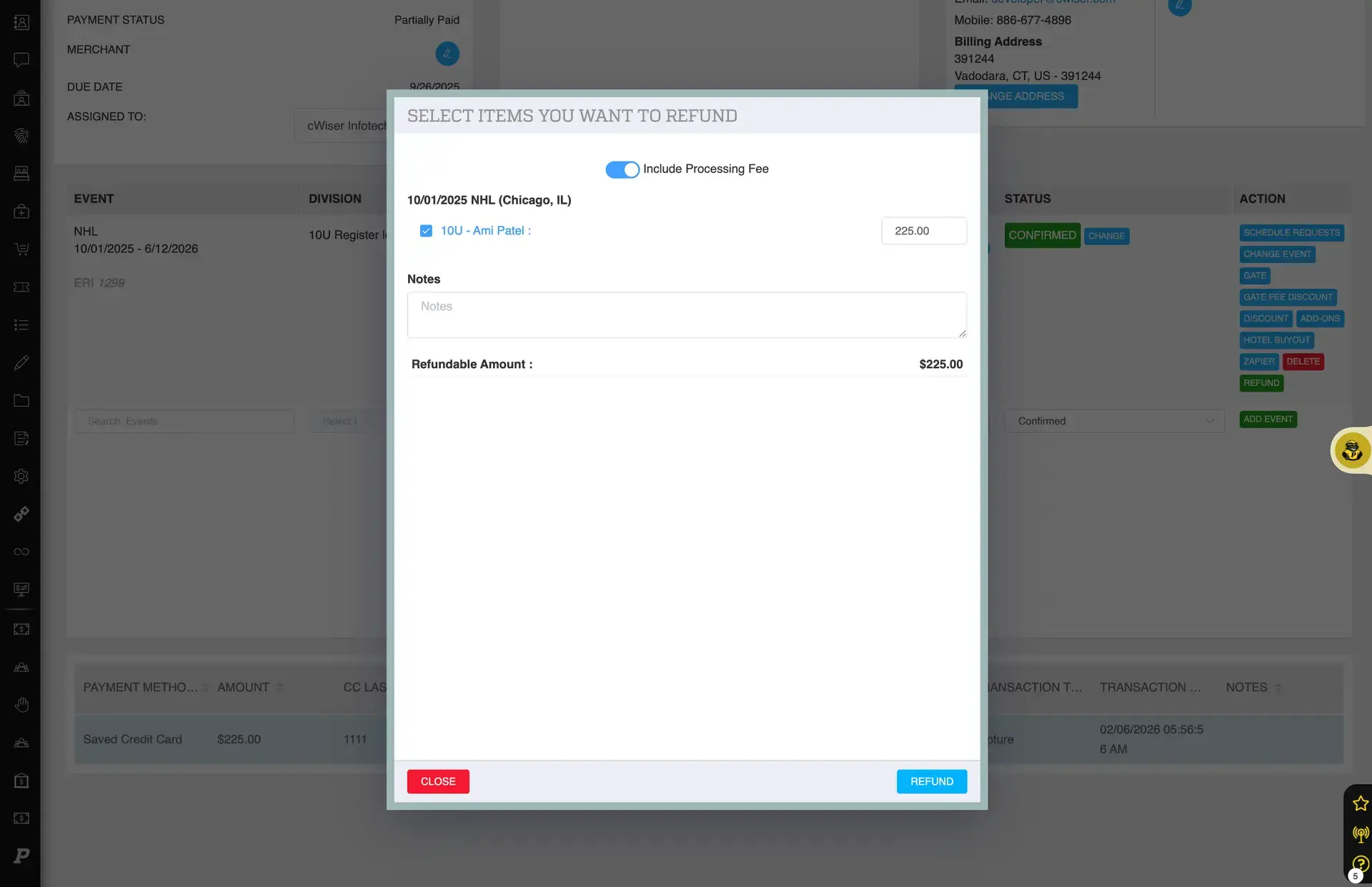
Clicking the refund button on a transaction will open a popup containing the refund parameters.
If the transaction is eligible for a refund, the refund option will appear next to the payment record.
Selecting Refund Options
When issuing a refund, you will have several options.
Include Processing Fees
You can choose whether to refund the processing fees along with the registration payment.
- Enabled – Processing fees will be refunded to the customer.
- Disabled – Processing fees will not be refunded.
Select the Event
If the invoice contains multiple items, choose the specific event registration you want to refund.
Adjust the Refund Amount
You can enter a custom refund amount if you need to issue a partial refund.
Examples include:
- Partial refunds due to late withdrawal
- Refund adjustments after some games have already been played
Example:
- Original registration: $130
- Partial refund: $65
You can manually edit the amount before completing the refund.
Completing the Refund
Once the refund details are set:
- Confirm the refund amount.
- Click Refund.
The payment will be refunded to the customer using the same payment method used during checkout.
Viewing the Refund
After the refund is processed, the refundable amount and transaction history will update within the invoice.
This allows administrators to track:
- Original payments
- Refund transactions
- Remaining refundable balances
All refund activity will remain recorded in the invoice transaction history for future reference.