
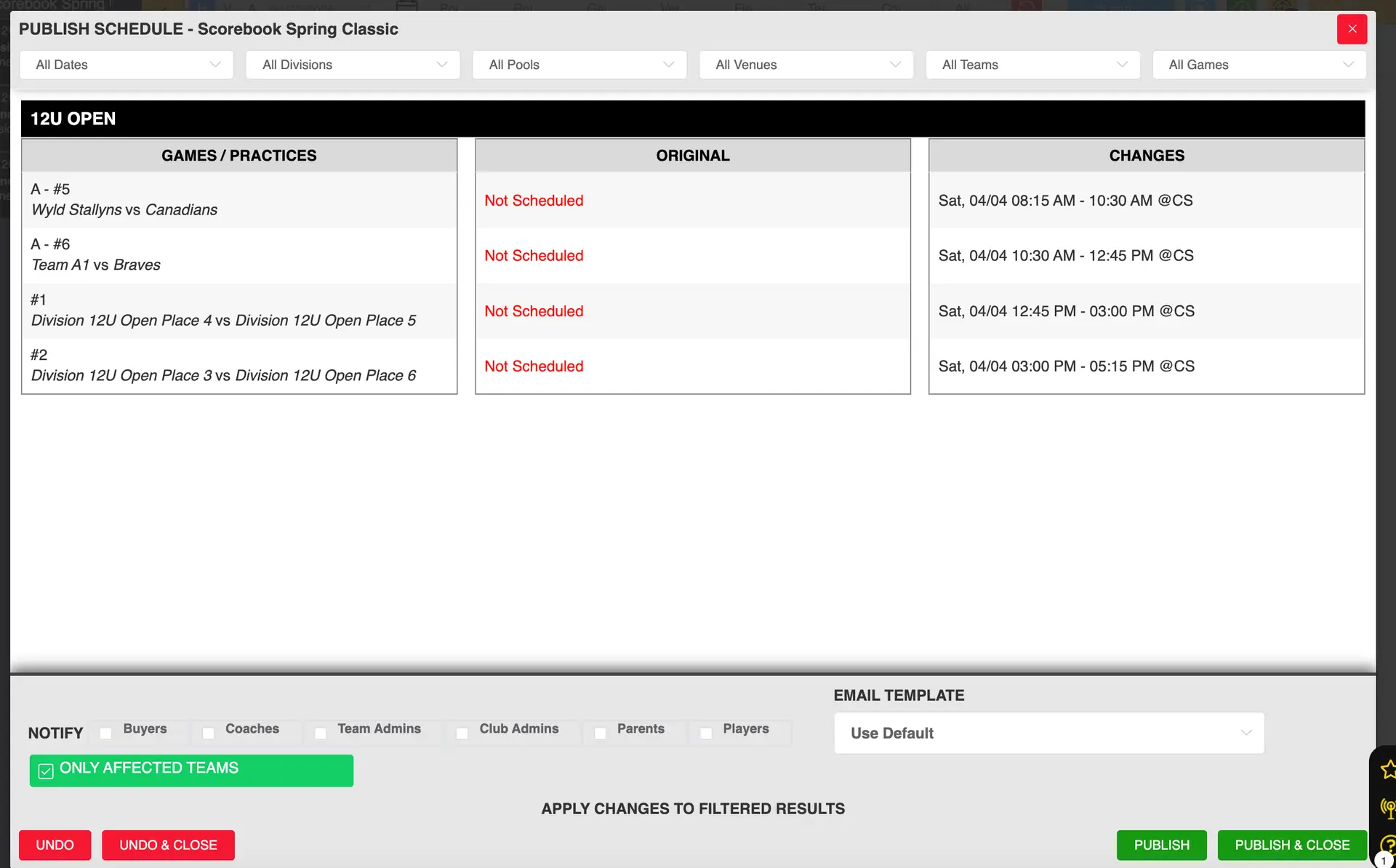
After making changes on the Whiteboard, you must publish those changes and ensure the schedule is set to display on the front end.
Making Changes on the Whiteboard
- Drag and drop games to update the schedule
- Place pool play or bracket games as needed
- Changes will appear as unpublished until you publish them
Publishing Changes
- Click the Publish button (checkmark icon on the left toolbar)
- Review the number of changes shown
- (Optional) Choose to notify affected teams
- Click Publish and Close
Once published, the changes are saved and applied to the schedule
Verifying Changes Are Published
- After publishing, the number indicator on the Publish button will disappear
- If additional edits are made, the number will reappear indicating new changes to publish
Showing or Hiding the Schedule
- Click the Display Schedule button (antenna icon on the left toolbar)
-
Select one of the following options:
-
Show Schedule (visible on front end)
-
Hide Schedule (not visible on front end)
-
Click Submit
Important Notes
- Publishing changes does NOT automatically make them visible on the front end
- You must also ensure the schedule is set to Show Schedule
- You can hide the schedule while making updates, then publish and reveal when ready
Tips
- Use Hide Schedule when making multiple updates to avoid confusion for users
- Only notify teams when necessary to avoid excessive emails
- Always confirm both Publish and Show Schedule are completed to make updates live