
Overview
On the Event Listing page, each event displays two status indicators (bubbles) next to the event name. These indicators show the event mode and the registration status.
These status settings determine whether an event is visible on the public event listing page and whether teams are able to register.
Understanding these settings is important when troubleshooting why an event may not appear on the front end.
Event Status Indicators
Each event has two indicators:
- Mode Status – Shows how the event is configured in the system.
- Registration Status – Shows whether registration is open or closed.
These indicators appear as colored bubbles next to the event on the event listing page.
Event Mode Types
Draft Mode
A red bubble indicates the event is in Draft mode.
When an event is in draft mode:
- The event does not appear on the front end
- Teams cannot view or register for the event publicly
- The event is still being prepared internally
Draft mode is typically used while an event is still being created or edited.
Private Mode
In Private mode:
- The event does not appear on the public event listing page
- Teams can still register, but only if they have the direct event URL
This is useful when:
- Sending registration links to specific teams
- Running invite-only events
- Testing an event before public launch
Published Mode
When an event is Published:
- The event appears on the public event listing page
- Any team can register through the front end
- The event is visible to all users
Published mode is required for events to appear publicly.
Why an Event May Not Appear on the Front End
If an event is not showing on your public listing page, it is usually due to one of the following:
- The event is in Draft mode
- The event is set to Private
Changing the event status to Published will make it visible on the front end.
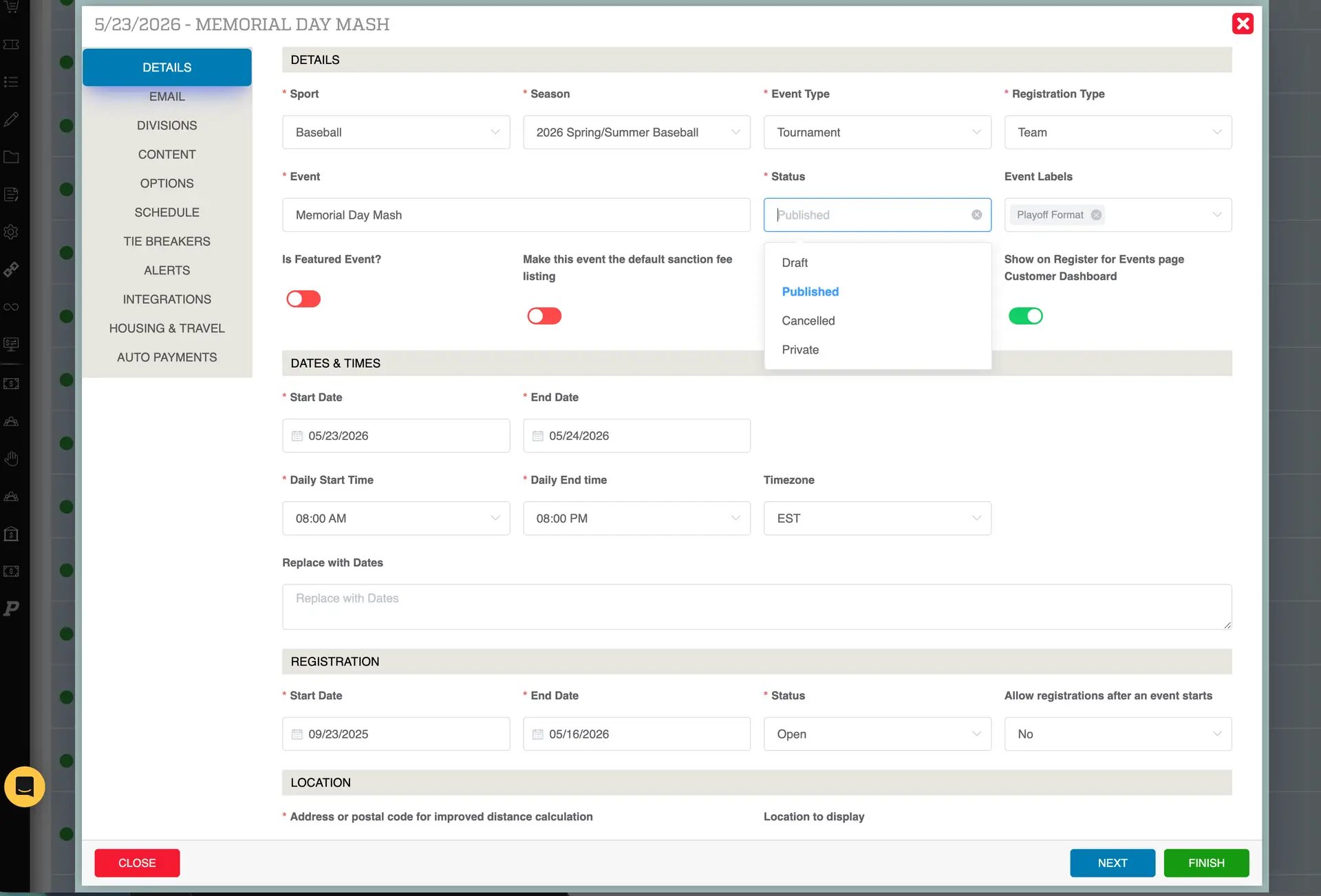
Changing Event Status
To update the status of an event:
- Navigate to the Event Listing page.
- Click the event name.
- The Event Details panel will open.
- Locate the Status setting on the first details page.
- Change the status to Published.
- Click Finish to save.
Once published, the event will appear on the front-end listing page.
Tourneyboard Listing
When an event is set to Published, the List on Tourneyboard option will automatically be enabled.
Tourneyboard is the tournament marketing and listing platform connected to Playbook.
If you do not want the event listed on Tourneyboard, you can manually toggle this option off.
Example
If you have three events set to Published, all three will appear on your public event listing page for the selected season.
If an event is set to Draft or Private, it will not appear publicly.