
How Do I Combine Two Teams That Have the Same Name? (Merge Teams)
Overview
If a team appears in your system under two different names or as two separate records, you can combine them into a single team using the Merge feature on the Teams page. This is the correct way to clean up duplicate team records in Playbook.
When you merge two teams, one team is selected as the team that will remain in the system. The other team is absorbed into it and will no longer exist as a separate record. The merged team will be displayed in blue on the Teams page with a note indicating which team it was merged into.
Where to Find This
Teams (bookmark at the top of the backend)
or
Event Management → Teams
Step-by-Step Instructions
Merging Two Teams
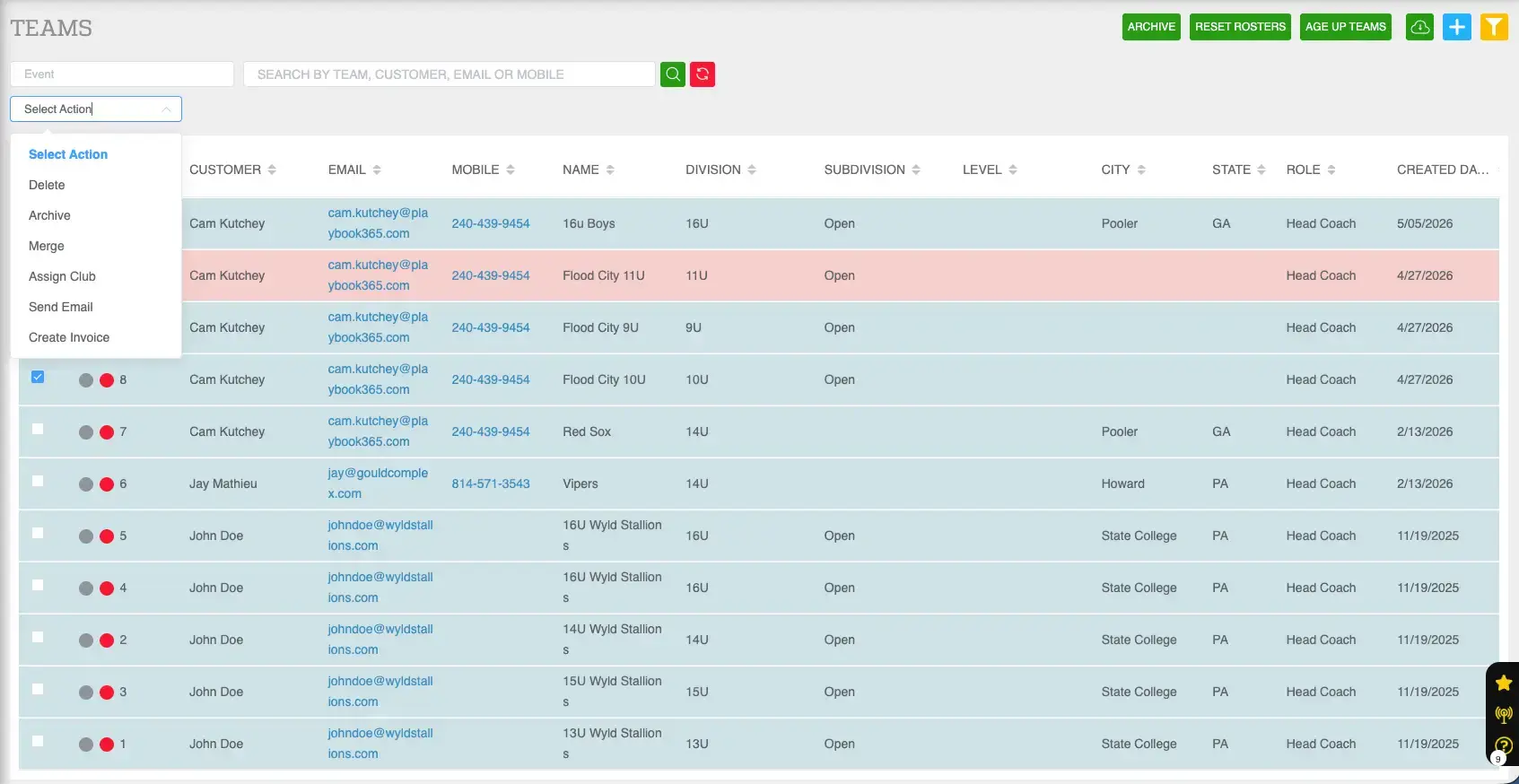
- Navigate to the Teams page using the bookmark at the top of the backend.
- Locate the team you want to remove — the duplicate or incorrect record that should no longer exist as a separate team.
- Check the checkbox on the left side of that team's row.
- Click the Select Action dropdown.
- Select Merge.
- A window will appear displaying the team being merged and a Select Team to Merge In field.
- In the Select Team to Merge In field, search for and select the team that should remain in the system. This is the surviving team — the one the other team will be merged into.
- Click Merge.
The selected team will now be merged. The removed team will appear in blue on the Teams page, and hovering over its name will show which team it was merged into.
Understanding the Merge Window
When the merge window appears, it is important to understand the two roles:
| Field | What It Means | | --- | --- | | Merging the following teams | The team you selected with the checkbox — this team will no longer exist after the merge. | | Select Team to Merge In | The team that will remain in the system. All data from the merged team will be absorbed into this team. |
Critical: The team you select in Select Team to Merge In is the surviving team. Make sure you select the correct record before clicking Merge. This action cannot be easily undone.
How to Identify a Merged Team
After a merge is completed:
- The absorbed team will appear in blue text on the Teams page.
- Hovering over the blue team name will display a tooltip showing which team it was merged into.
This provides a clear audit trail of what was merged and where the data went.
Best Practices
- Before merging, verify which team record has the most complete and accurate data. The team you select as the surviving team (Select Team to Merge In) should be the one with the correct name, division, and account association.
- Use the search bar on the Teams page to locate both team records before starting the merge. Confirming you have the right teams before checking the box prevents mistakes.
- If you are unsure which team to keep, review each team's invoice history, roster, and event registrations before merging. The team with the more complete record is typically the better choice to retain.
- Avoid merging teams that are registered for different events unless you are certain the data consolidation is appropriate. A merge combines all associated data from both records.
- Communicate with your staff before merging teams that are actively registered in upcoming events to avoid scheduling or roster confusion.
Common Issues
I merged the wrong two teams. Can I undo it? Merges cannot be automatically reversed from the Teams page. If you merged the wrong teams, contact your Playbook account manager or support team for assistance in correcting the records.
The team I want to merge into is not appearing in the Select Team to Merge In dropdown. Why? Start typing the team name in the search field within the merge window. If the team still does not appear, confirm that the destination team exists on the Teams page and has not been archived or deleted.
After the merge, the merged team still appears on the Teams page. Is that correct? Yes. The merged team remains visible on the Teams page but is displayed in blue to indicate it has been merged. It is no longer an active independent record. Hovering over the name will confirm which team it was merged into.
Can I merge more than two teams at once? The standard merge workflow is designed for combining one team into another. If you have multiple duplicate records to consolidate, perform the merge process multiple times — selecting one duplicate at a time and merging each into the correct surviving team.
Will the merge affect the team's event registrations or invoice history? Yes. Merging teams consolidates the associated data from both records into the surviving team. Review both teams' event registrations and invoice history before merging to confirm the outcome is what your organization expects.