
Overview
The Merge Teams feature combines two or more duplicate team profiles into a single team. This is used when a coach or customer accidentally creates multiple team profiles instead of reusing their existing team — typically by registering as a new team for a later event rather than selecting their existing team.
Merging consolidates registrations, rosters, insurance records, and history into one team profile so the customer and your platform stay organized. Merged teams are archived rather than deleted, so they can be restored if needed.
Where to Find This
Teams (blue bookmark across the top navigation)
Step-by-Step Instructions
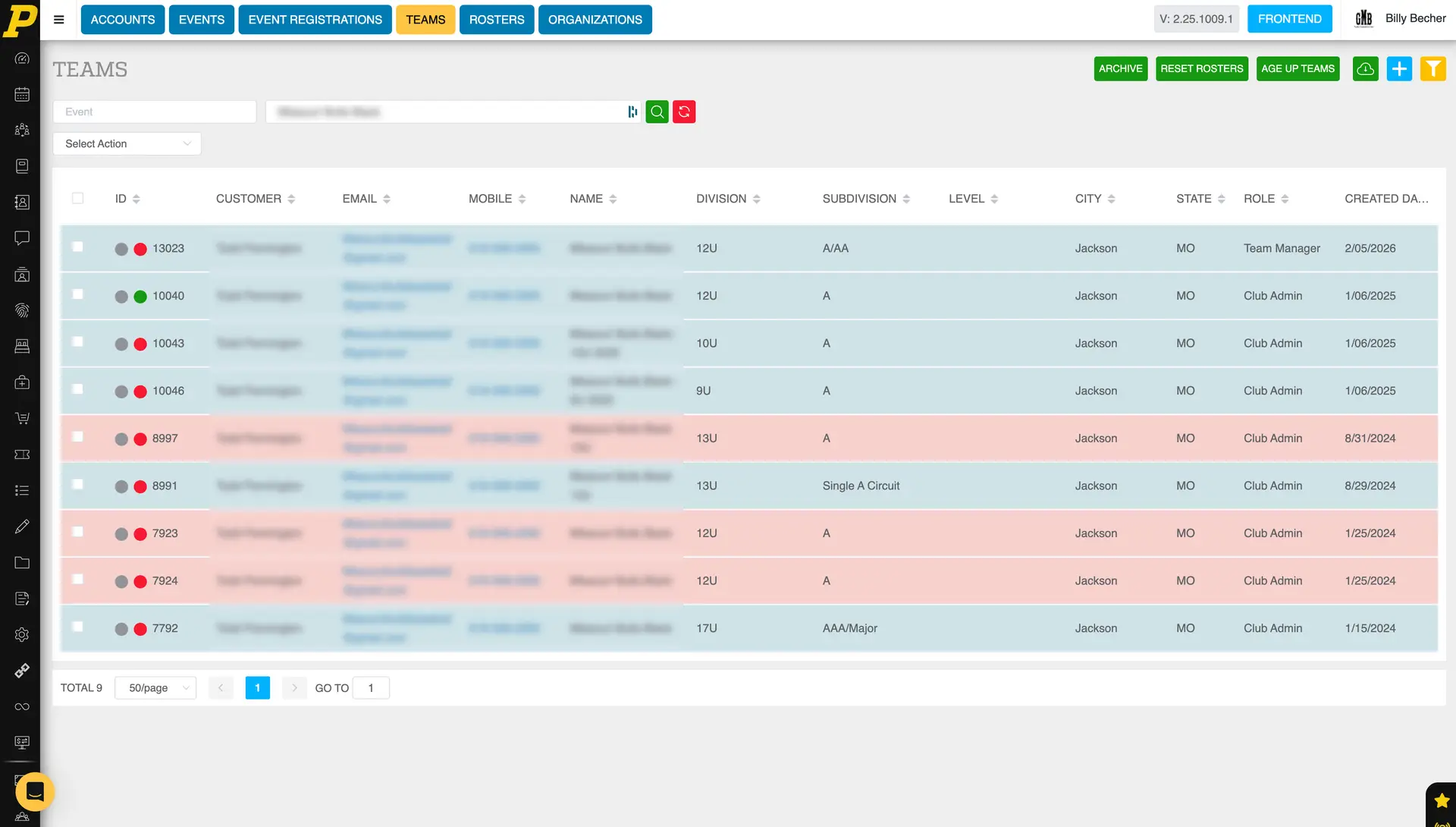
- Click the blue Teams bookmark in the top navigation to open the Teams page.
- Locate the duplicate teams using the search bar or the yellow funnel icon in the upper-right to filter results.
- (Optional) Hover over a team and click the gold play button (Customer Login) at the end of the action items to log in as the customer and verify which team holds the correct rosters, insurance, and registrations.
- Once you have confirmed which teams should be merged, check the select box next to the team(s) you wish to merge into another team (do not include the team you want to merge the selected team(s) into)
- Open the Select Action dropdown at the top of the Teams page and choose Merge.
- In the Merge Teams popup, the selected team(s) will be listed.
- In the text entry field, start typing the name of the team you want to merge into. This is the team that will remain active and receive the combined data.
- Select the correct team from the dropdown results.
- Click the Merge Now button to complete the merge.
If you only need to merge two teams, you can skip the bulk action workflow. Hover over the team you want to merge out of and click the Merge Teams button in the action items row. A Merge Teams popup will open where you can select the team to merge into — start typing the team name in the text entry field and choose the correct team from the dropdown results. Click Merge Now to finalize.
Field Reference
Search bar Located at the top of the Teams page. Type a team name to quickly locate it.
Yellow funnel icon Located in the upper-right corner of the Teams page. Opens filter options to narrow the team list (e.g., by age group, event, status).
Select boxes Checkboxes to the left of each team row. Used to select which teams will be included in a bulk action such as Merge.
Select Action dropdown Bulk action menu at the top of the Teams page. Contains the Merge option used to combine selected teams.
Customer Login (gold play button) Located at the end of the action items row when hovering over a team. Logs you in as the team's customer so you can review their account before merging.
Merge Teams popup — team selector Text entry field inside the Merge Teams popup. Used to choose which existing team the duplicates will be merged into. Begin typing the team name and select it from the dropdown.
Merge Now button The confirmation button inside the Merge Teams popup. Finalizes the merge.
Archive toggle Located inside a team's edit screen (accessed via the pencil icon). When enabled, the team is archived and highlighted blue on the Teams page. Toggle off to restore a merged or archived team.
Best Practices
- Always research both teams before merging. Log in as the customer using the gold play button to confirm which team has the correct rosters, insurance records, and active registrations.
- Merge into the team you want to keep active — typically the one with the most complete records (rosters, insurance, history), not necessarily the most recently registered one.
- When duplicates are caused by repeated registrations, contact the customer afterward and remind them to select their existing team for future events instead of creating a new one.
- Use the yellow funnel filter to narrow down teams when the customer has multiple age groups or seasons under their account.
- Double-check the team name in the Merge Teams popup before clicking Merge Now. Once merged, the duplicate is archived.
Common Issues
"I merged the wrong team — can I get it back?" Yes. Merged teams are archived, not deleted. Go to the Teams page, locate the team (it will be highlighted blue), click the pencil icon to edit, scroll down to the Archive toggle, and toggle it off. The team will become active again.
"Why is the merged team highlighted blue?" Blue highlighting indicates an archived team. After a merge, the duplicate teams remain in the system as archived records so they can be restored if needed.
"The team I want to merge into isn't showing in the dropdown." Make sure you are typing the team name exactly as it appears in Playbook. Try shorter search strings (e.g., "Missouri Bulls" instead of the full "Missouri Bulls 12U Black"). If the team still doesn't appear, confirm it isn't already archived.
"Should I delete the duplicate instead of merging?" No. Merging preserves registration history, rosters, and insurance records by consolidating them into the kept team. Deleting would lose that data.
"Can I merge more than two teams at once?" Yes. Select all duplicate teams using the select boxes, then choose Merge from the Select Action dropdown. All selected teams will be merged into the single team you choose in the popup.