
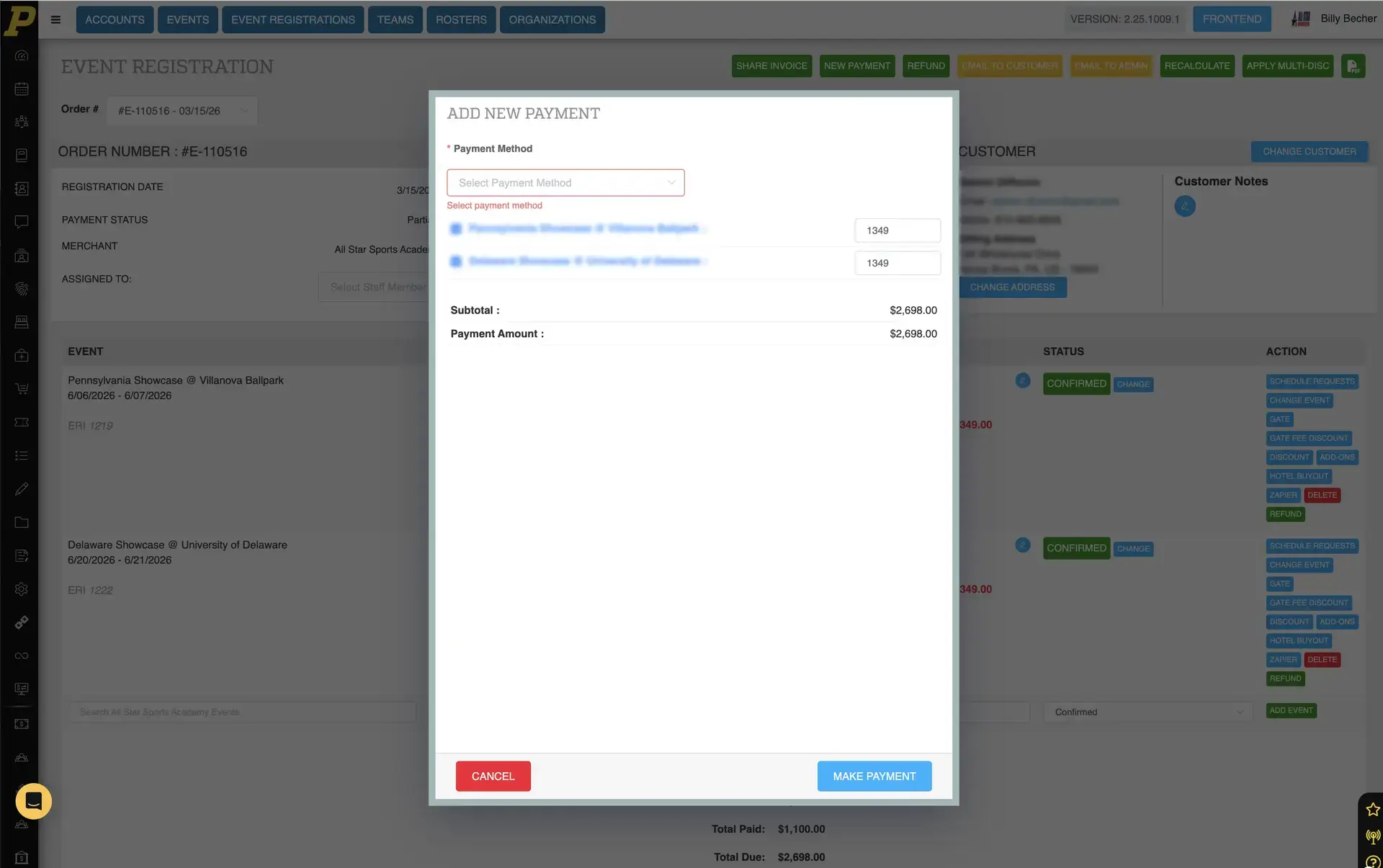
if a customer pays outside of Playbook (for example, by check or cash), administrators can manually record the payment and mark the invoice as paid.
This ensures the invoice reflects the correct balance and payment status.
Finding the Invoice
To locate the invoice:
- Navigate to Event Registrations.
-
Use the search bar to find the customer by:
-
Order number
- Team name
- Customer name
- Email address
- Locate the invoice in the results.
- Click the Invoice Number (begins with “E-”) to open the invoice.
Adding a Payment
Once inside the invoice:
- Click the New Payment button (green button at the top).
- A New Payment pop-up will appear.
Selecting a Payment Method
Choose the payment method that matches how the customer paid.
Common options include:
- Credit Card
- E-Check
- Pay Later (Credit Card or Check)
For payments such as checks or cash, select:
Pay Later (Credit Card or Check)
Applying Payment to the Invoice
Within the payment window:
- Select the event(s) you want to apply the payment to.
- Enter the payment amount.
Examples:
- Full payment → Enter the full event cost
- Partial payment → Enter the amount received (e.g., $100)
The system will automatically update:
- Subtotal
- Payment amount applied
Entering Payment Details
Complete the remaining fields:
Check Number
Enter the check number if applicable.
Transaction Date
Enter the date the payment was received or processed.
Notes
Add any relevant notes for internal tracking.
Example:
- “Remaining balance due on 3/23”
- “Partial payment received”
These notes will appear on the invoice for reference.
Finalizing the Payment
- Click the Make Payment button.
- Wait for the confirmation message.
Once successful:
- The payment will appear on the invoice
- The Total Due will update
- If fully paid, the invoice will show a $0 balance
Partial Payments
If a customer submits a partial payment:
- Enter only the amount received
- The remaining balance will stay on the invoice
- Additional payments can be added later using the same process
Confirming the Invoice Is Paid
After applying the payment:
- Review the Total Due section
- If the balance is $0, the invoice is fully paid
- Payment details will appear in the Payment History section
Tips for Managing Payments
✔ Always select the correct payment method for accurate records
✔ Use notes to track partial payments or future payments
✔ Double-check the amount applied before submitting
✔ Use this method for offline payments such as checks or cash