
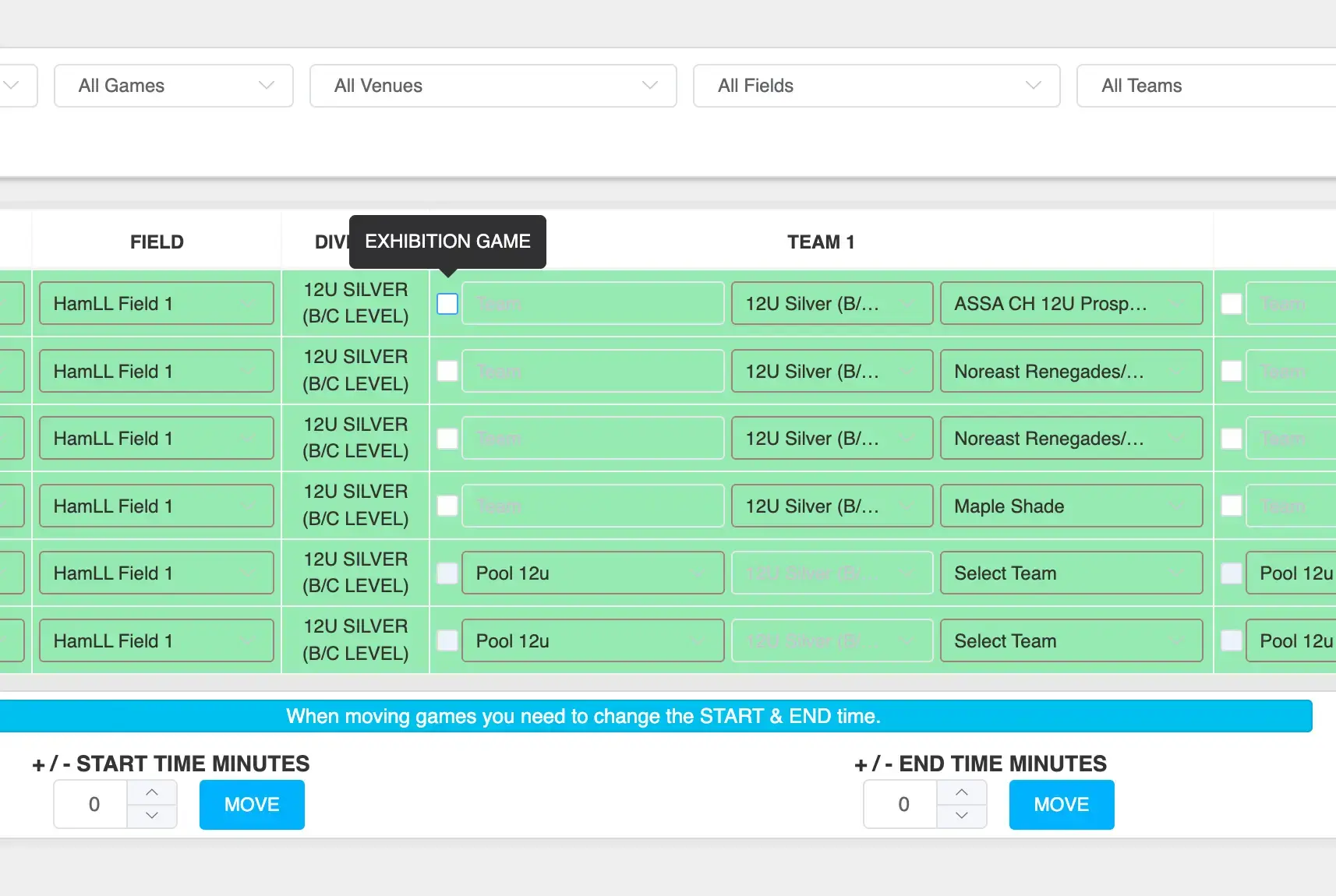
Exhibition games are used when teams need an extra game or when there is an odd number of teams. Exhibition games do not impact standings for the selected team(s).
Accessing Game Editor
- Navigate to the Event Listings page
- Locate your event
- Click the green GE button (Game Editor)
- This opens the Game Editor view
Marking an Exhibition Game
- Locate the game you want to edit
- Under Team 1, find the Exhibition Game checkbox
- Check the box to mark Team 1 as exhibition
- Under Team 2, repeat the same step if needed
How Exhibition Games Affect Standings
If ONE team is checked:
- That team’s scores do NOT count toward standings
- Runs/points scored and allowed are ignored
- Run/point differential is not affected
- The opposing team (unchecked) WILL have stats count toward standings
If BOTH teams are checked: - No stats from the game count for either team
- Runs/points scored and allowed are ignored
- No impact on standings or differentials for either team
Important Notes
- Exhibition settings are applied per team, not per game
- You can choose to exclude one or both teams
- Always confirm the correct teams are selected before saving results
Tips
- Use exhibition games for filler or non-competitive matchups
- Double-check settings before entering scores
- Be consistent to avoid confusion in standings