
Overview
The Staff permissions system in Playbook allows administrators to control what internal users can access within the platform. This is commonly used for scorekeepers, interns, and temporary event staff who need limited access during tournaments.
By configuring permissions correctly, staff members can perform specific tasks—such as scoring games or managing brackets—without having access to sensitive administrative areas.
Accessing the Staff Section
To create or manage staff accounts:
- Open the left navigation menu named Staff.
- The Staff page will display all existing staff members for your organization.
Creating a New Staff Account
To add a new staff member:
- Navigate to Staff.
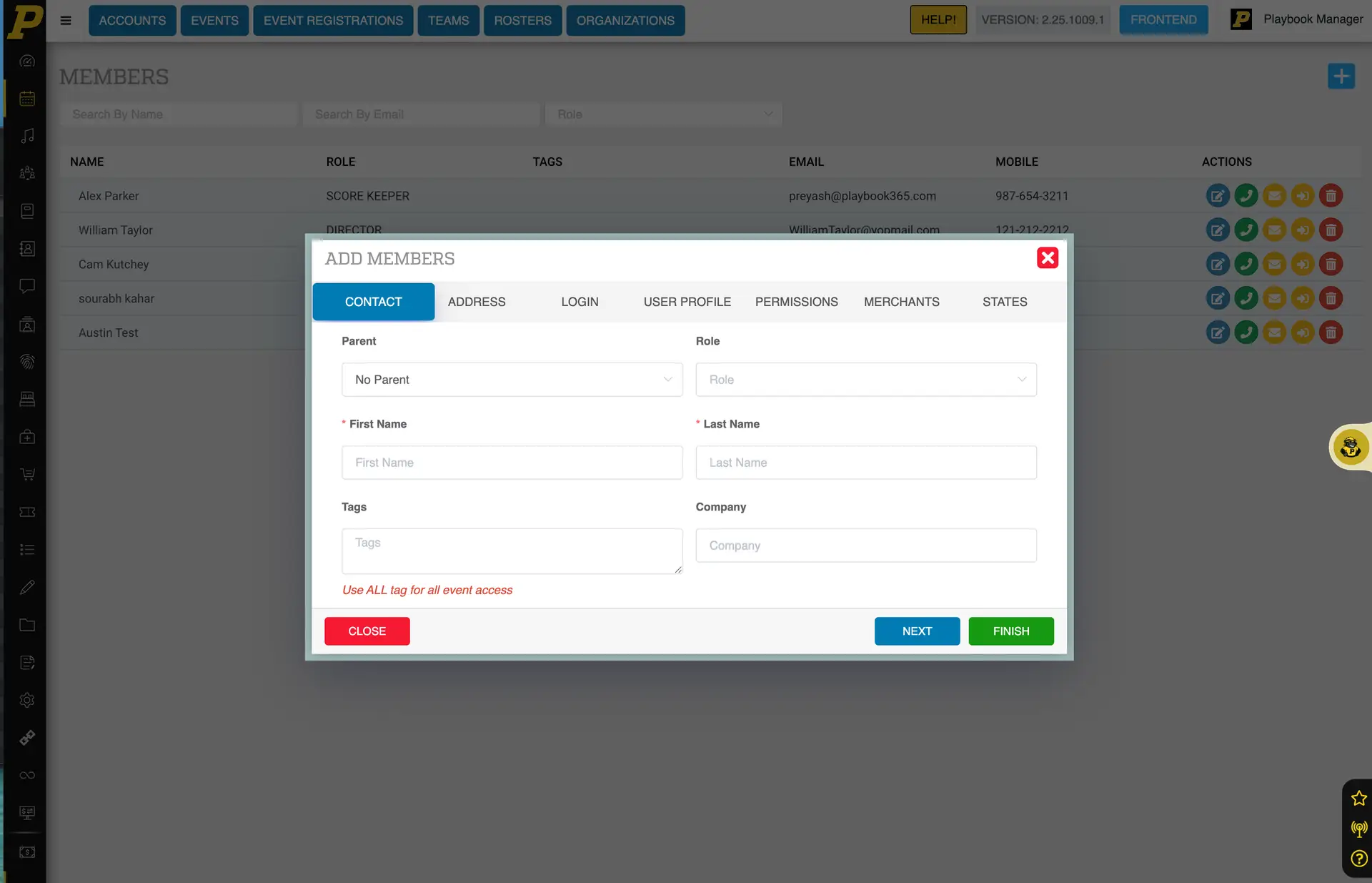
- Click the Add Staff Member the blue (+) button in the top right corner.
- Complete the required fields marked with a red asterisk.
Typical required fields include:
- First Name
- Last Name
- Mobile Number
- Address Information
- Login Email
- Password
Once the account is created, the staff member will use these credentials to log in.
Staff Login Location
Staff accounts must log in through the manager portal, which gives access to the backend system.
Example:
yourdomain.com/manager
⚠️ Important:
If a staff member logs in through /login, they will be directed to the front-end user login, which will not work for staff accounts.
Using Tags to Limit Event Visibility
The Tags field can be used to restrict which events a staff member can see.
Example uses include:
- Geographic regions (East Coast, Midwest, etc.)
- Event series
- Specific tournaments
- Staff member name
If a tag is assigned to both the staff account and the event, the staff member will only see events with that matching tag.
If you want a staff member to see all events, assign the All tag.
Copying Permissions from Another Staff Member
When creating new staff accounts, you can copy permissions from an existing user.
This is helpful when creating multiple accounts with the same access level.
To copy permissions:
- In the Permissions tab, search for the user you want to copy.
- Click the Copy button.
The new account will inherit the same permission settings as the user you copied.
Configuring Staff Permissions
Permissions determine what sections of the system the staff member can access.
All permission categories correspond to the sections in the left navigation menu, including:
- Event Management
- Organization Management
- Accounts
- Communication
- Players
- Housing Management
- Insurance
- Reports
To restrict access, simply leave sections unchecked.
Recommended Permissions for Scorekeepers
Scorekeepers typically only need access to event scoring tools.
Under Menu Permissions, enable:
- Event Management → Events
Do not enable access to:
- Seasons
- Divisions
- Subdivisions
- Administrative settings
Required Functions for Scorekeepers
Under the Functions section, enable only the features needed for scoring.
Recommended settings include:
- Brackets
- Score
- Standings
Avoid enabling functions such as:
- Create
- Edit
- Delete
- Import
- Scheduling tools
This ensures the scorekeeper can update game results without modifying event settings.
Finalizing the Staff Account
Once all required fields and permissions are configured:
- Click Finish.
- The staff account will be created.
- Provide the staff member with their login credentials and the /manager login URL.
Best Practices
When creating accounts for interns or scorekeepers:
- Grant only the permissions required for their role
- Use tags to limit event visibility
- Copy permissions from an existing account when possible
- Avoid giving editing or administrative privileges unless necessary
This keeps the system secure while allowing staff members to perform their assigned tasks efficiently.