
Overview
This feature allows club administrators to invite players from a tryout (or any event roster) to officially join a club team. During the invitation, you can also link the invite to a Team Fee account so the player is directed to pay their player dues immediately after accepting.
Use this feature after tryouts are complete and you are ready to finalize your club roster. It combines roster selection, team assignment, and dues collection into a single workflow, which eliminates the need to track roster confirmations and payments separately.
Where to Find This
For Team Fee setup: Club Management Team → Fee Setup
For sending invitations: Event Management → Events → [Your Event Name]
For checking invitation status: Reports → Invites
For verifying emails were sent: Reports → Email Log
Step-by-Step Instructions
Part 1: Set Up the Team Fee First
Before inviting players, create the Team Fee the invitation will link to.
- Go to Team Fee Setup.
- Create a new Team Fee (example: "Wild Stallions 16U" at $1,500).
- Add one or more payment plans (for example: one full payment option and a three-month payment plan).
- Save the Team Fee so it is ready to be attached to invitations.
Part 2: Invite Players from an Event
- Go to Event Management → Events.
- Open the event that contains the players you want to invite (typically a tryout).
- Locate the players list inside the event.
- Check the box next to each player you want to invite. You can select as many players as you want.
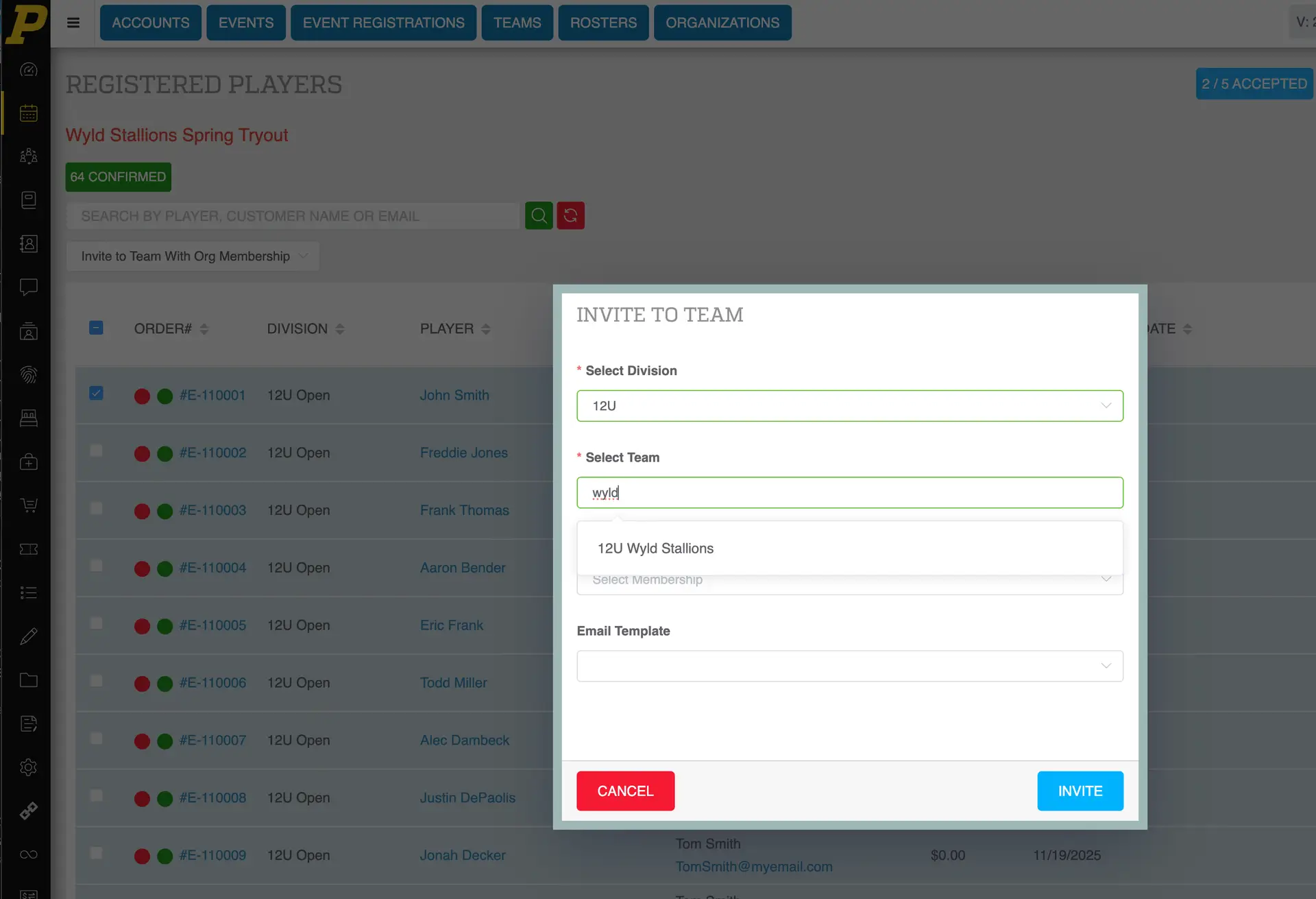
- Click the option to send an invitation, then select Invite Players to a Team with an Org Membership.
-
In the pop-up:
-
Select the team you are inviting the players to (example: Wild Stallions 16U).
- Select the Team Fee / player dues account you created in Part 1.
- (Optional) Choose an email template. If you do not choose one, the system's default email will be used.
- Review the summary, which shows how many players you are inviting and how many are already on the team.
- Click Invite.
Part 3: Confirm the Invitation Email Was Sent
- Go to Reports → Email Log.
- Locate the invitation in the list.
- If the status is Pending, you can force send it from this screen.
- The player will receive an email titled similar to: "Congratulations, [Player Name] has been invited to join [Team Name]."
Part 4: Player Accepts or Rejects the Invitation
The player opens the email and clicks the invitation link. They will see two options:
- Accept – The player is taken directly to the Team Fee registration page, where they choose a payment plan and complete payment and player info.
- Reject – The player sees a confirmation message (customizable by the admin).
Part 5: Track Invitation Status
- Go to Reports → Invites.
- Review the color-coded status of each invitation.
- Use the resend option for any invitation that has not yet been answered.
Field Reference
Team Fee Setup
Team Fee Name The name of the fee account players will be directed to after accepting. Example: "Wild Stallions 16U."
Amount The total player dues for the team. Example: $1,500.
Payment Plans One or more options a player can choose from at checkout. You can add as many payment plans as needed. Example: a full payment plan and a three-month plan.
Invitation Pop-Up Fields
Team The club team the selected players will be invited to. Must be selected before sending.
Team Fee / Player Dues Account The Team Fee that the player will be redirected to after they accept the invitation. This is what connects the invite to payment.
Email Template Optional. Select a saved template, or leave blank to use the system's default invitation email.
Players Being Invited Displays the number of players selected for this invitation batch.
Players Already on This Team Displays how many of the selected players are already on the chosen team. Use this to avoid duplicate invitations.
Reports → Invites (Status Colors)
Green The player accepted the invitation.
Yellow The invitation is pending. The player has not yet responded.
Red The player rejected the invitation.
Best Practices
- Always create the Team Fee before sending invitations. You cannot link an invite to a Team Fee that does not exist yet.
- Use a clear naming convention for Team Fees that matches the team name (example: "Wild Stallions 16U") so the correct fee is easy to select in the invitation pop-up.
- Offer more than one payment plan when possible. A full payment option plus an installment plan gives families flexibility and improves acceptance rates.
- Before sending, double-check the "Players Already on This Team" count to avoid inviting players who are already rostered.
- Use Reports → Email Log to confirm delivery if a player says they did not receive the invitation.
- Use the resend option in Reports → Invites for players who have not responded after a few days, rather than creating a new invitation.
Common Issues
Why didn't the player receive the invitation email? Go to Reports → Email Log and locate the invitation. If the status is Pending, force send it from that screen. Also ask the player to check their spam folder.
The Team Fee I want isn't showing in the invitation pop-up. The Team Fee must be fully created and saved under Team Fee Setup before it becomes selectable. Return to Team Fee Setup and confirm it is active.
A player accepted the invitation but did not pay. Why? Accepting the invitation takes the player to the Team Fee registration page, but they must still select a payment plan and complete checkout. Acceptance and payment are two separate steps.
Can I invite the same player to multiple teams? Yes, but review the "Players Already on This Team" count on each invitation to avoid duplicates for the same team.
What happens if a player rejects the invitation? They receive a rejection confirmation message, which you can customize. Their status in Reports → Invites will display in red.
Can I resend an invitation? Yes. Go to Reports → Invites, find the pending invitation, and use the resend option.
Can I invite players who didn't register for the tryout event? This workflow invites players directly from an event roster. Players must be on an event's player list to appear as an option for batch invitations.