
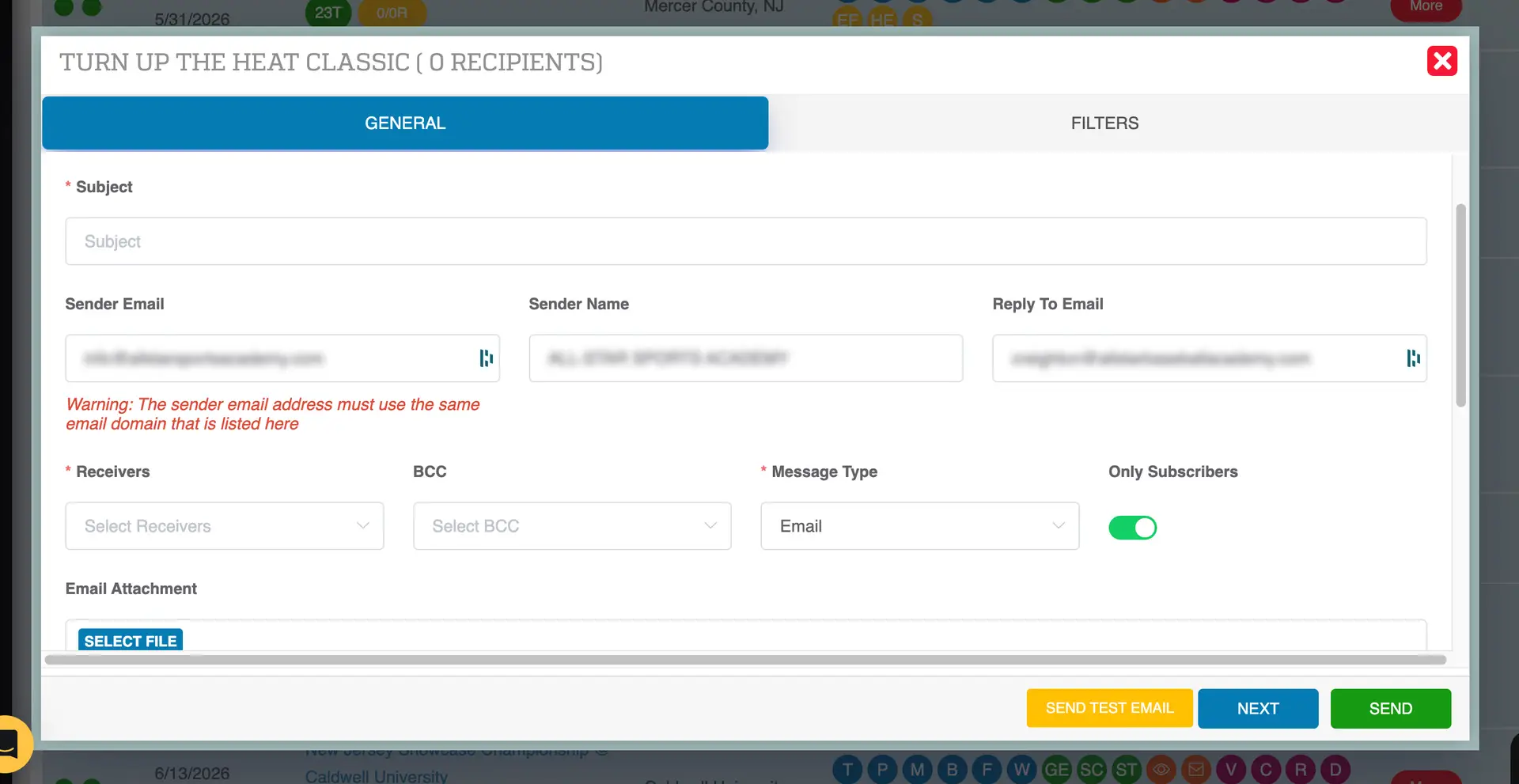
You can send emails or text messages to teams and participants directly from the Event Listings page using the messaging tool.
Accessing the Email Tool
- Navigate to the Event Listings page
- Locate the event
- Click the Send Email / Message button (second orange icon)
- This opens the messaging pop-up
Creating Your Message
- (Optional) Load a saved email template
- Enter a Subject line
-
Review or update:
-
Sender Email (must match your domain after the @)
- Sender Name
- Reply-To Email
Selecting Recipients
- Click the Receivers dropdown
-
Select one or more groups (multi-select):
-
Buyers
- Coaches
- Team Admins
- Parents
- Contacts
The message will be sent to all selected groups
Optional: BCC
- Add internal recipients if needed
- Leave blank if not required
Choosing Message Type
- Select Email to send an email
- Select SMS/Text to send a text message (only available from this tool)
Writing the Message
- Enter your message in the Email Content field
- Do NOT copy/paste from Word or external sources
- Do NOT use emojis (may break the email formatting)
Sending a Test Email
- Click Send Test Email
- Enter your email address
- Review the message before sending to recipients
Using Filters (Optional)
Click Next to access filters and narrow your audience:
- Division or subdivision
- Specific teams
- Team status (confirmed, pending, waitlist)
- Registration status
- Payment status (e.g., unpaid teams)
- Insurance status
If no filters are selected, the message will send to all applicable recipients
Sending the Message
- Click the green Send button
- The message will be sent to all selected recipients based on your filters
Tips
- Use filters to target specific groups (e.g., unpaid teams)
- Double-check recipients before sending
- Send a test email to confirm formatting
- Avoid emojis and pasted formatting to prevent errors