User Account Editing
Modify existing user profiles to update login credentials and email addresses from the admin dashboard.
Manage User Accounts
Access the Accounts Dashboard
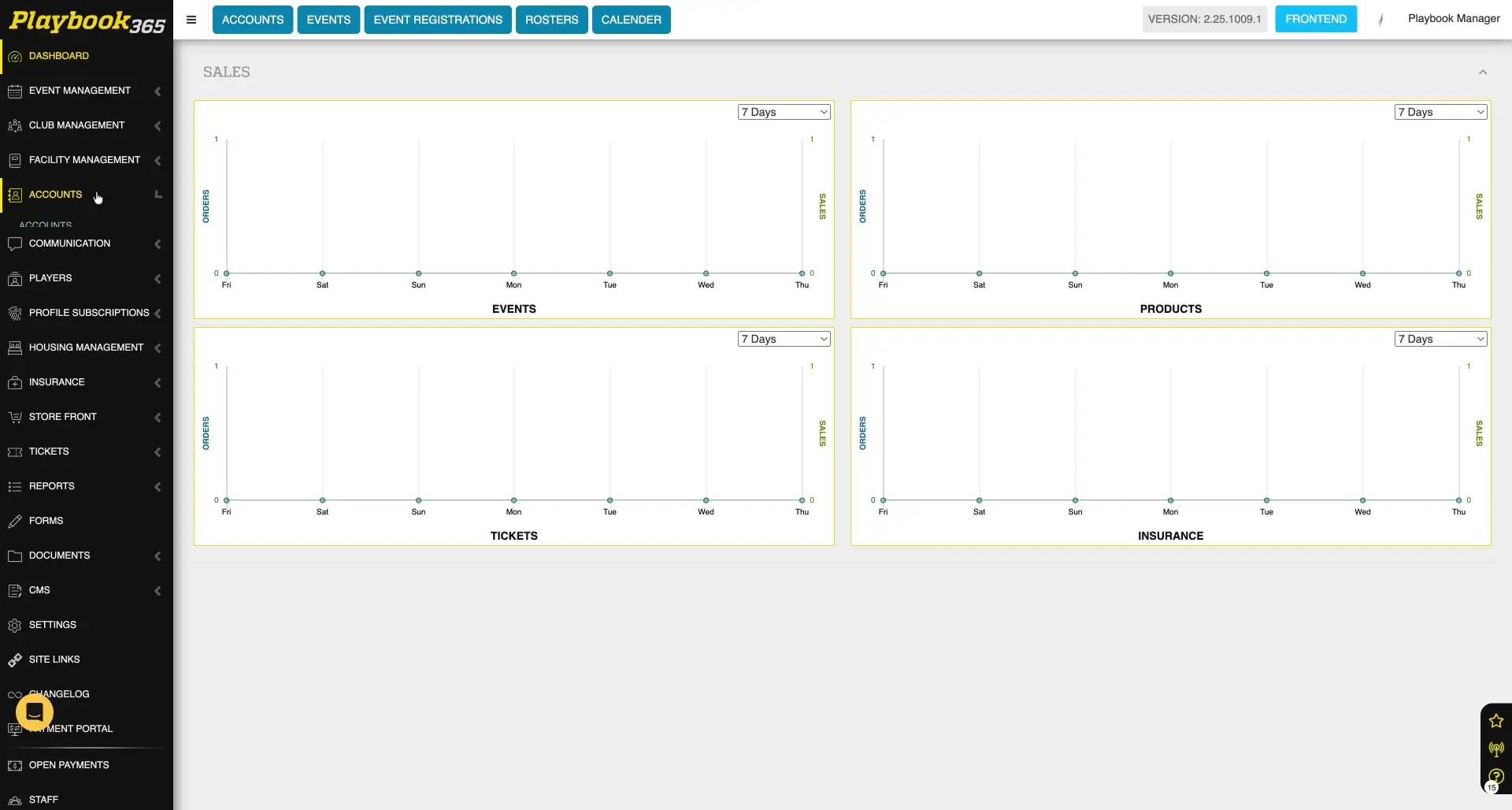
Log in to the admin dashboard and navigate to the Accounts section to view all user accounts. Access this section by clicking "Accounts" at the top of the page or selecting it from the menu bar.
Locate a Specific User Account
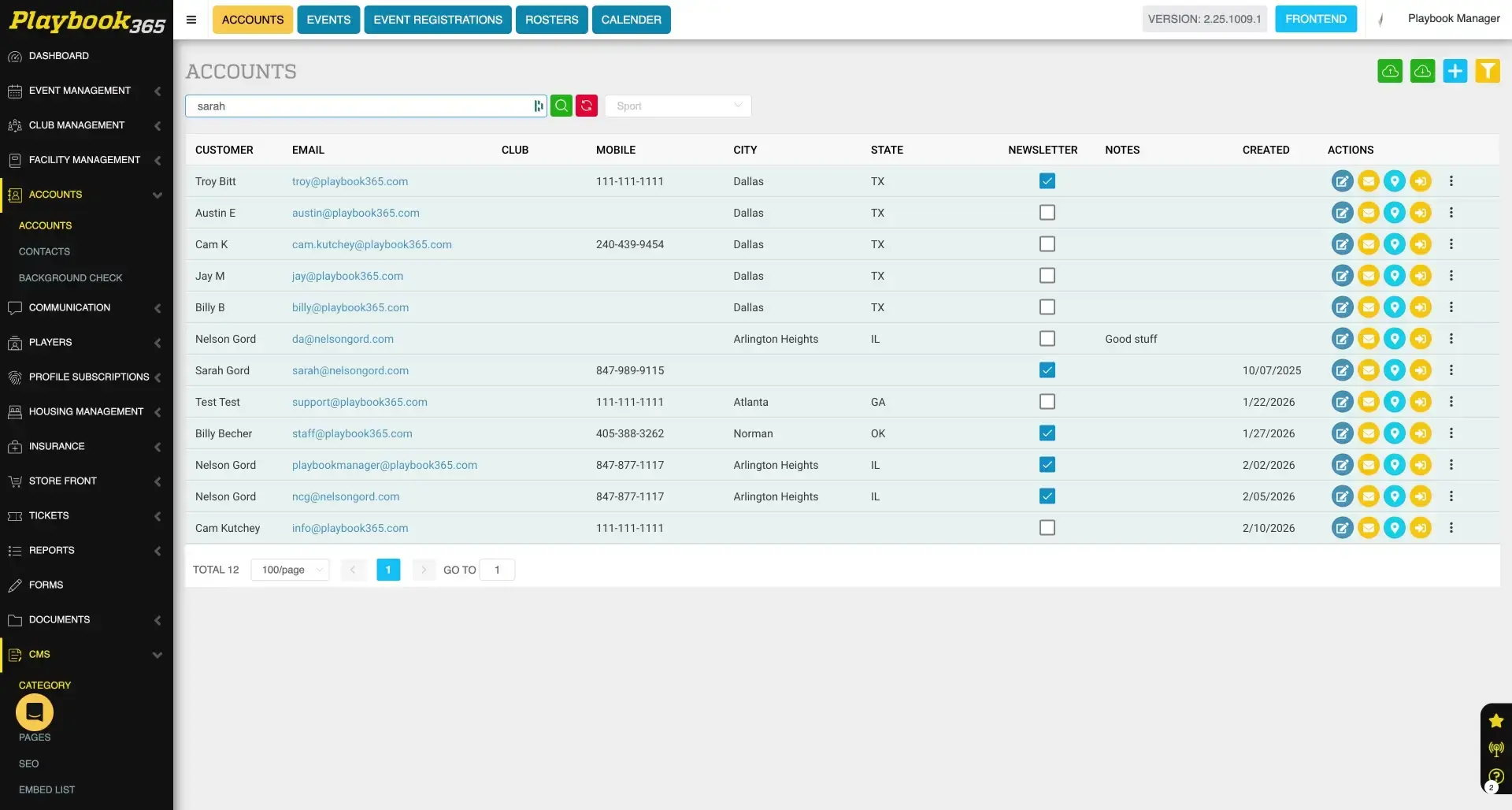
Use the search field on the Accounts dashboard to quickly find a user account. Enter the user's name or email to display matching accounts for editing.
Begin Editing an Account
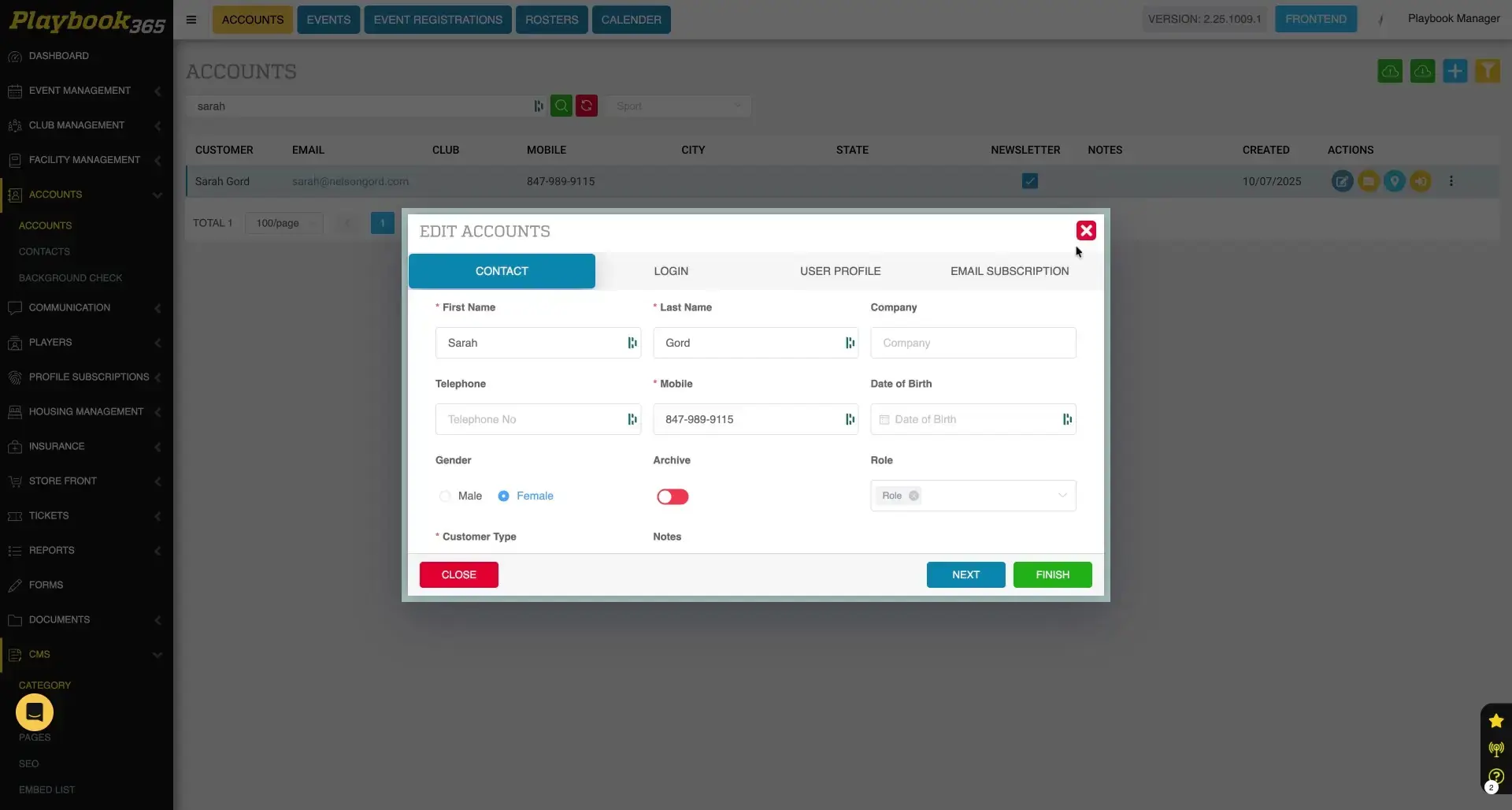
Find the desired user account in the list. Hover over the account row to reveal action buttons, then click the "Edit" button to open the account editing interface.
Edit User Login Details
Access Login Credentials
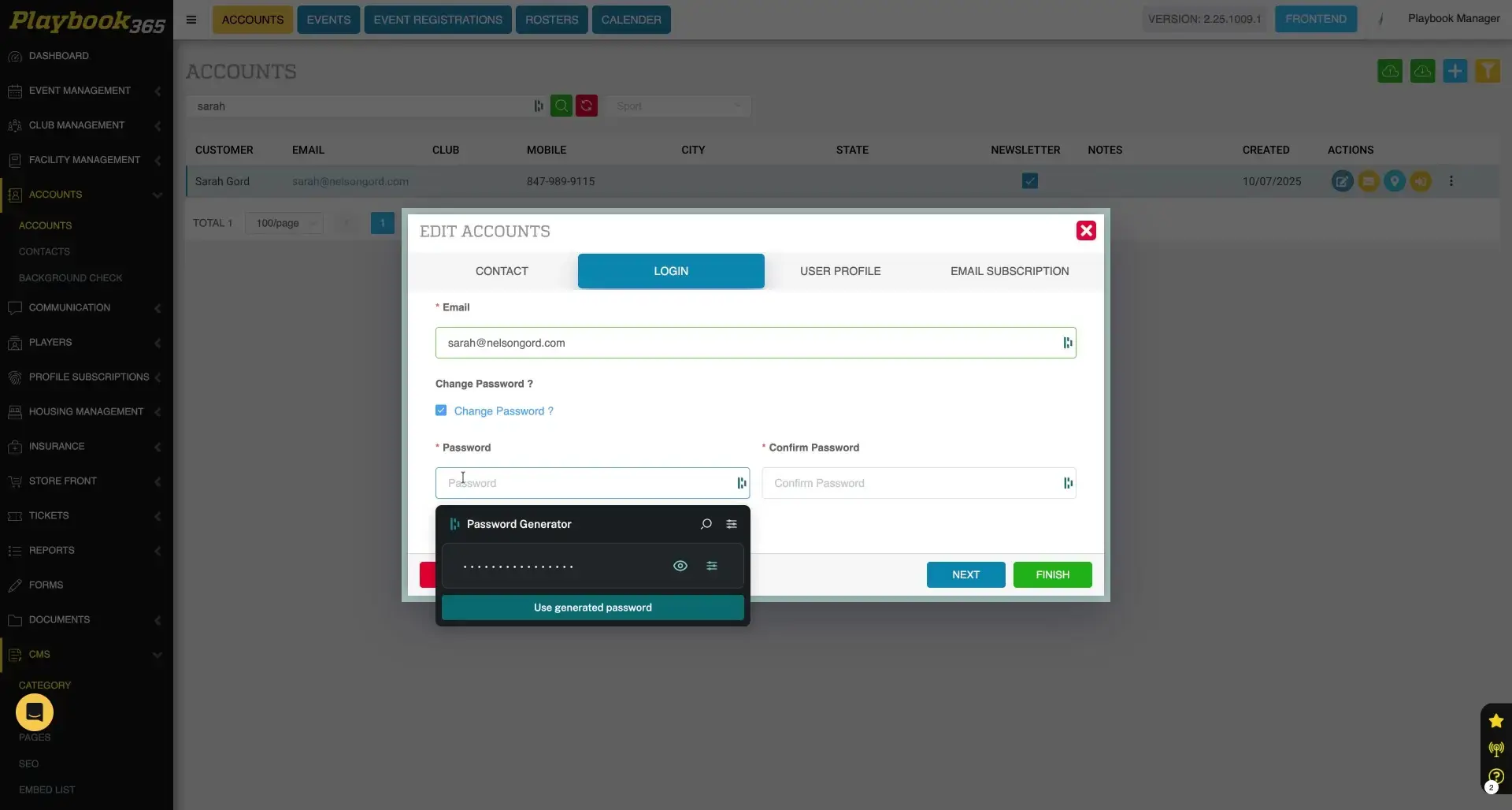
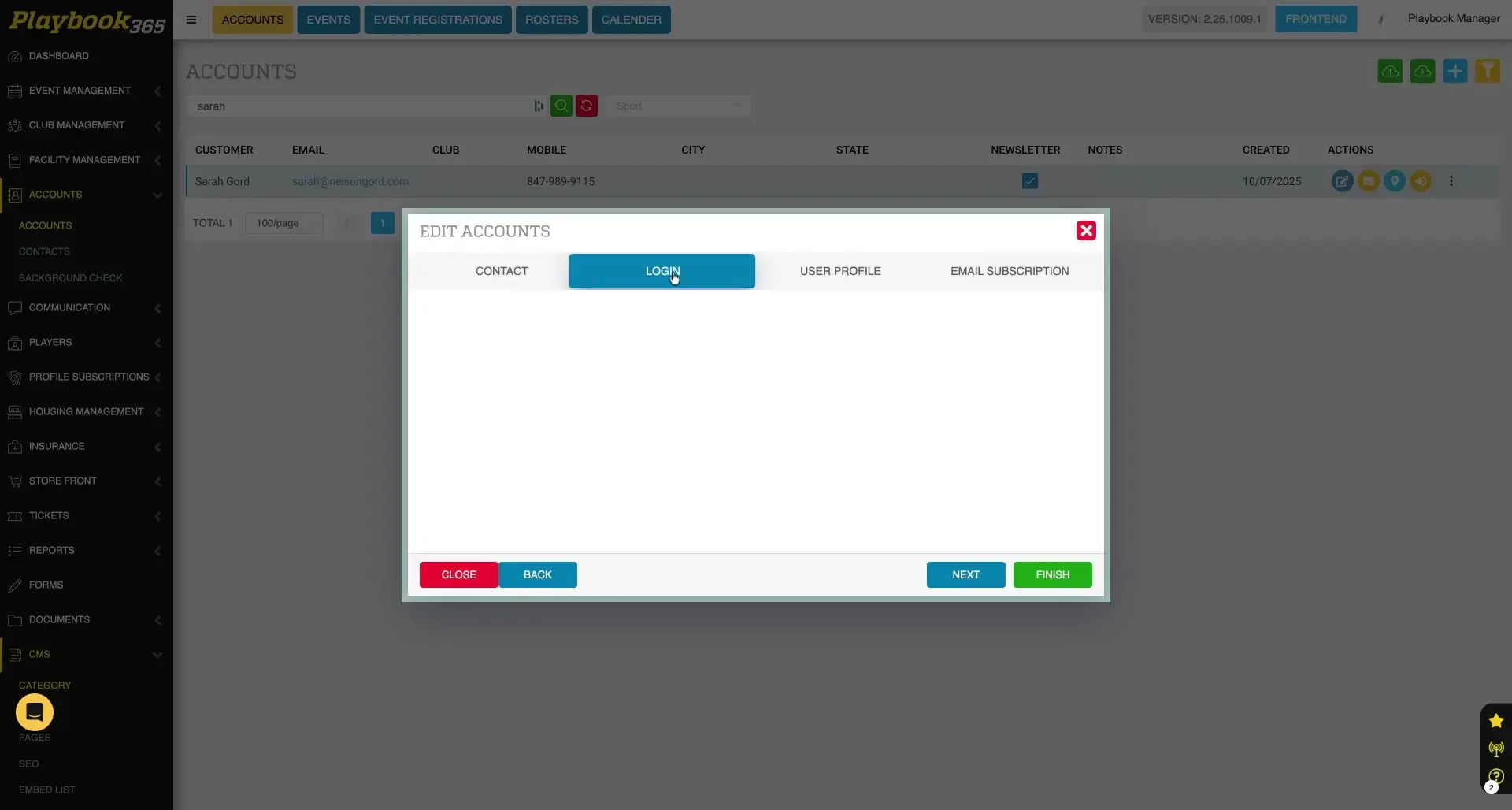
Click the "Login" tab within the "Edit Accounts" modal to access and modify the user's email address and password settings.
Update User Email Address
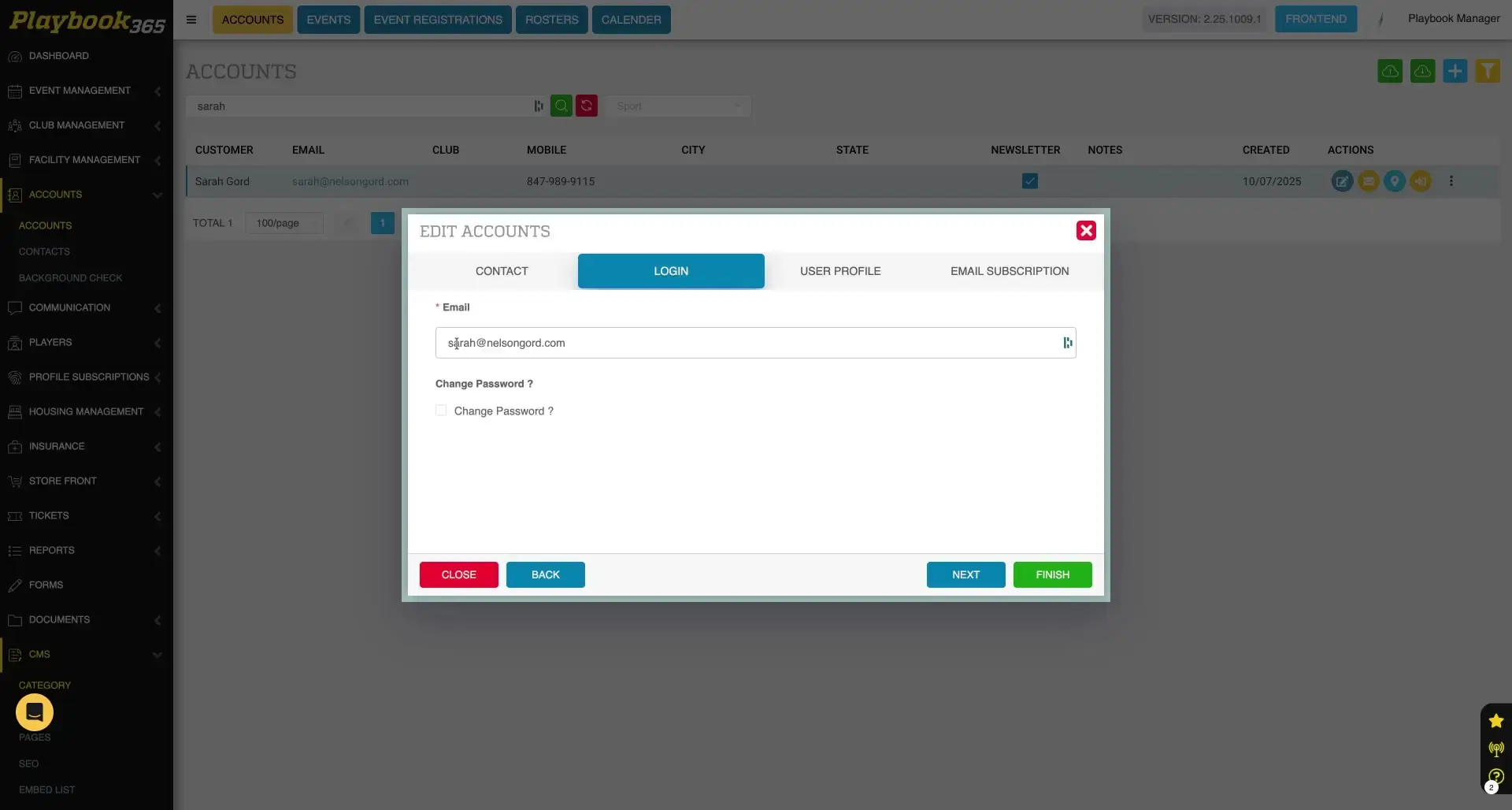
Locate the email address field on the "Login" tab and enter the new email address to update the user's primary contact information.
Reset User Password
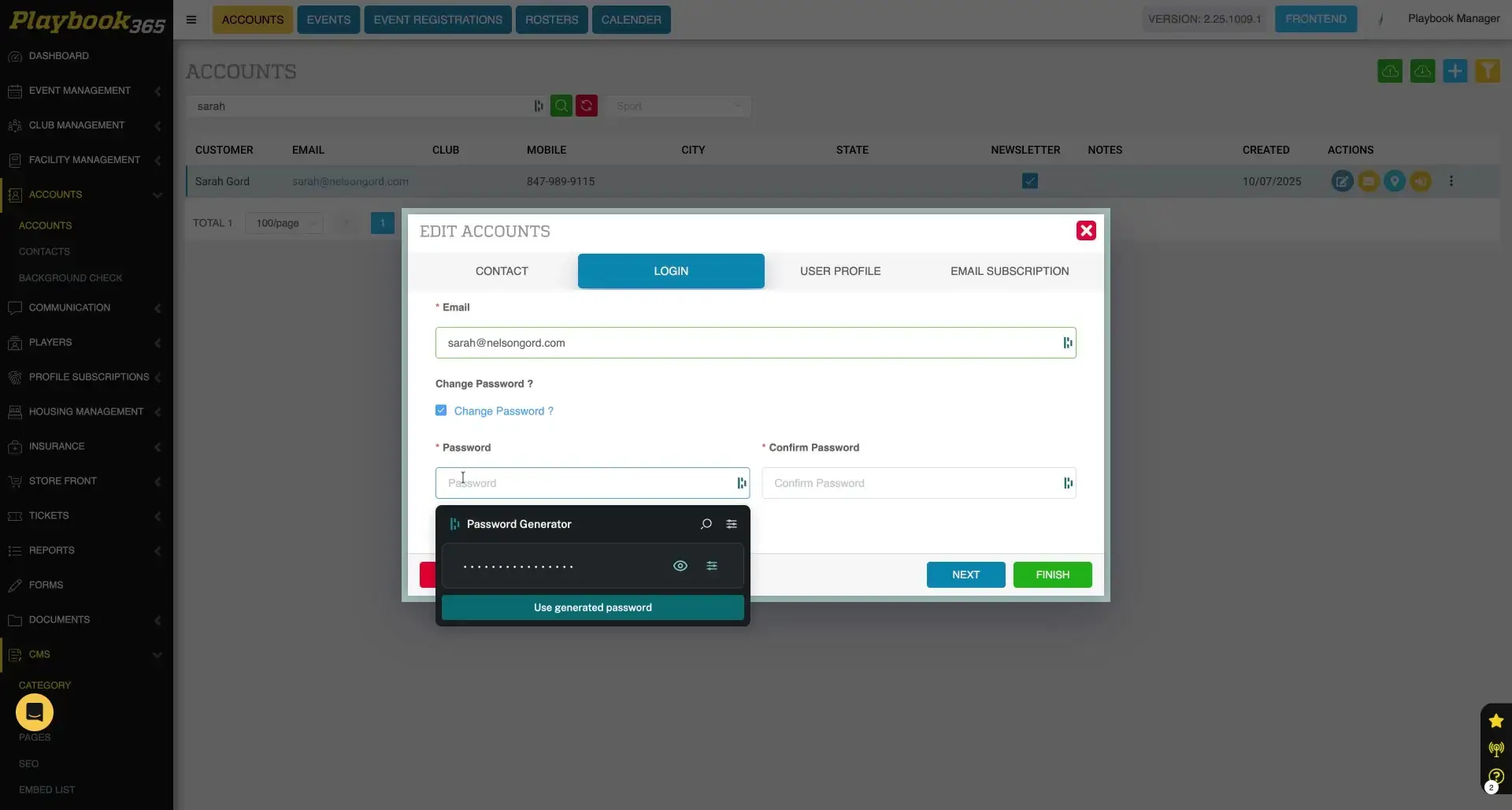
To reset a user's password, select the "Change Password?" checkbox on the "Login" tab. Enter and confirm the new password in the revealed fields to set a new password for the user.
Enable Password Reset
Select the "Change Password?" checkbox to enable the new password fields for resetting a user's password.
Save Account Modifications
Click the "Finish" button to save all changes made to the user's email address and password.