
Email templates allow you to save commonly used messages so you can quickly send them in the future without rewriting content each time.
Accessing Email Templates
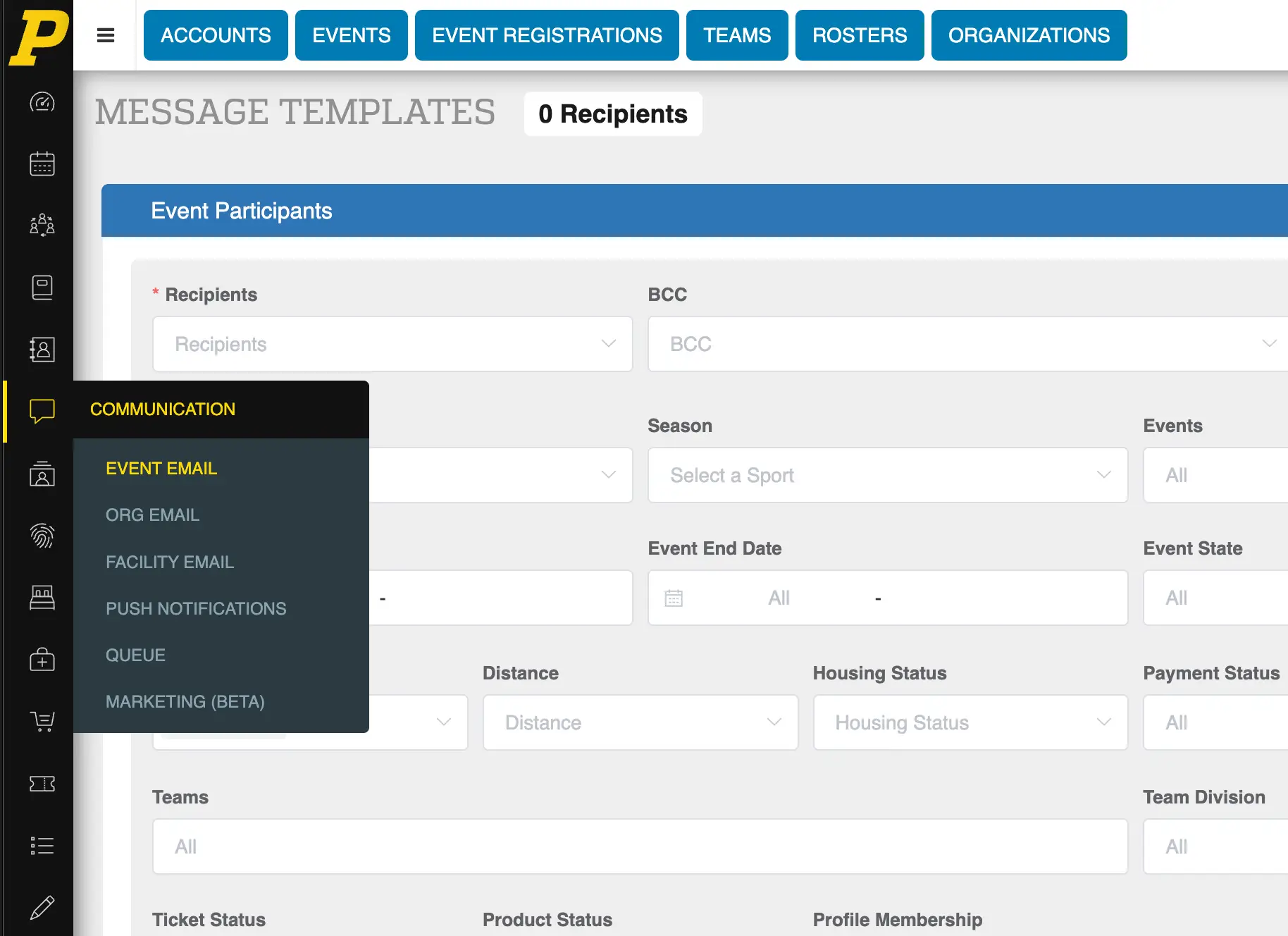
- Navigate to the Communications tab in the left-hand toolbar
- Select Event Email
- This opens your list of existing email templates
Creating a New Template
- Click the blue + button in the top-right corner
- This opens the template creation screen
Setting Recipients and Filters
- Select Receivers (buyers, coaches, team admins, parents, etc.)
- (Optional) Add BCC recipients for internal visibility
- Message Type should remain Email
- Select Sport and Season if applicable
-
(Optional) Apply filters such as:
-
Division
- Registration status
- Payment status (e.g., unpaid teams)
- Housing status
- Event dates
If no filters are selected, the template will apply to all recipients
Creating the Email Content
- Enter a Subject line
-
Set or confirm:
-
Sender Email (must match your domain after the @)
- Sender Name
- Reply-To Email
- Type your message in the Email Content field
Important Formatting Notes
- Do NOT copy/paste from external documents (may break formatting)
- Do NOT use emojis (can cause delivery issues)
Testing and Saving
- (Optional) Click Send Test Email to preview the message
- Click Save to store the template
Using Your Template
- After saving, the template will appear in your template list
- You can load it when sending emails for future events
Tips
- Use templates for recurring communications (welcome emails, reminders, payment notices)
- Use filters to target specific groups (e.g., unpaid teams)
- Keep messaging simple and consistent for best results