
Overview
This article explains how to configure two parallel single-elimination brackets — a Gold Bracket (top half of the division) and a Silver Bracket (bottom half of the division) — for a 16-team event using two pools of 8.
This setup is used when an event director wants every team to continue into bracket play after pool play, with the top 8 teams competing for the championship in the Gold Bracket and the bottom 8 teams competing in the Silver (consolation) Bracket.
This format is one of the most common multi-bracket structures in Playbook and is fully supported within a single division.
Where to Find This
Event Management → Events → Event Name → Brackets (B button)
You will also use:
Event Management → Events → Event Name → Pools (P button) Event Management → Events → Event Name → Standings (ST button)
Step-by-Step Instructions
Part 1: Set Up the Two Pools
- Open the event and click the blue P button to access the Pools page.
- Create two pools and name them Pool A and Pool B.
- Click Assign All Teams. Playbook will automatically split the 16 teams evenly — 8 in Pool A and 8 in Pool B.
- Click the green FINISH button to save.
Part 2: Create the Gold Bracket
- Click the blue B button to open the Brackets page.
- Select your division from the dropdown at the top.
- Click CREATE NEW BRACKET.
-
In the bracket setup:
-
Number of Teams: 8
- Bracket Type: Single Elimination
- Auto-Fill Division Seeds: ENABLED
- Click CREATE.
- In the bracket name field, type Gold Bracket.
- Click CLEAR & SAVE to save the bracket.
The Gold Bracket will automatically populate with Division Place 1 through 8 based on the Division Standings. The #1 seed plays #8, #4 plays #5, #3 plays #6, and #2 plays #7.
Part 3: Create the Silver Bracket
- While still on the Brackets page, click CREATE NEW BRACKET again.
-
In the bracket setup:
-
Number of Teams: 8
- Bracket Type: Single Elimination
- Auto-Fill Division Seeds: DISABLED (turn this OFF)
- Click CREATE.
- In the bracket name field, type Silver Bracket.
Part 4: Manually Assign Silver Bracket Seeds
Because Auto-Fill is turned off, you must assign each seed manually using the dropdowns.
- For each first-round bracket slot, click the Source dropdown and select Division Place.
-
In the second dropdown next to Source, assign the seed numbers to create these matchups:
-
Game 1: Division Place 9 vs Division Place 16
- Game 2: Division Place 10 vs Division Place 15
- Game 3: Division Place 11 vs Division Place 14
- Game 4: Division Place 12 vs Division Place 13
- Click CLEAR & SAVE to save the Silver Bracket.
Part 5: Verify in Standings
After pool play is complete, click the green ST button to open the Standings page. You will see three views:
- Pool Standing A — ranks the 8 teams in Pool A
- Pool Standing B — ranks the 8 teams in Pool B
- Division Standings — combines all 16 teams into one ranked list (Division Place 1 through 16)
The Division Standings page is what feeds both the Gold and Silver brackets. The #1 ranked team in the division flows into the Gold Bracket #1 seed slot, and the #16 ranked team flows into the Silver Bracket slot that plays the #9 seed.
Field Reference
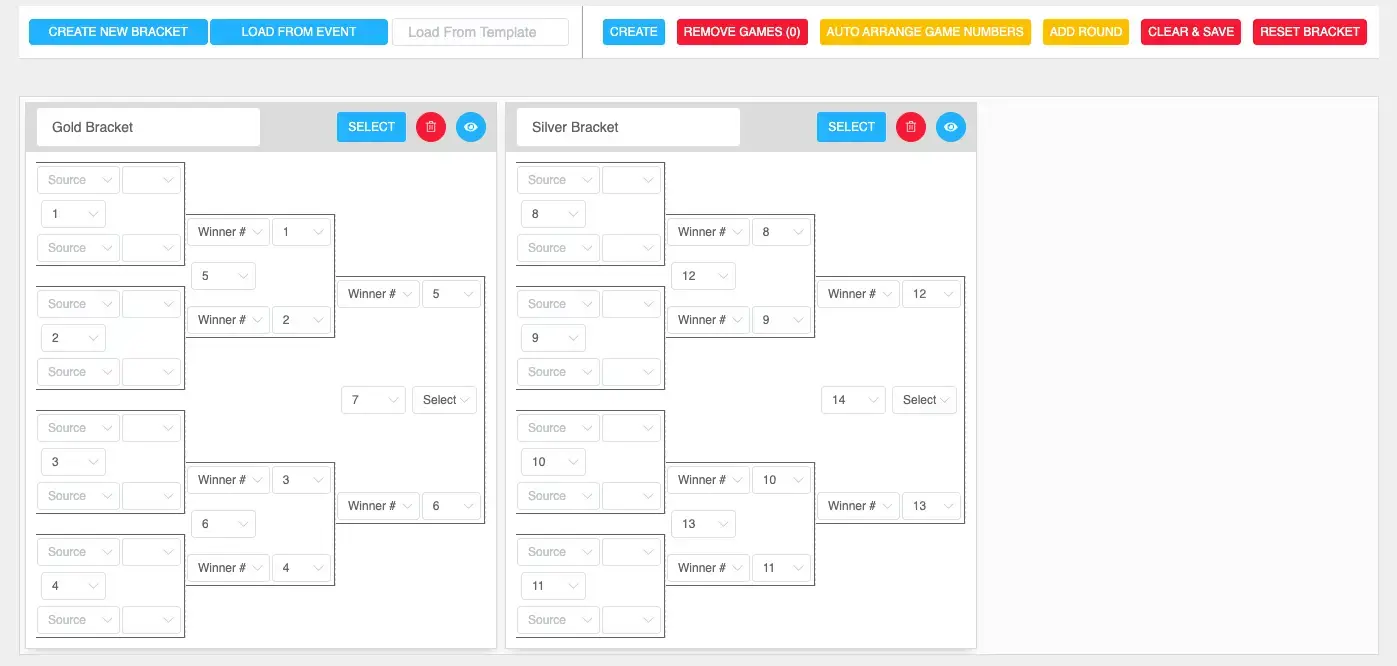
Top Toolbar Buttons
CREATE NEW BRACKET (blue) — Opens the bracket creation window. Use this once for the Gold Bracket and a second time for the Silver Bracket.
LOAD FROM EVENT (blue) — Loads a bracket structure from a past event. Not needed for this workflow.
Load From Template (search field) — Loads a saved bracket template. Requires at least 4 characters to search.
CREATE (blue) — Generates the bracket on the page after you've selected number of teams, bracket type, and Auto-Fill setting.
REMOVE GAMES (0) (red) — Deletes any games you have selected. The number in parentheses shows how many games are currently selected.
AUTO ARRANGE GAME NUMBERS (yellow) — Re-numbers the games logically after edits. Useful if you've added or removed games and the numbering looks out of order.
ADD ROUND (yellow) — Adds an additional round of games to the bracket. Used for custom formats.
CLEAR & SAVE (red) — Saves your current changes. Despite the red color, this is the save button — changes are NOT retained until you click it.
RESET BRACKET (red) — Clears the entire bracket and starts fresh. This cannot be undone.
Bracket Card Controls
Bracket Name field — The text field at the top of each bracket card. Type Gold Bracket or Silver Bracket here.
SELECT (blue) — Selects all games in this bracket. Used in combination with REMOVE GAMES to delete a bracket.
Trash icon (red) — Deletes the entire bracket card.
Eye icon (blue) — Previews the bracket in public view.
Bracket Slot Dropdowns
Source dropdown — Determines where the team in this slot comes from. Options include:
- Division Place — Team is pulled from the combined Division Standings (most common for Gold/Silver setups)
- Overall Place — Team is pulled from overall standings across multiple divisions
- Pool Place — Team is pulled from a specific pool standing
- Winner of Game — Team is the winner of a previous bracket game
- Loser of Game — Team is the loser of a previous bracket game
Place Number dropdown — The dropdown next to Source. Once Source is set to Division Place, use this to assign the specific seed number (1, 2, 3 ... 16).
Important: You must select the Source first. If Source is left blank, the second dropdown will not populate.
Best Practices
- Set up your pools and divisions first. Brackets pull from Division Standings, so the standings must exist before bracket play begins.
- Use Auto-Fill Division Seeds for the Gold Bracket. This saves time and prevents manual seeding errors for the top half.
- Always disable Auto-Fill for the Silver Bracket. If left on, the Silver Bracket will duplicate seeds 1–8 instead of pulling 9–16.
- Name brackets clearly (Gold Bracket, Silver Bracket) so they are easy to identify on the public schedule and in reports.
- Click CLEAR & SAVE after configuring each bracket. Switching divisions or leaving the page without saving will lose your changes.
- Verify your seed assignments in the Silver Bracket before pool play begins. Once games are scheduled on the Whiteboard, changing seed sources can disrupt the schedule.
Common Issues
"My Silver Bracket is showing the same teams as the Gold Bracket." Auto-Fill Division Seeds was left enabled when creating the Silver Bracket. Delete the Silver Bracket, click CREATE NEW BRACKET again, and turn Auto-Fill OFF before clicking CREATE. Then manually assign Division Place 9–16.
"The Source dropdowns are empty after I created the Silver Bracket." This is expected behavior when Auto-Fill is disabled. You must manually select Division Place in each Source dropdown, then assign the seed number in the second dropdown.
"Division Standings is empty — my brackets aren't pulling any teams." Pool play must be complete and scores entered before the Division Standings page calculates rankings. Until then, bracket slots will display the seed placeholder (e.g., "Division Place 1") rather than a team name.
"Why is the #1 team going into the Gold Bracket and #16 going into the Silver Bracket?" Both brackets pull from a single Division Standings list that ranks all 16 teams 1–16. Seeds 1–8 feed the Gold Bracket; seeds 9–16 feed the Silver Bracket. This is the intended design.
"I clicked CLEAR & SAVE and lost all my work." CLEAR & SAVE saves your work — it does not clear it. RESET BRACKET is the button that clears everything. Be careful not to confuse the two.
"Can I do this with a different team count, like 12 teams?" Yes. The same workflow applies — create two brackets sized to half your division and assign the appropriate Division Place seeds. For 12 teams, you'd create a 6-team Gold (seeds 1–6) and a 6-team Silver (seeds 7–12).