
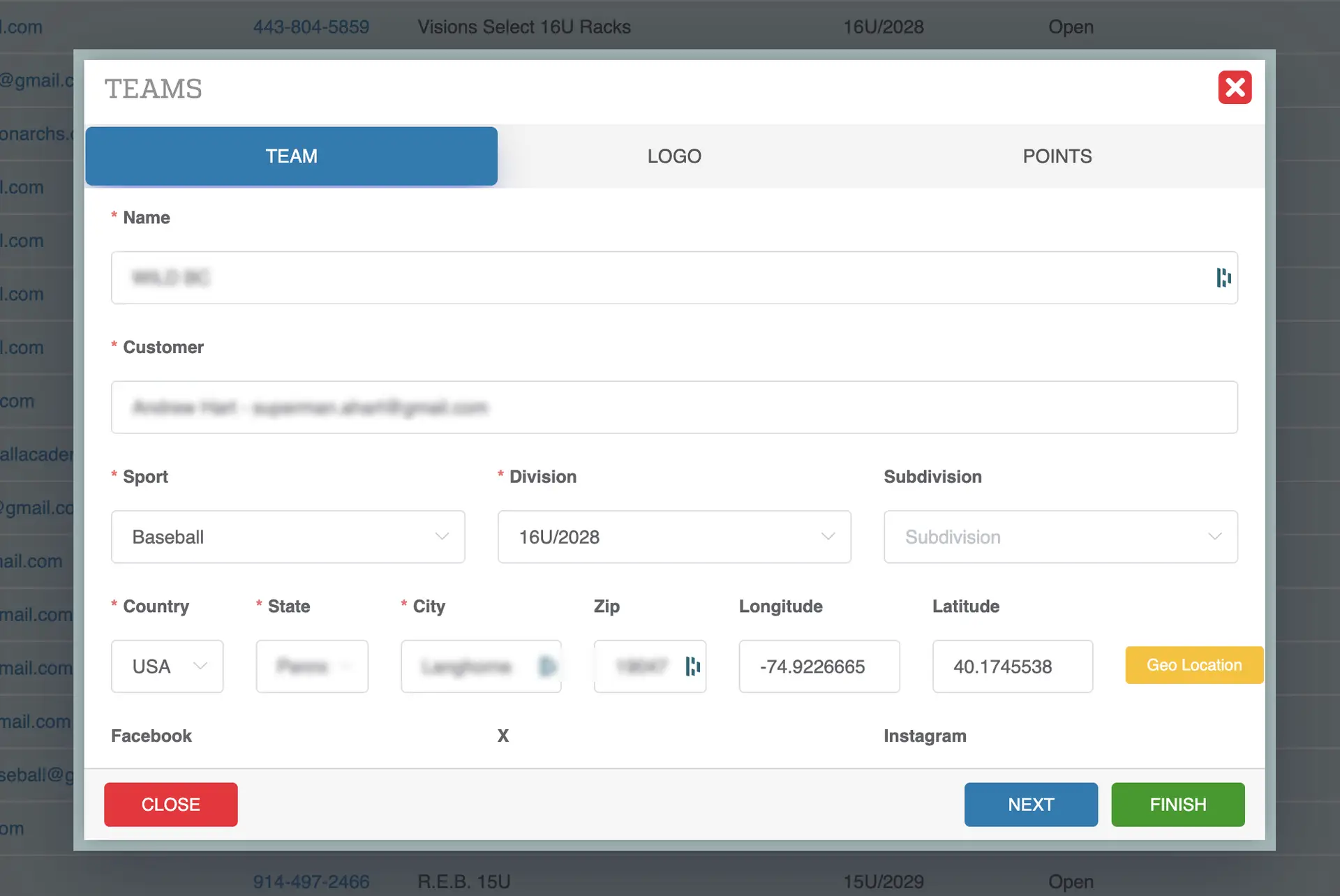
The team owner (customer) is the account responsible for managing the team. Administrators can update the team owner at any time from the Teams page.
Navigating to the Team
- Click the Teams tab at the top of the page or from the left navigation
- This opens the Teams listing page
- Locate the team you want to update
Editing the Team
- Hover over the team row
- Click the Edit (blue pencil icon)
- This opens the Team Edit window
Changing the Team Owner
- Locate the Customer field in the edit window
- Click into the field to open the dropdown
- Start typing the name or email of the new owner
- Select the correct account from the list
- If the account does not exist, you can create a new customer
Saving the Changes
- Click the green Finish button
- The selected customer is now the new team owner
Updating Other Team Details (Optional)
While in the edit window, you can also update:
- Team name
- Division or subdivision
- Sport
- Logo
- Points
Be sure to click Finish to save any changes
Reverting Changes
If the wrong owner is selected:
- Click the Edit (pencil icon) again
- Search for the correct customer
- Select the correct account
- Click Finish to save
Tips
- Ensure the new owner already has an account in the system for faster updates
- Double-check the selected customer before saving
- This change updates who controls and manages the team going forward