
Overview
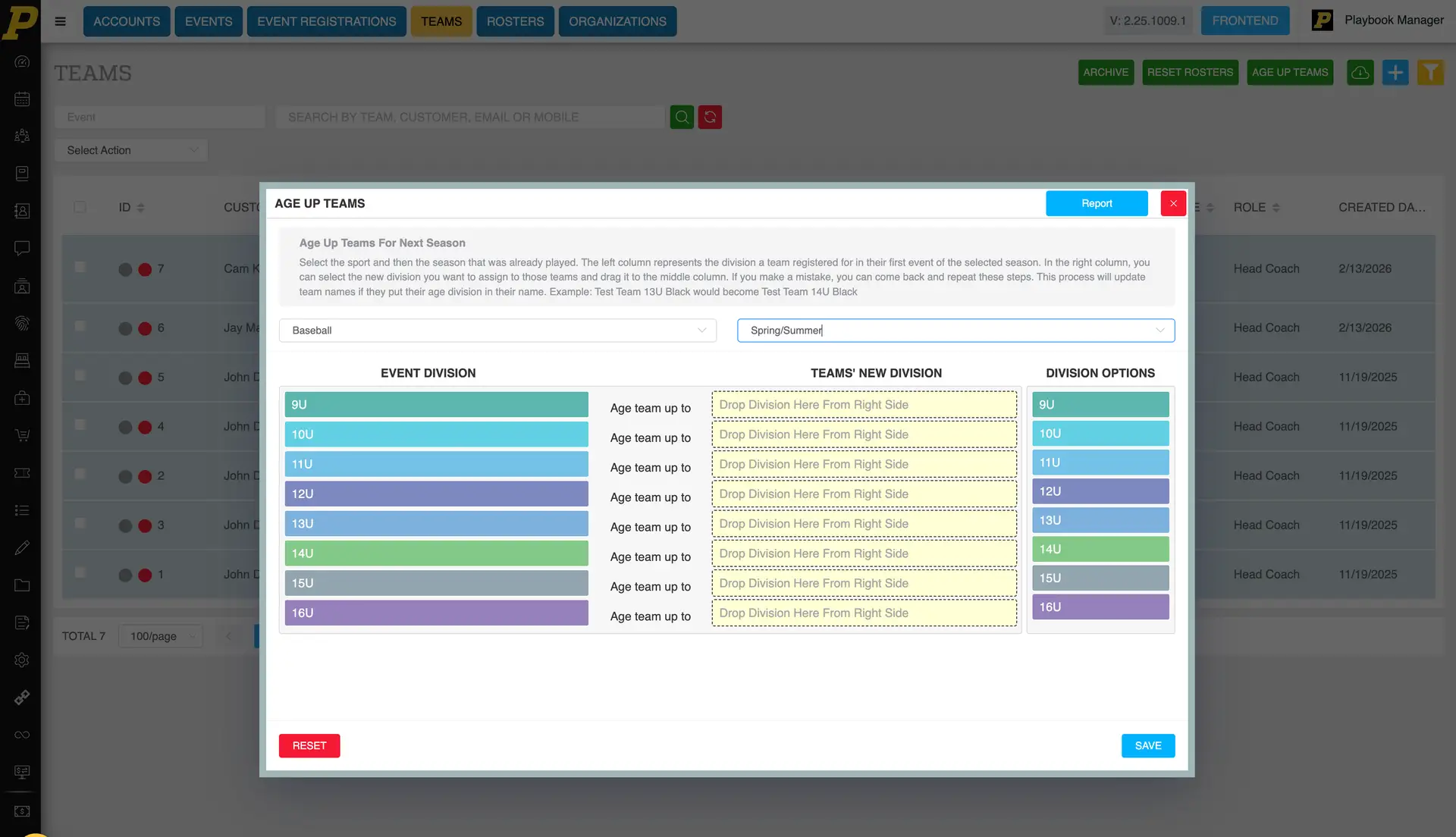
The Age Up Teams feature lets you move all teams in a sport and season up to the next age division in a single action. This is typically done at the end of a season — in baseball this might be done after summer events are complete — when every team needs to advance by one age group for the following season.
Aging up teams one by one is time-consuming. This feature handles the entire roster of teams at once using a drag-and-drop mapping between current and new divisions. It also includes a report and an undo option to correct mistakes.
Where to Find This
Teams
The Age Up Teams button is located in the upper-right area of the Teams page.
Step-by-Step Instructions
- Go to the Teams page that lists all of your teams.
- Click the Age Up Teams button in the upper-right area of the page.
- In the dialog box, select the Sport (example: Baseball).
- Select the Season you want to age up (example: Spring-Summer).
- Your current event divisions will appear on the left side of the dialog.
-
From the division options, click and drag the new division onto each current division to map the age-up path. For example:
-
9U → drag 10U onto it
- 10U → drag 11U onto it
- 11U → 12U
- 12U → 13U
- 13U → 14U
- 14U → 15U
- 15U → 16U
- Leave any divisions you do not want to change unmapped.
- Click Save.
- A confirmation will display showing how many teams were aged up (example: "5 teams were aged up").
Viewing the Age-Up Report
- Click the Age Up Teams button again.
- Open the report view to see a record of what was changed.
- The report shows each team and the division it was moved from and to (example: "12U Wild Stallions were moved from 12U to 13U").
Undoing an Age-Up
If a team was aged up by mistake, you can revert it.
- Go to the Teams page, click Age Up Teams, then click the Report button.
- Check the box next to each team you want to revert.
- Open the Select Actions menu.
- Click Undo.
- The selected teams will revert to their previous division.
Field Reference
Age Up Teams Dialog
Sport The sport whose teams you want to age up. Only teams in the selected sport will be affected. Example: Baseball.
Season The season whose teams should be aged up. All teams in the selected sport and season are eligible. Example: Spring-Summer.
Current Divisions (left side) A list of all existing age divisions that have teams assigned to them. These are the divisions teams will be moved from.
Division Options (drag source) The list of available divisions you can drag onto a current division to set the new age group. This is what teams will be moved to.
Save Button Applies the age-up mapping you configured. After saving, a confirmation displays the number of teams that were aged up.
Teams Page Actions
Select Actions → Undo Reverts selected teams to their previous division after an age-up. Only works on teams that were part of a prior age-up action.
Best Practices
- Run the age-up only after all events for the current season are complete. Aging up mid-season will affect division assignments for any ongoing events.
- Double-check your sport and season selection before mapping divisions. The action applies to every team in that sport and season.
- Map every division you intend to change in a single pass. It is cleaner than running multiple partial age-ups.
- Run the age-up report immediately after saving to confirm the correct teams were moved.
- If you are unsure about the outcome, test the workflow on a smaller sport or season first.
Common Issues
I don't see the Age Up Teams button. The button is in the upper-right area of the main Teams page. Make sure you are on the Teams list view and not inside an individual team.
Some teams weren't aged up. Why? Only teams in the sport and season you selected are eligible. Teams in other sports or seasons will not be affected. Also confirm that the division the team was in was mapped to a new division — unmapped divisions are left alone.
I aged up the wrong teams. Can I fix it? Yes. Go to the Teams page, check the boxes next to the teams that were aged up by mistake, open the Select Actions menu, and click Undo.
What happens to teams in divisions I don't map? Nothing. If a current division is not mapped to a new division, the teams in that division stay where they are.
Can I age up teams across multiple sports at once? No. You must select one sport per age-up action. Run the process separately for each sport.
Can I age teams up by more than one year? The workflow is designed to map any current division to any new division, so you can drag a division that represents a larger jump if needed. However, the standard and recommended use is a one-year advancement.
Where can I see what was changed? Click the Age Up Teams button again and open the report view to see which teams were moved and their previous and new divisions.