
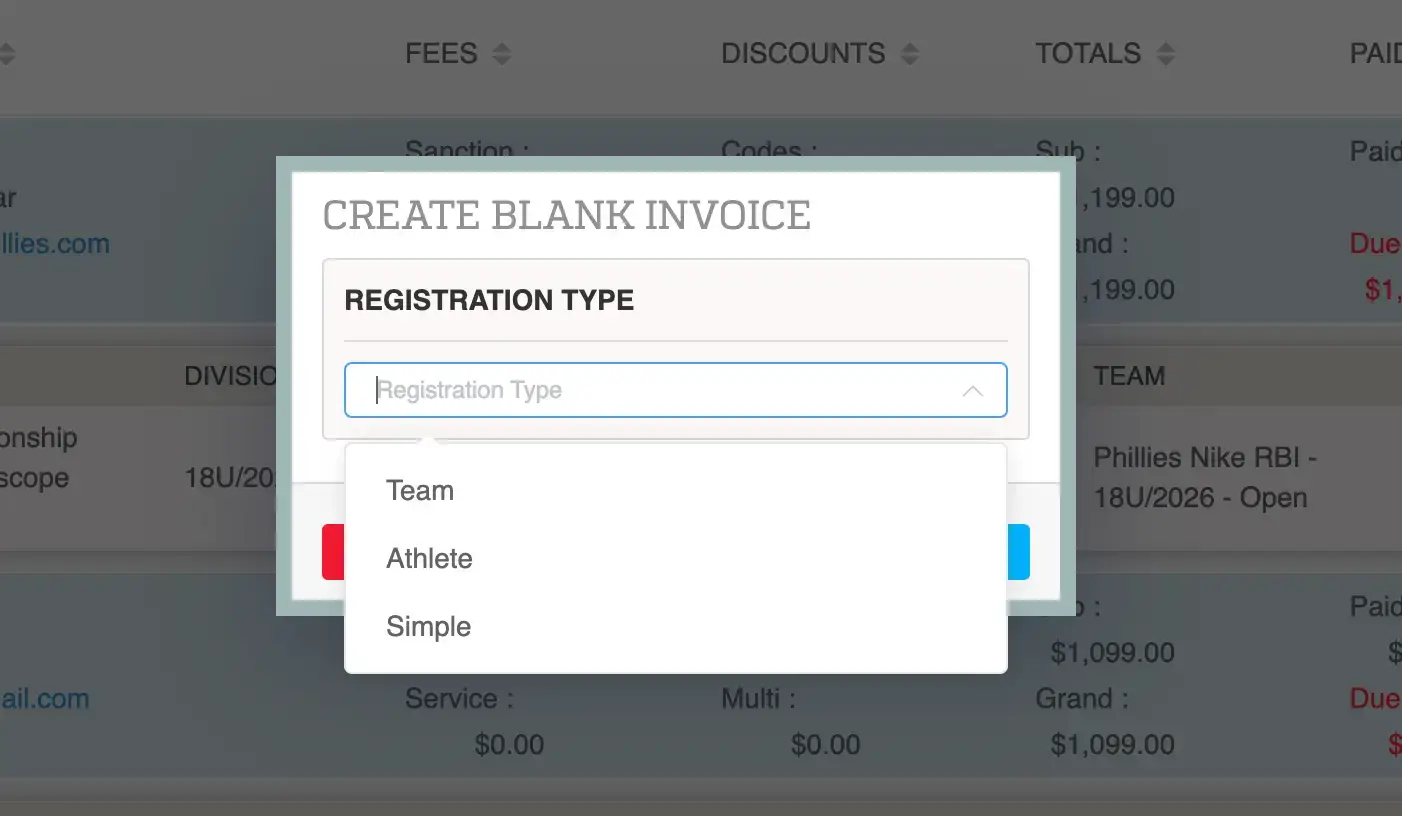
If a team is paying by check, you will need to create a registration manually and then record the payment on the invoice.
Creating the Registration
- Navigate to Event Registrations
- Click the blue + Invoice button (Create Blank Invoice)
- Select Team Registration from the Registration Type dropdown
- Click Save
This opens a blank invoice.
Adding the Customer
- In the Add Customer pop-up, click into the customer field
- Start typing the customer’s name or email
- Select the correct account from the dropdown
- Select the customer’s address
- Click Save
The customer is now assigned to the invoice.
Adding the Event and Team
- Search for the event by name
- Select the correct event
- Choose the division
- Select the subdivision if applicable
- Select the team from the dropdown
- Click the green Add Event button
The team is now added to the invoice.
Recording the Check Payment
- Click the green New Payment button at the top of the invoice
- Select Pay Later (Check or Credit Card) as the payment method
- Enter the payment amount
- Enter the check number
- Select the transaction date
- Click Make Payment
The invoice will update to reflect the payment.
Adding Notes (Recommended)
- Add a note such as “Paid by check”
- Include the check number for reference
- This helps with tracking and record keeping
Confirming Payment
- Verify the payment appears on the invoice
- Confirm the Total Due is updated (or $0 if fully paid)
Tips
- Always confirm the correct team and division before adding the event
- Double-check payment details before submitting
- Use notes to track offline payments clearly