
How to Add a Payment Method for Playbook Invoices
Adding a payment method ensures your account stays in good standing and prevents service interruptions.
Ways to Access the Payment Method Page
Option 1:
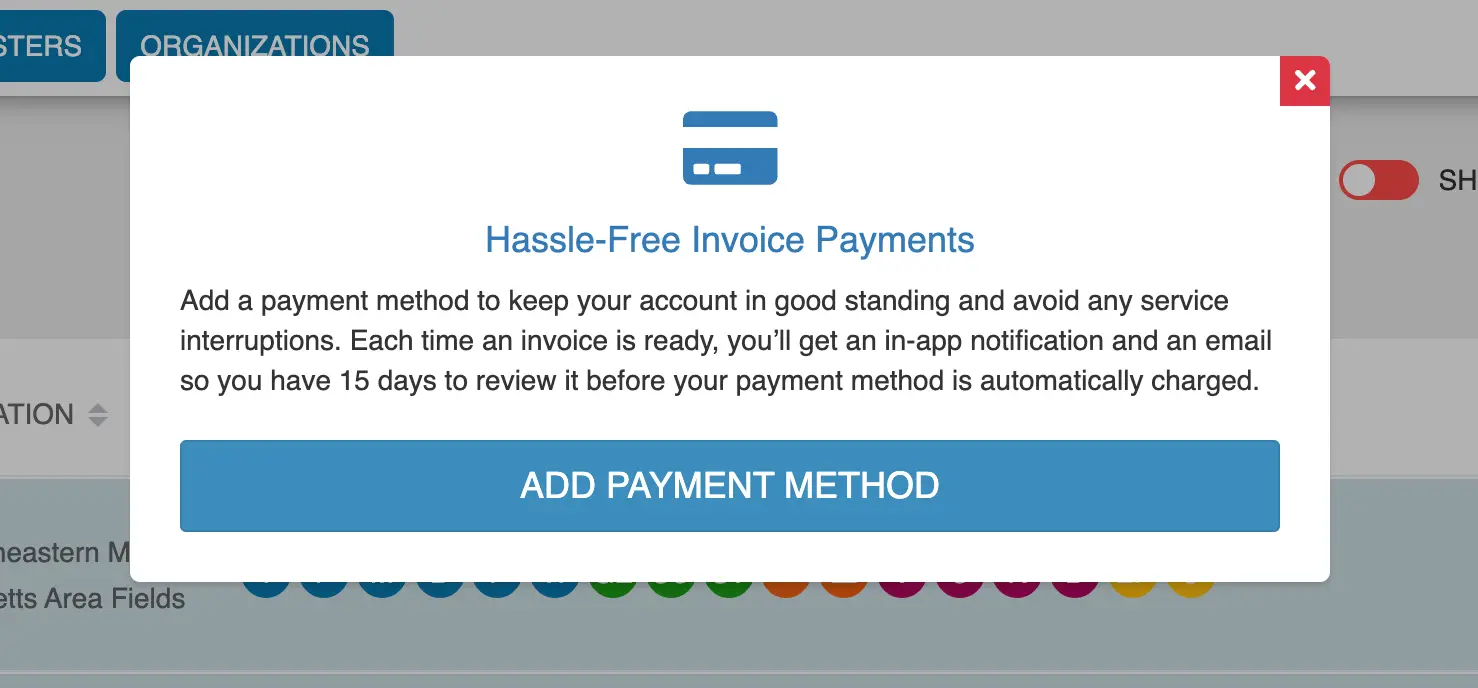
- Upon login, a popup may appear labeled “Hassle-Free Invoice Payments”
- Click Add Payment Method to go directly to the invoices page
Option 2:
- Scroll to the bottom of the left-hand menu
- Click the Playbook “P” logo
- This will take you to the invoices page
Adding a Payment Method
- On the invoices page, click the blue Add Payment Method button in the top right
- Select the Merchant account you want to apply the payment method to
-
Choose a payment type:
-
Credit Card
- eCheck (bank account)
Entering Payment Details
- Credit Card: Enter card number, expiration date, billing address, and required details
- eCheck: Enter account number, routing number, and billing details
Saving and Using Your Payment Method
- Once saved, this payment method can be used to pay Playbook invoices
- Payment information is stored securely
Tips
- Add a payment method early to avoid service interruptions
- Double-check billing details before saving