Overview
Create new staff accounts to grant platform access. Input contact details, establish login credentials, and configure permissions for each staff member.
Staff Management
Access Staff List
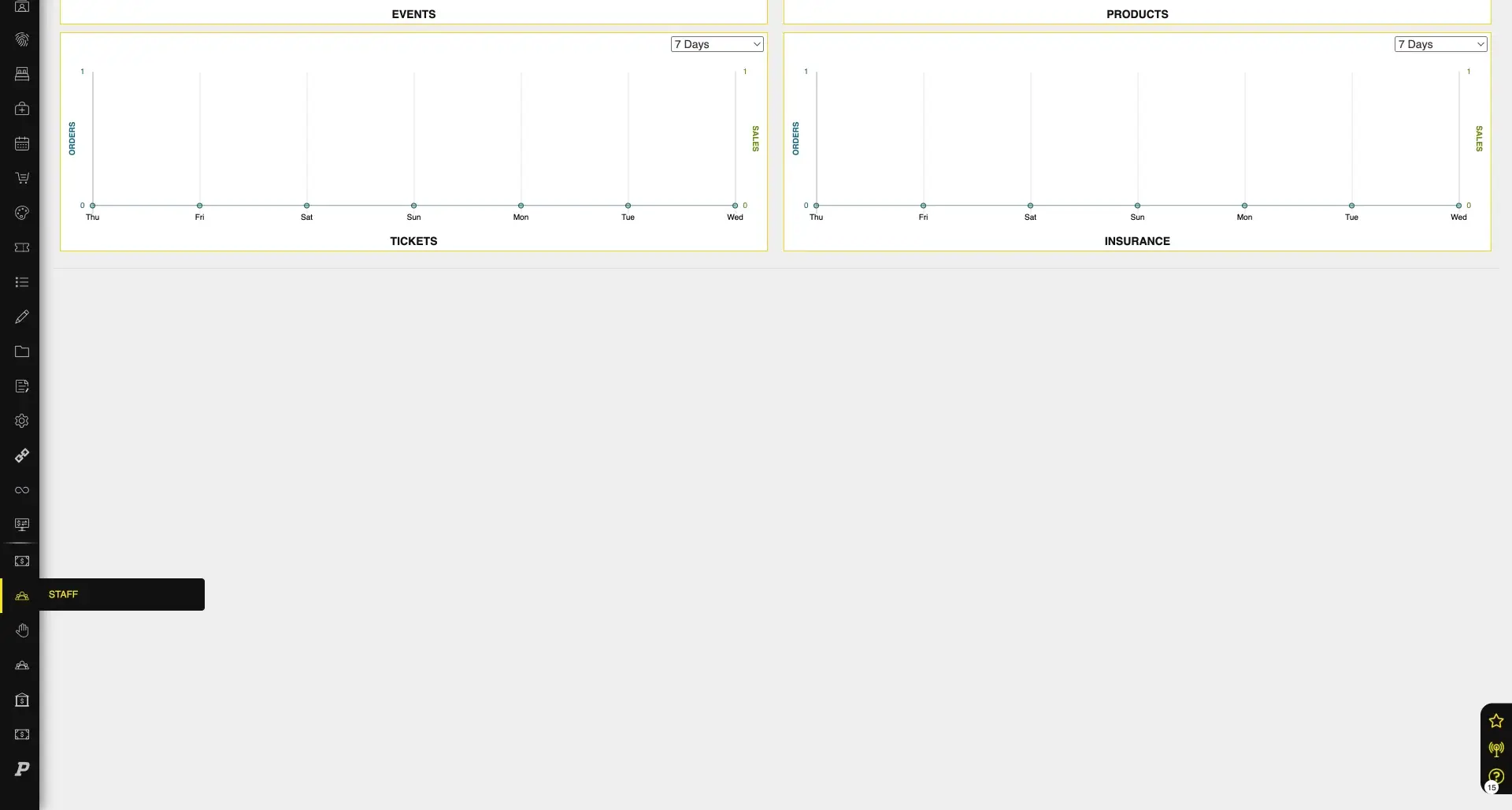
Navigate to the dashboard. From the left menu, select "Staff" to open the staff management area. This area displays all staff member accounts.
Add New Staff Member
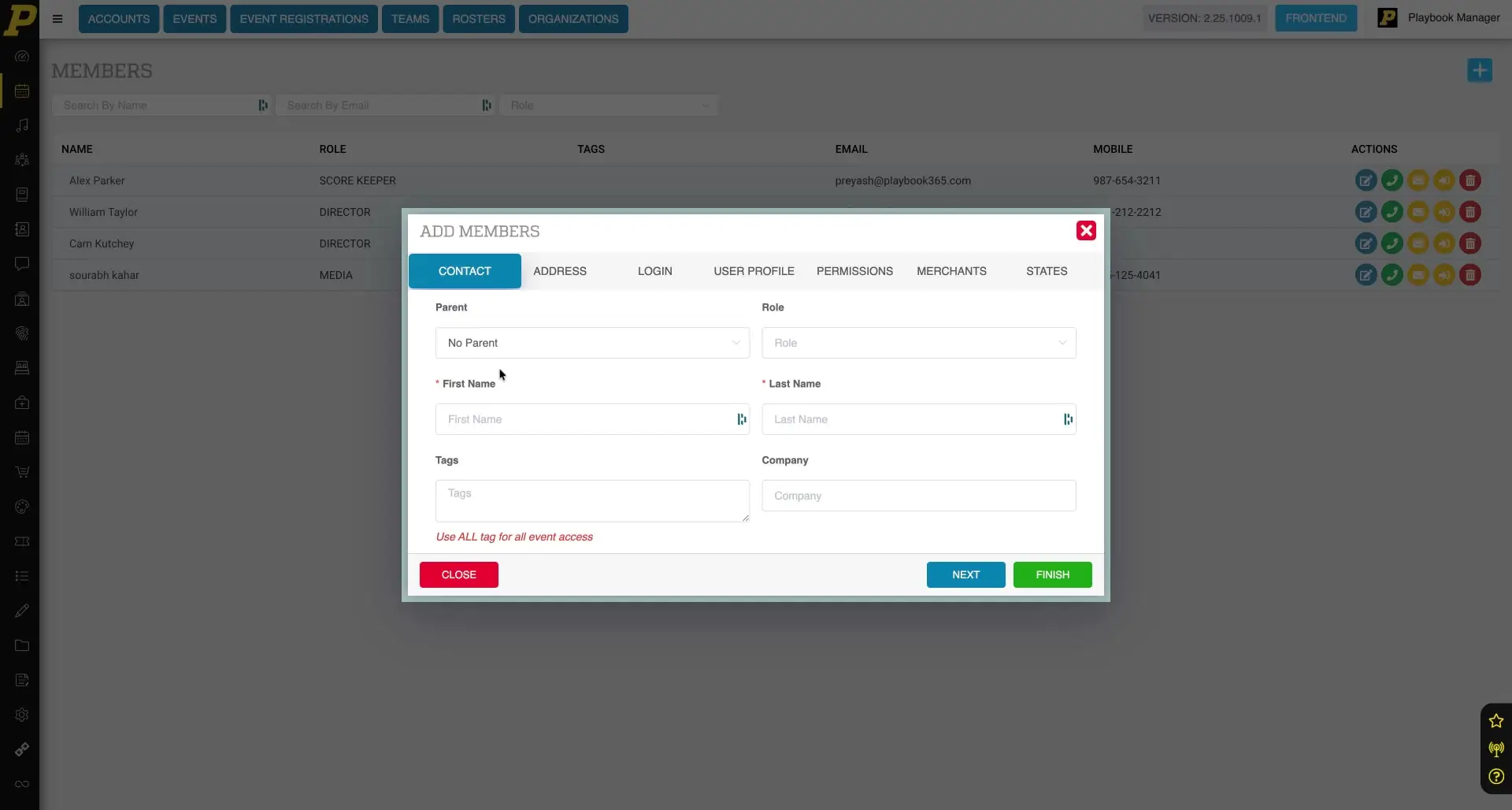
Click the blue plus button in the upper right corner of the staff management area to open the "Add Members" form. This form allows you to enter details for a new staff member.
Member Information Entry
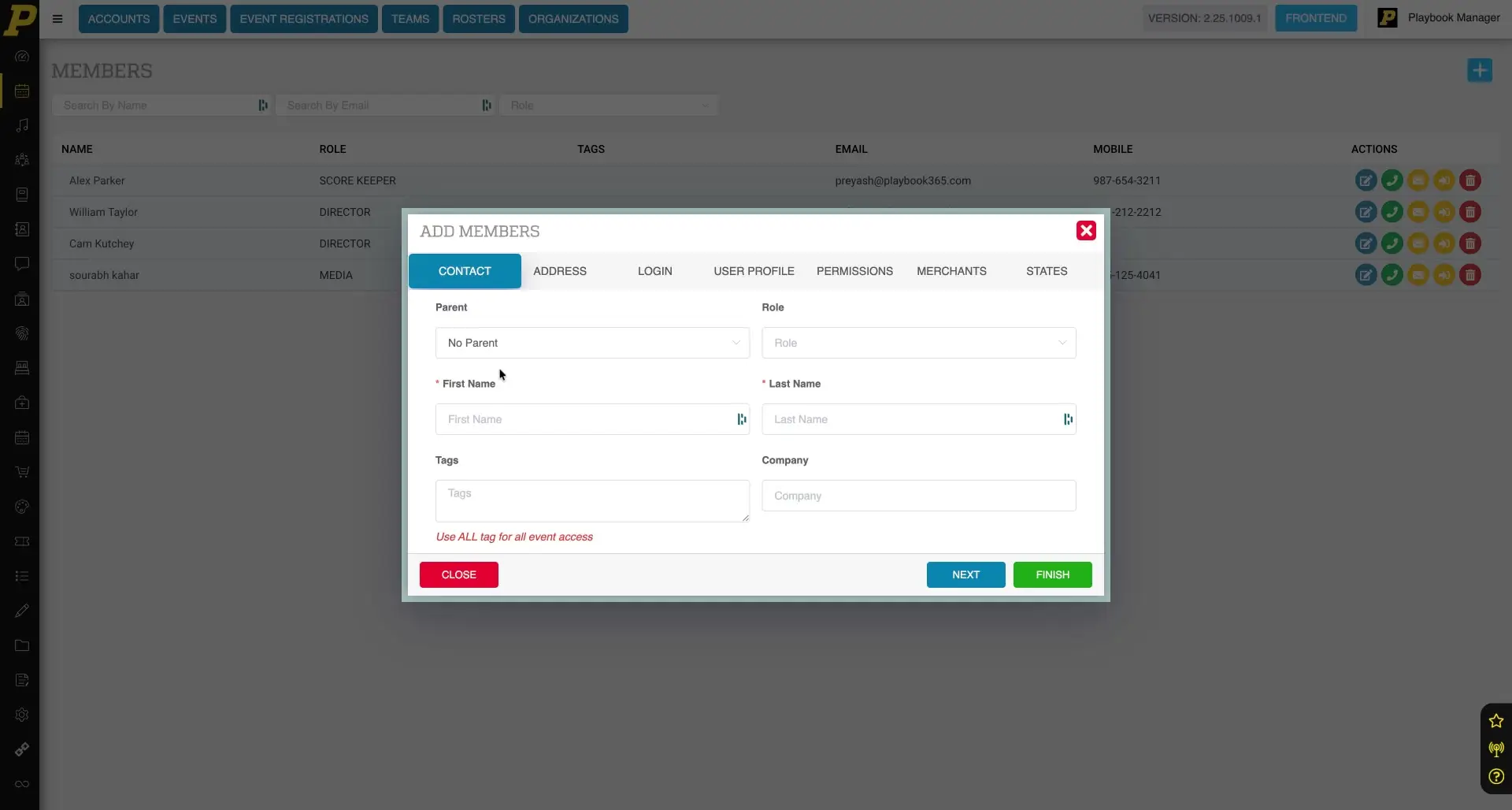
Enter Contact Details
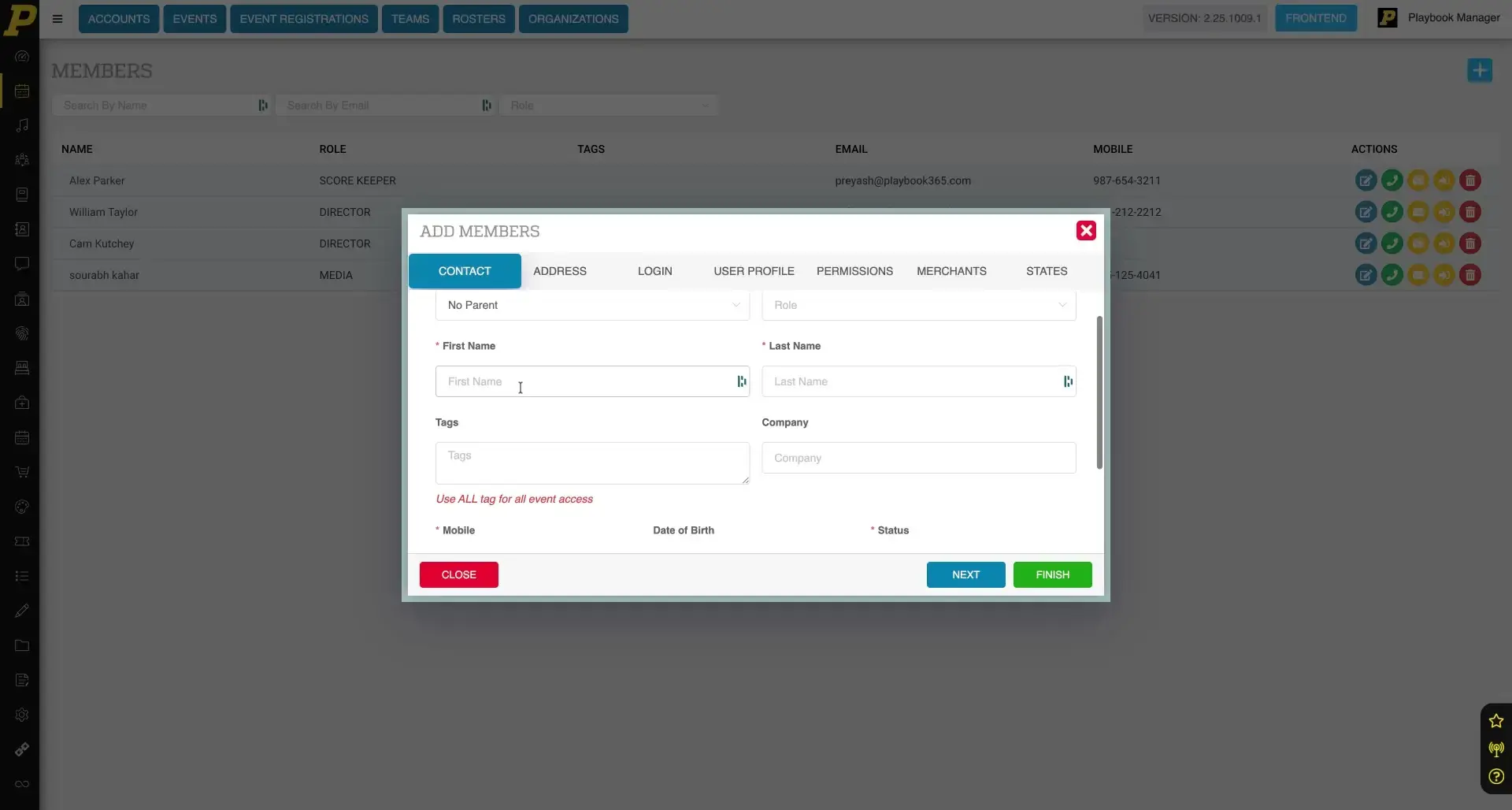
Complete the required fields in the "Add Members" form, such as first name, last name, and mobile number. This establishes the basic contact profile for the staff member.
Placeholder Information
Use placeholder information for required contact or address details if exact information is not immediately available. Update these details later.
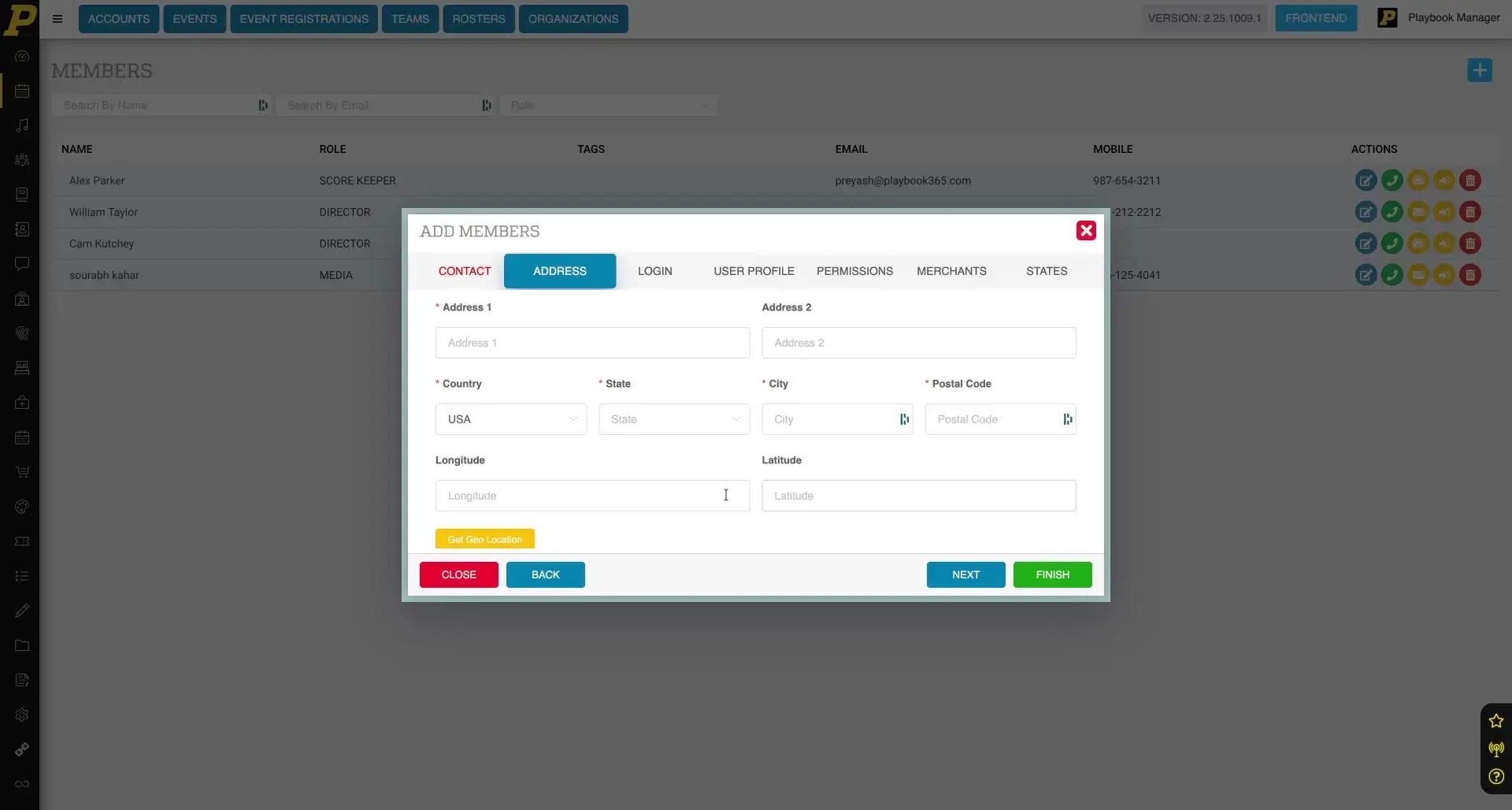
Enter Address Details
Go to the "Address" tab within the "Add Members" modal. Input the street address, country, state, city, and postal code to complete the geographical details for the staff member's profile.
Login and Permissions Setup
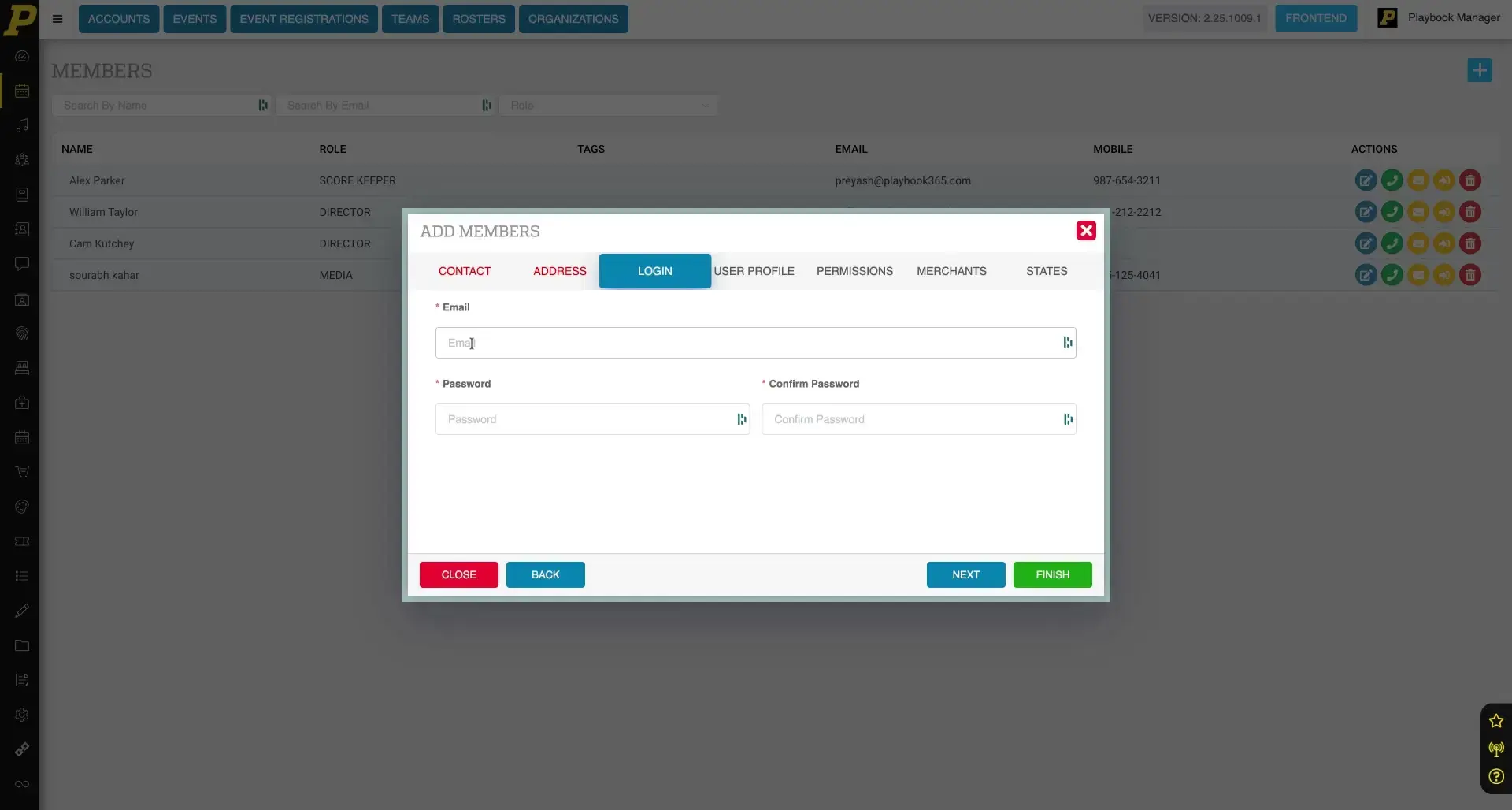
Set Login Credentials
Navigate to the "Login" tab. Enter the staff member's email address and create a password for their account. This establishes their access credentials for Playbook365.
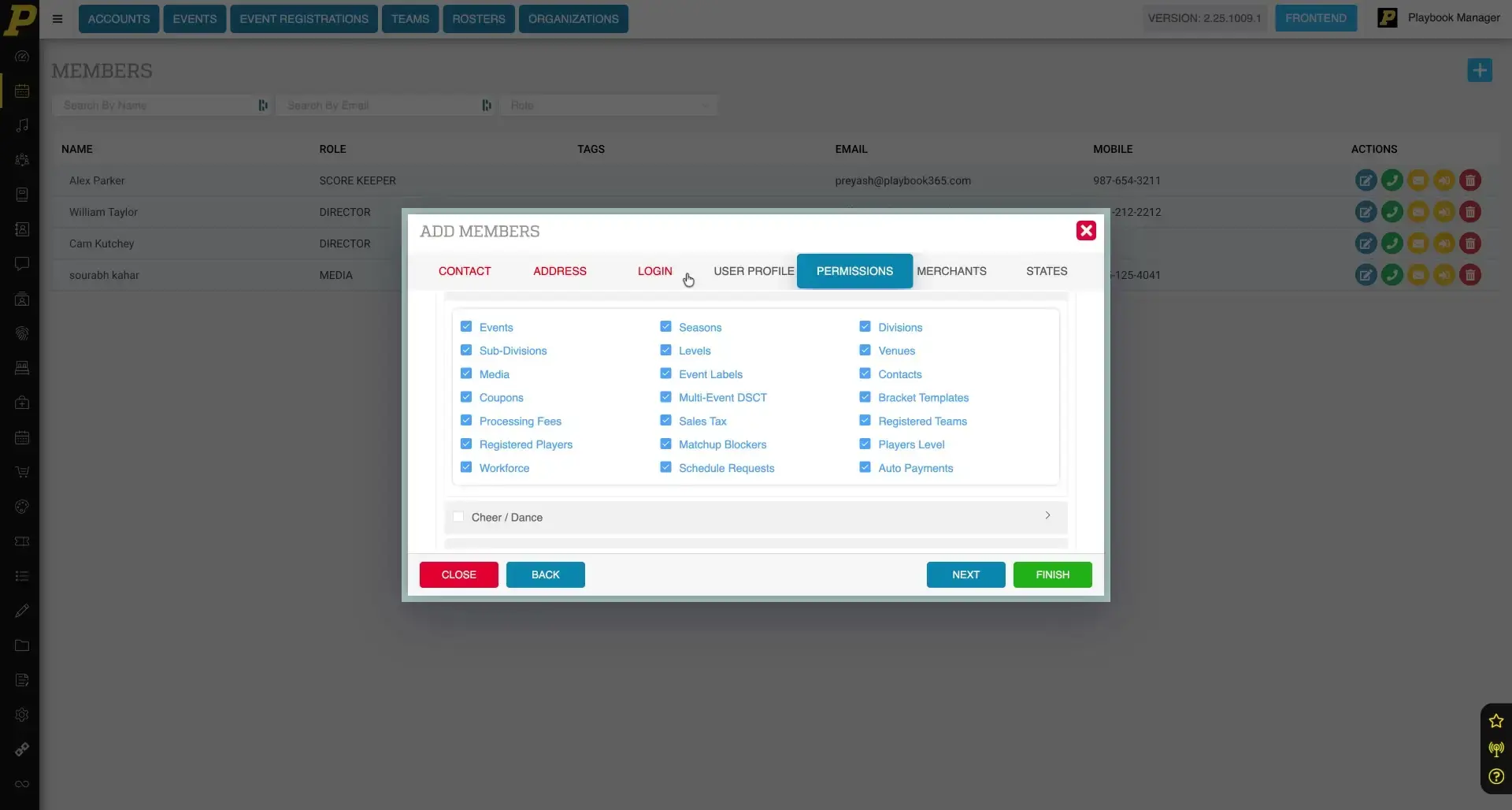
Assign Permissions
Go to the "Permissions" tab to define access rights and roles. Select or deselect boxes to grant or revoke specific permissions for various features, customizing what the staff member can view and manage.
Finalize Staff Member Creation
Save New Staff Member
Click "Finish" after completing all required information across the Contact, Address, Login, and Permissions tabs. This adds the new staff member to your Playbook365 system with their assigned credentials and permissions.
Edit Existing Staff Member
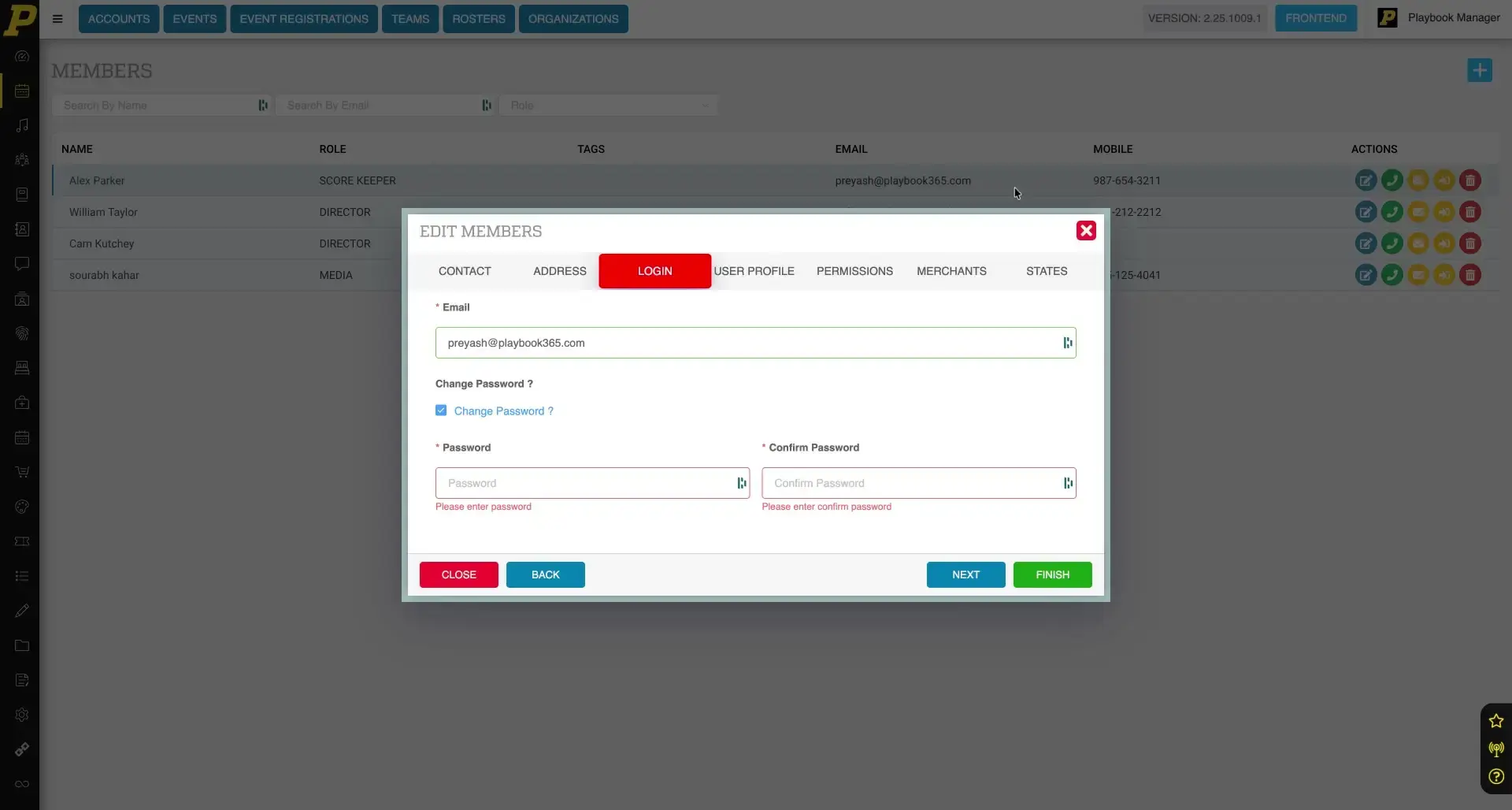
Hover over a staff member's entry in the staff list and click the "Edit" icon to modify their details or credentials. To change a password, go to the "Login" section, click "Change Password", enter a new password, and click "Finish". This allows you to update any aspect of a staff member's profile.