
Overview
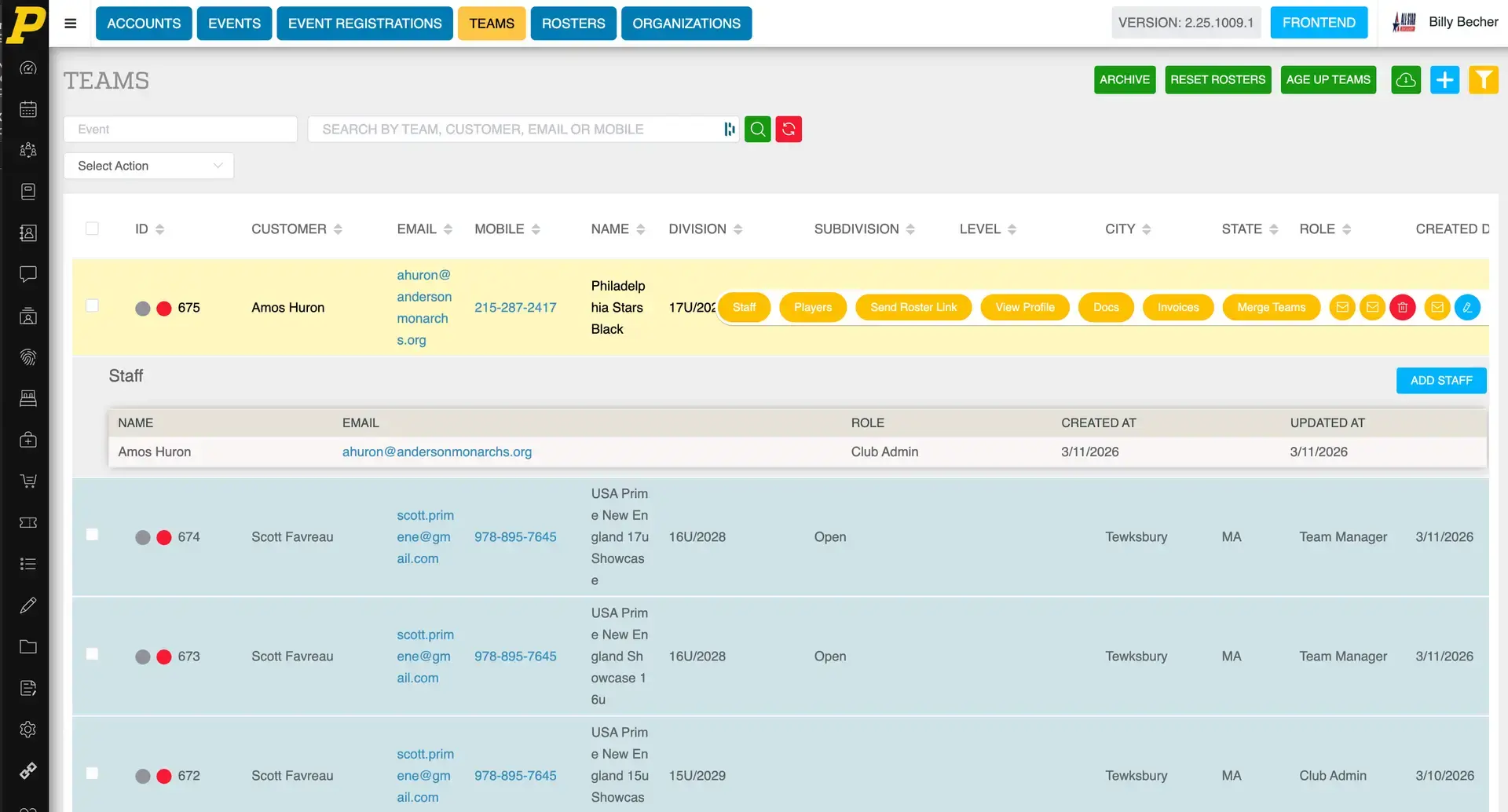
If a team needs to add a coach, manager, or other staff member, you can do this directly from the Teams section in the Playbook backend.
There are two ways to add staff to a team:
- Add staff directly from the Teams page
- Log in as the customer account and add staff from the team profile
Both methods will send the staff member an email invitation to join the team.
Method 1: Add Staff from the Teams Page
Step 1: Navigate to the Teams Section
- Click the Teams tab at the top of the system.
- Locate the team you want to update.
The Teams page displays information such as:
- Customer name
- Team name
- Division
- Subdivision
- Location
- Role
- Date created
Step 2: Open the Staff Manager
- Hover over the team row.
- Click Staff.
A dropdown menu will appear.
Step 3: Add Staff
- Click Add Staff.
- Enter the email address of the person you want to add.
If the person already has an account in the system, it will appear automatically.
Step 4: Select the Staff Role
Choose the appropriate role:
- Head Coach
- Assistant Coach
- Team Manager
- Club Admin
- Athletic Director
If the person should receive housing-related emails, check the Housing Contact box.
Step 5: Save
Click Save.
A success message will appear confirming the staff member has been added.
The new staff member will also receive an email invitation with instructions to log in.
Method 2: Add Staff by Logging in as the Customer
You can also add staff by accessing the team's account.
Step 1: Log in as the Customer
- Go to the Teams page.
- Hover over the team.
- Click Login.
This logs you in as the team owner.
Step 2: Open the Team Page
Once logged in:
- Navigate to the Team page.
- Locate the Team Staff section.
You will see:
- Existing coaches
- Staff members assigned to the team
Step 3: Add Team Staff
- Click the Blue + button (Add Team Staff).
- Enter the email address of the new staff member.
- Select the appropriate role.
Available roles include:
- Head Coach
- Assistant Coach
- Team Admin
- Club Admin
- Athletic Director
Important: Parents should not be added as team staff.
Step 4: Submit
Click Submit.
The new staff member will be added to the team and will receive an email invitation.
Staff Limits
Each team has limits on the number of coaches that can be assigned:
- 2 Head Coaches
- 6 Assistant Coaches
If you do not see certain role options, it may be because the team has reached the maximum number allowed.
Email Invitation
When a staff member is added:
- They receive an email invitation
- The email includes the team name, division, and event
- They can log in or create an account using the link provided